Data sources
Info
Who can use this feature?
- This feature is available for all users
Why add data sources
We've trained AI on your own data. By adding your own data sources, you can train AI assistant about your specific products, services, and business policies.
This helps the AI give more accurate and personalized responses to your customers.
Type of data sources
There are two main types of data sources:
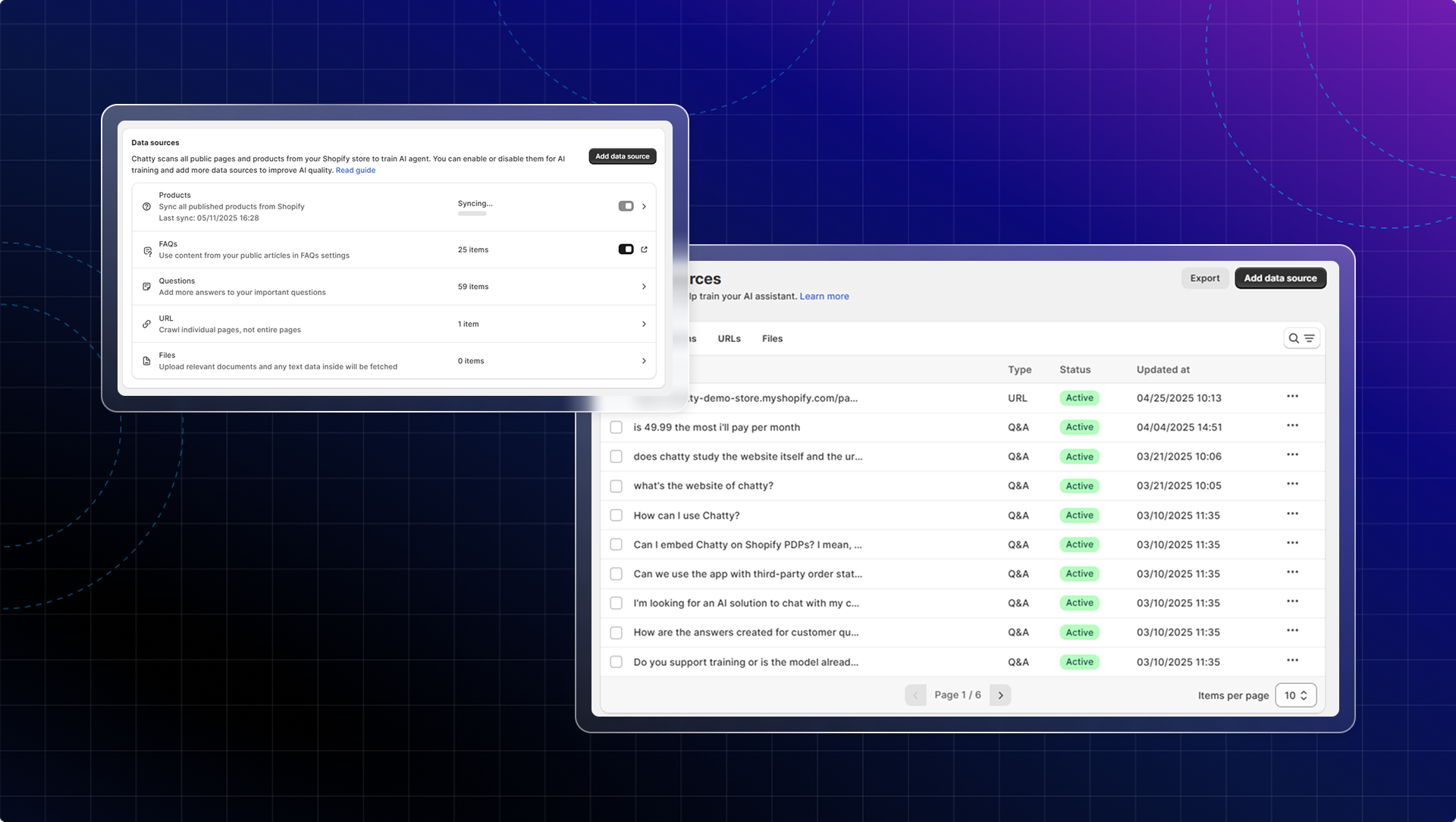
- Store data: Information already available in your Shopify store that can be automatically synced
- Custom data source: Additional information you manually add to enhance AI knowledge
- Store data.png
- Custom data.png
What product information is synced to Chatty?
Available product information that is synced to Chatty:
- Specific product details (name, descriptions, images, vendor, type)
- Product variants (colors, sizes, styles)
- Price ranges and comparisons
- Product features and specifications
- Collection
- Product inventory
- Product metafields
Your product information will be updated daily at 12:00 AM PST.
What types of product metafields are supported?
We support all metafields in this list Shopify documentation on metafield types (opens in a new tab), except:
- Reference type:
- collection_reference
- customer_reference
- file_reference
- metaobject_reference
- mixed_reference
- page_reference
- product_reference
- product_taxonomy_value_reference
- variant_reference
- Other:
- Link
- URL
Some main Shopify pages will be auto-synced when you activate AI. What are they?
- Shipping policy
- Return polity
- Privacy policy
- Terms of service
- FAQ
- Contact us
- About us
If your Shopify pages are not auto-synced to data sources, go to Data sources → Click Sync store pages or re-activate AI.
How to add data sources
Go to AI assistant tab
Sync store data
Turn on auto-sync store data: products, discounts, markets, and FAQs.
Add custom data sources
- Question: You can add a single question or multiple questions at once.
- URL: Add URL/website links
- File: Add files (.JSON, .TXT, .PDF, .CSV) to data source. Maximum file size is 2MB per files. Images and PDFs with tables are not yet supported.
Learn more about what goes in each data source
After building your data source, you can go to Test to test your AI assistant.
Info
If you haven't activated AI, you can still test AI assistant with data source you added.
You can edit or delete it from data source.
How to manage data sources
0. Bulk management
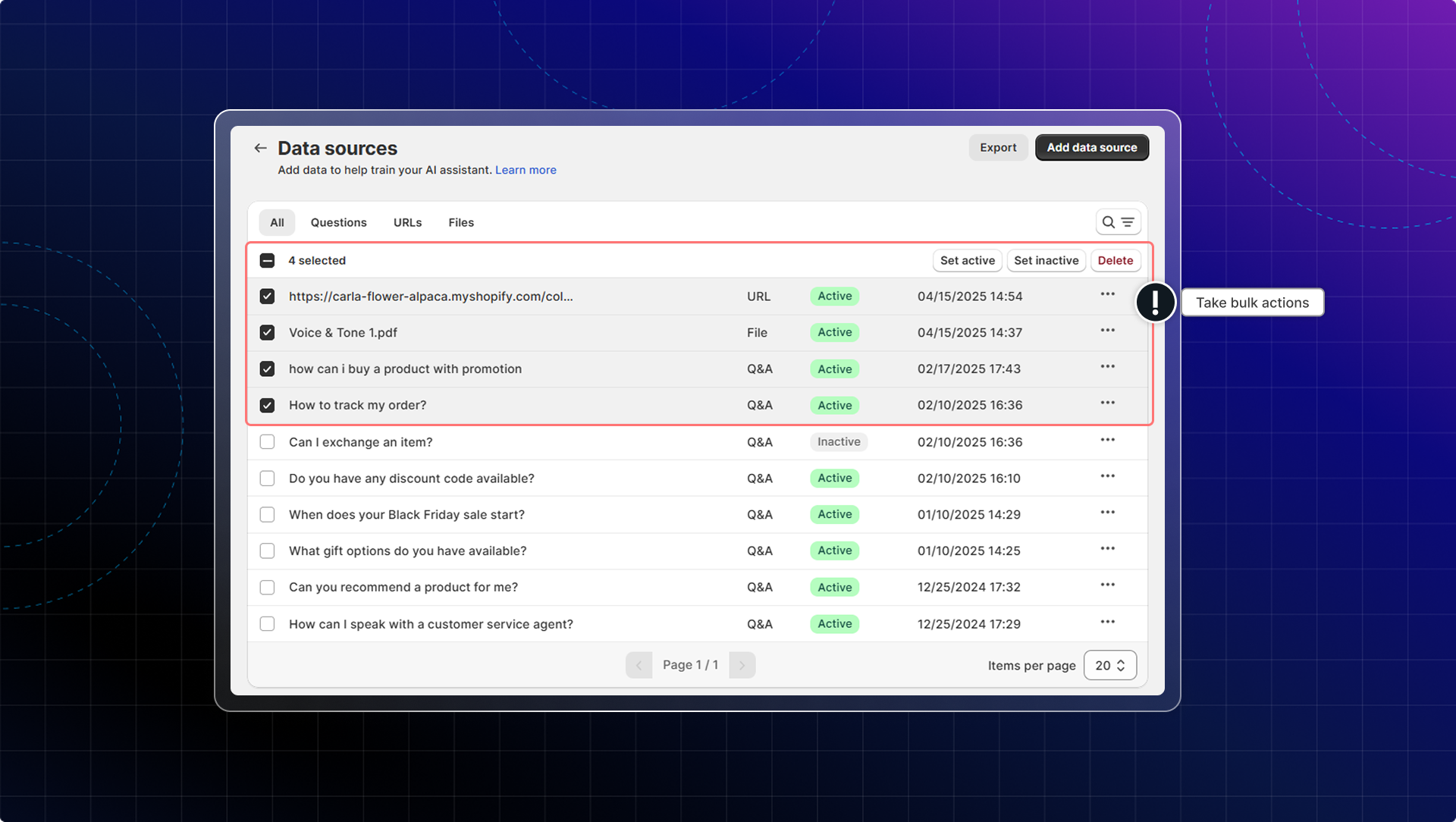
In "Data sources", click on any data type to go to data source list.
You can select multiple data sources and take bulk actions: set as active, set as inactive, or delete.
1. FAQs
You will manage FAQs in your FAQs list. All FAQs from your list will be added to data source.
Click FAQs → You'll be redirected to Manage FAQs page
2. Products
After syncing all products, you can manage which products are used to train AI.
- Click Products tab
- Go to Product list
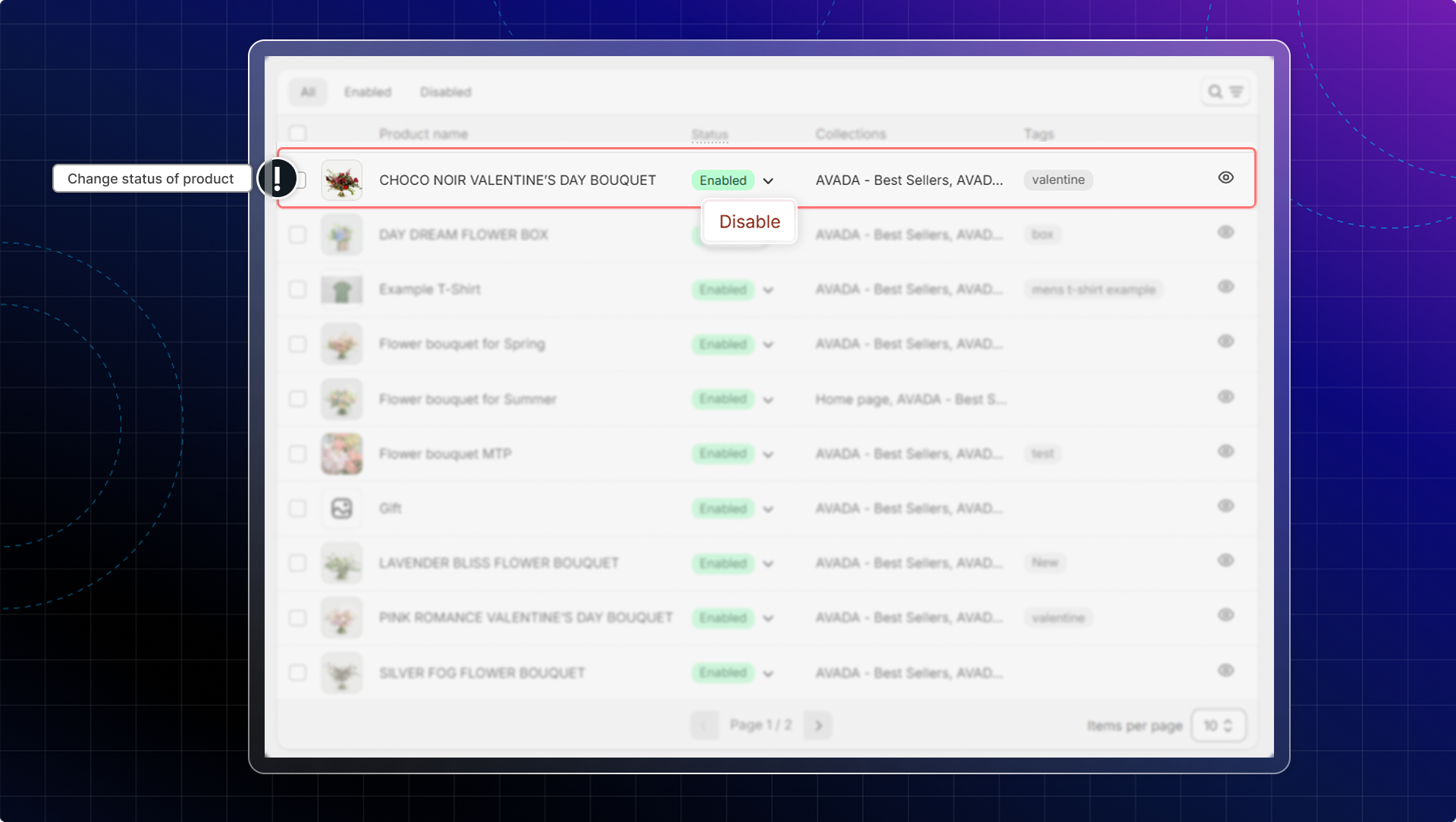
- Change status of each product
Enabled/Disabledto show/hide it in the training data.
Info
Currently, Chatty only works with published products that are in stock. Product subscriptions are not supported at this time.
FAQs for products
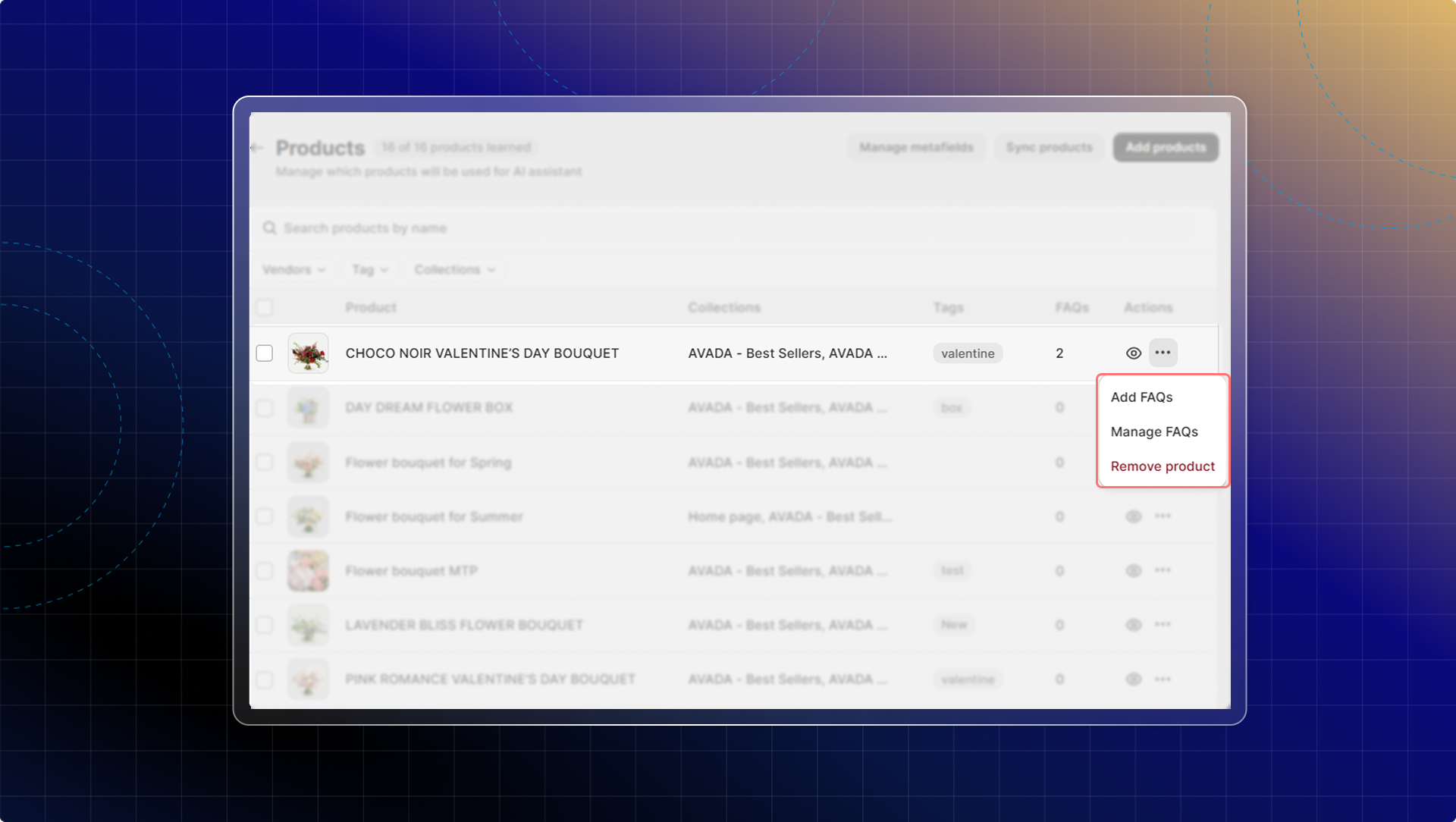
You can also add specific FAQs for each product. This helps AI answer
- Click Products tab
- Go to Product list
- Click Add FAQs or Manage FAQs
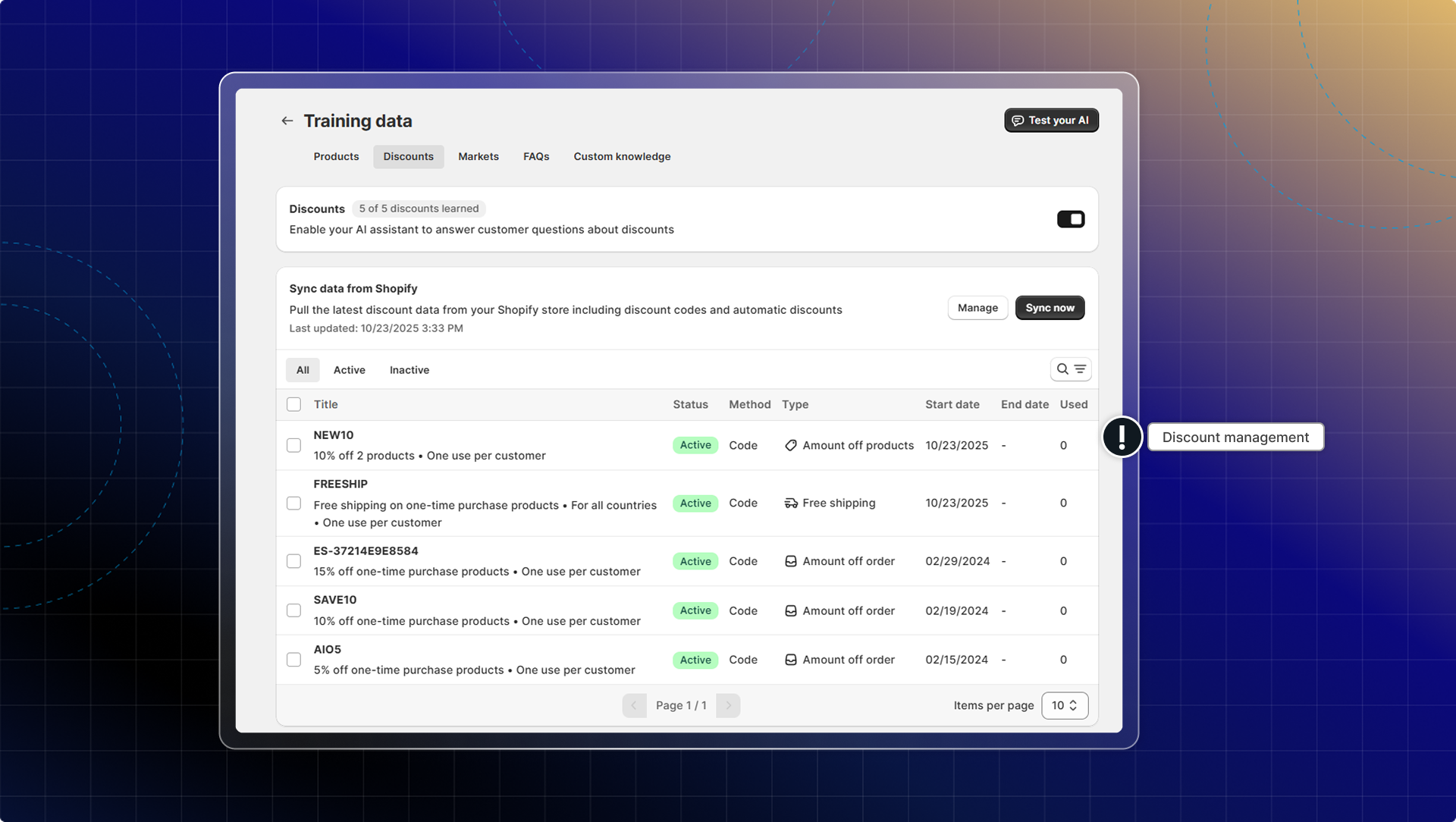
3. Discounts
All discounts available in your Shopify store are synced to AI training data. (both active & inactive)
If you don't see you discounts, click Sync now to update the latest discount from your store.
3. Smart recommendations
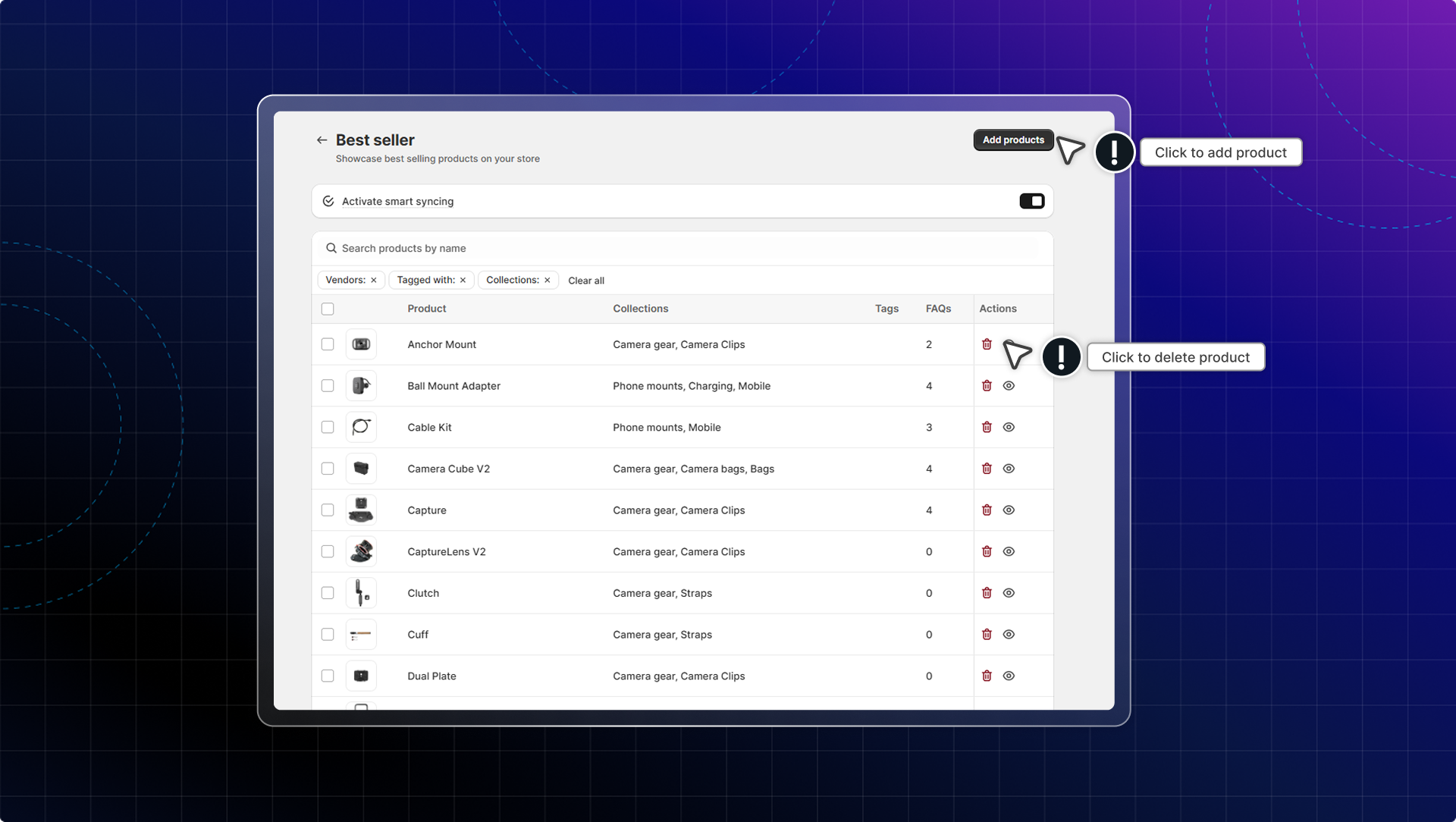
You can manage which products AI recommends as best sellers and new arrivals.
Chatty provides two pre-built collections that AI uses for recommendations:
- Bestseller: Products AI suggests when customers ask, "What's popular?" or "What do others buy?"
- New arrival: Products AI suggests when customers ask, "What's new?" or "Any new items?"
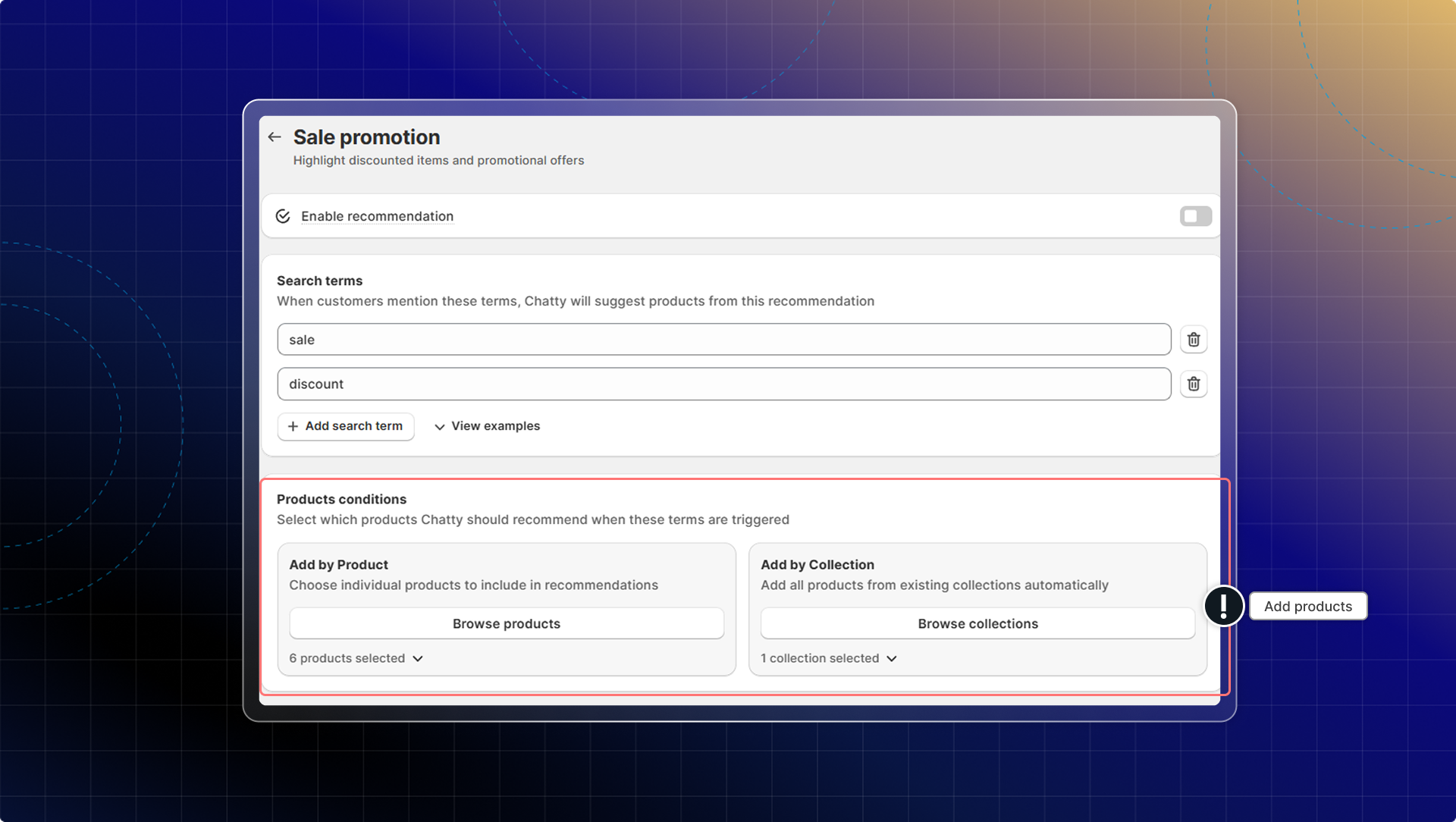
- Sales promotion: Products AI suggests when customers ask about "discounts", "deals", or "what's on sale?"
- Special occasions: Products AI suggests when customers ask about "gifts", "birthday presents", or mention special events
What is smart syncing (auto)?
By default, Chatty automatically does the following for Best sellers and New arrivals:
- Select top 20 products based on sales from the last 30 days
- Update the list daily
Info
You can combine auto-selection with your manual choices by:
- Activate smart sync
- Add/remove manually products from the list
This means: Your recommendation will be updated daily with new products while remaining your manual choices. (maximum 20 products/collection)
How to set up smart recommendations:
- Click Smart recommendations
- Select a collection to manage
- Set up product list and keywords (custom recommendations)
- Click Add product to add products
- Click Delete to remove products from list
- Click Save and activate the recommendation
4. Questions
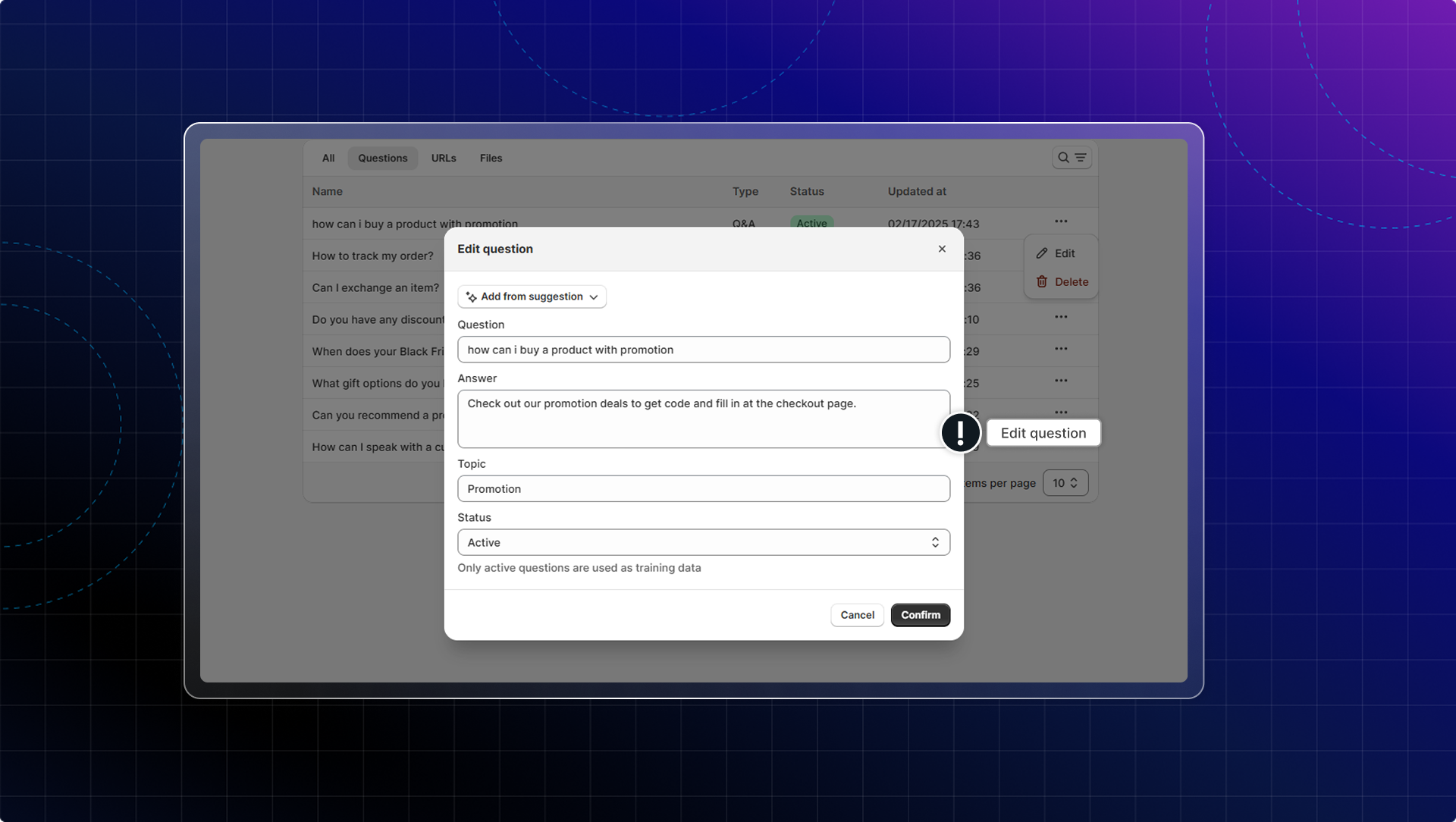
You can delete, edit details, or change the status Active/Inactive of each question.
- Click Products tab
- Go to Data source list
- Edit question details
You can export all questions (or active questions) in a CSV file.
5. URL
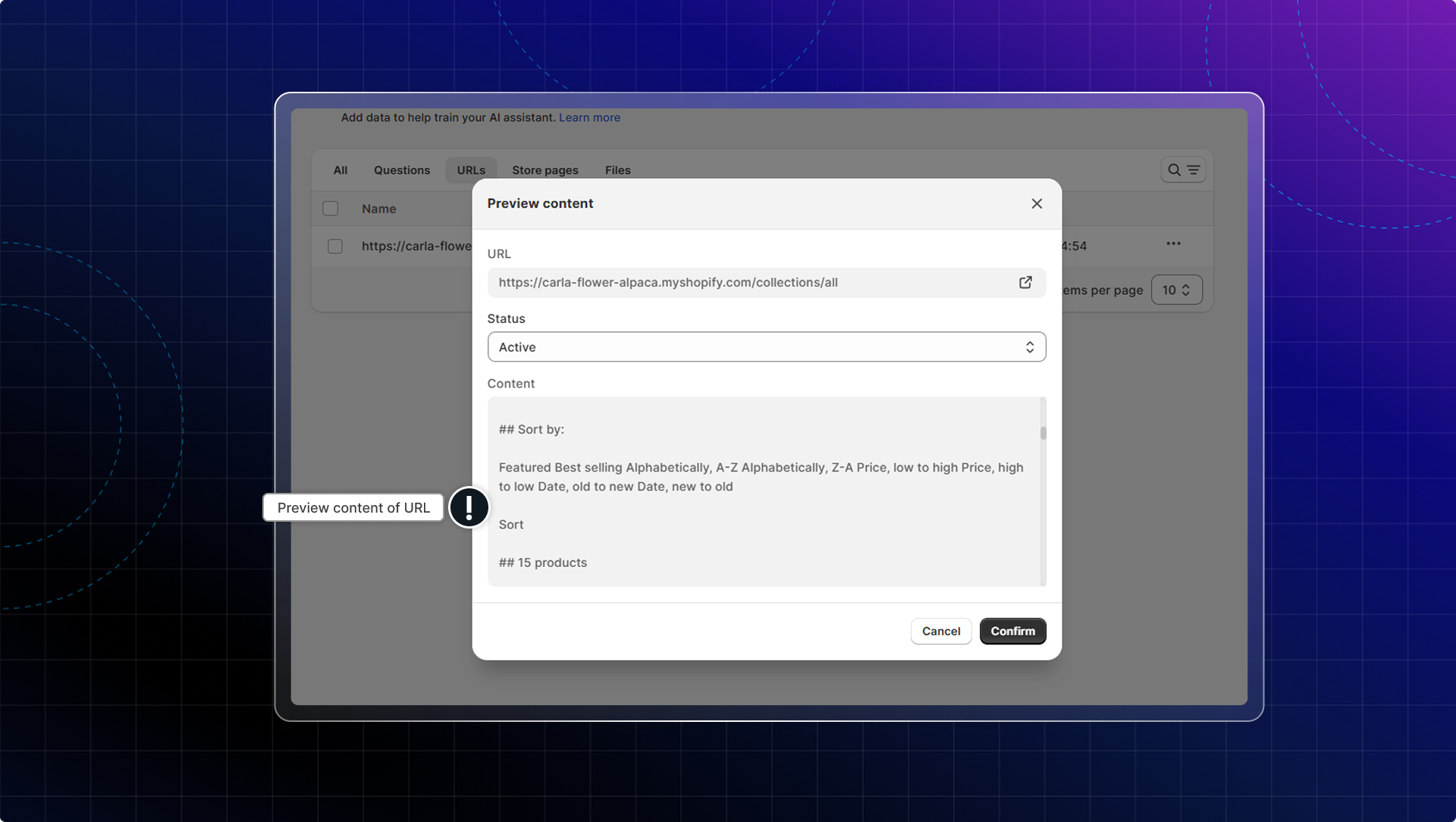
You can edit or change the status Active/Inactive of each URL.
If there's any content change in the URL, you can click Resync to update to the latest version.
When you click the link, you can preview the page in plain text mode.
6. Files
You can edit or change the status Active/Inactive of each file.