Order tracking
Info
Who can use this feature?
- This feature is available for all users
What is order tracking?
Order tracking is a self-service feature that lets customers check their order status and shipment progress directly through your chatbox.
Instead of emailing you or calling customer service, customers can instantly get updates on their orders using either order number or tracking number.
How to set up order tracking
Enable order tracking in your chatbox
- Go to Chatbox
- In the General tab, turn on Order tracking in the "Blocks" section
- Select your preferred tracking method from the options below
Choose your tracking method
- Go to Settings
- Go to Intergrations
- In Order tracking, click Manage
- Select your preferred tracking method
Click Save
Compare tracking methods
| Tracking methods | Best for | How it works | |
|---|---|---|---|
| Default tracking | Stores use major carriers (DHL, FedEx, UPS) | Redirect customers directly to carrier's official tracking page when they click tracking link | |
| Custom tracking | Stores use local carriers or private shipping services | Redirect customers directly to carrier's custom tracking URL (if no link is provided during fulfillment) | |
| 17TRACK | Stores want to keep customers on-site (not direct to shipping carrier's tracking page) | Embed 17TRACK's tracking page directly on your store and lett customers track orders without leaving your website |
How to track orders on website?
On your website
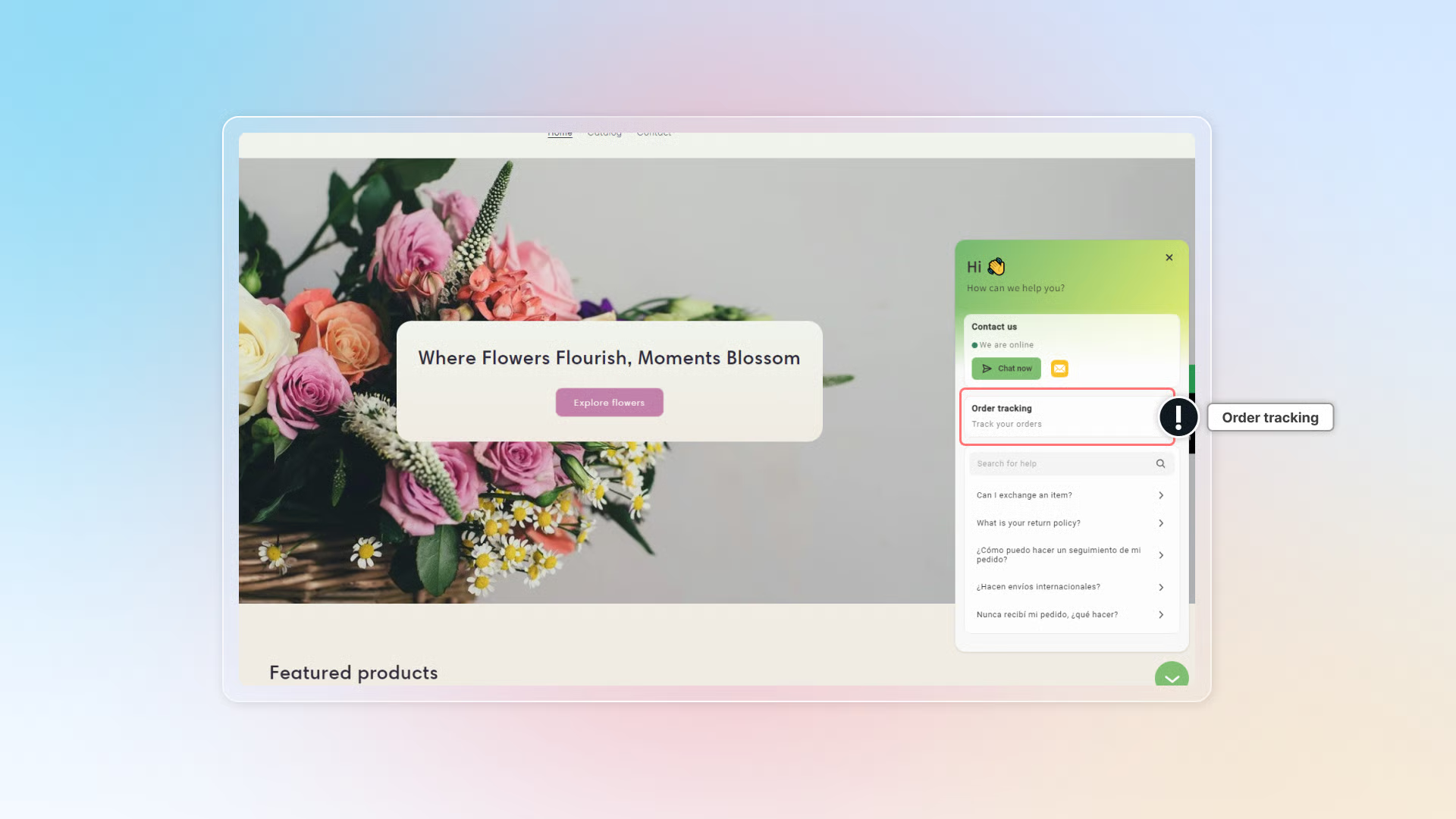
- Click to open Chatbox. Click Order tracking.
- You can use order number or tracking number to track orders. Then click Track to check your status.
- With order number, insert email or phone number.
- With tracking number, insert your tracking number.
In conversation with AI
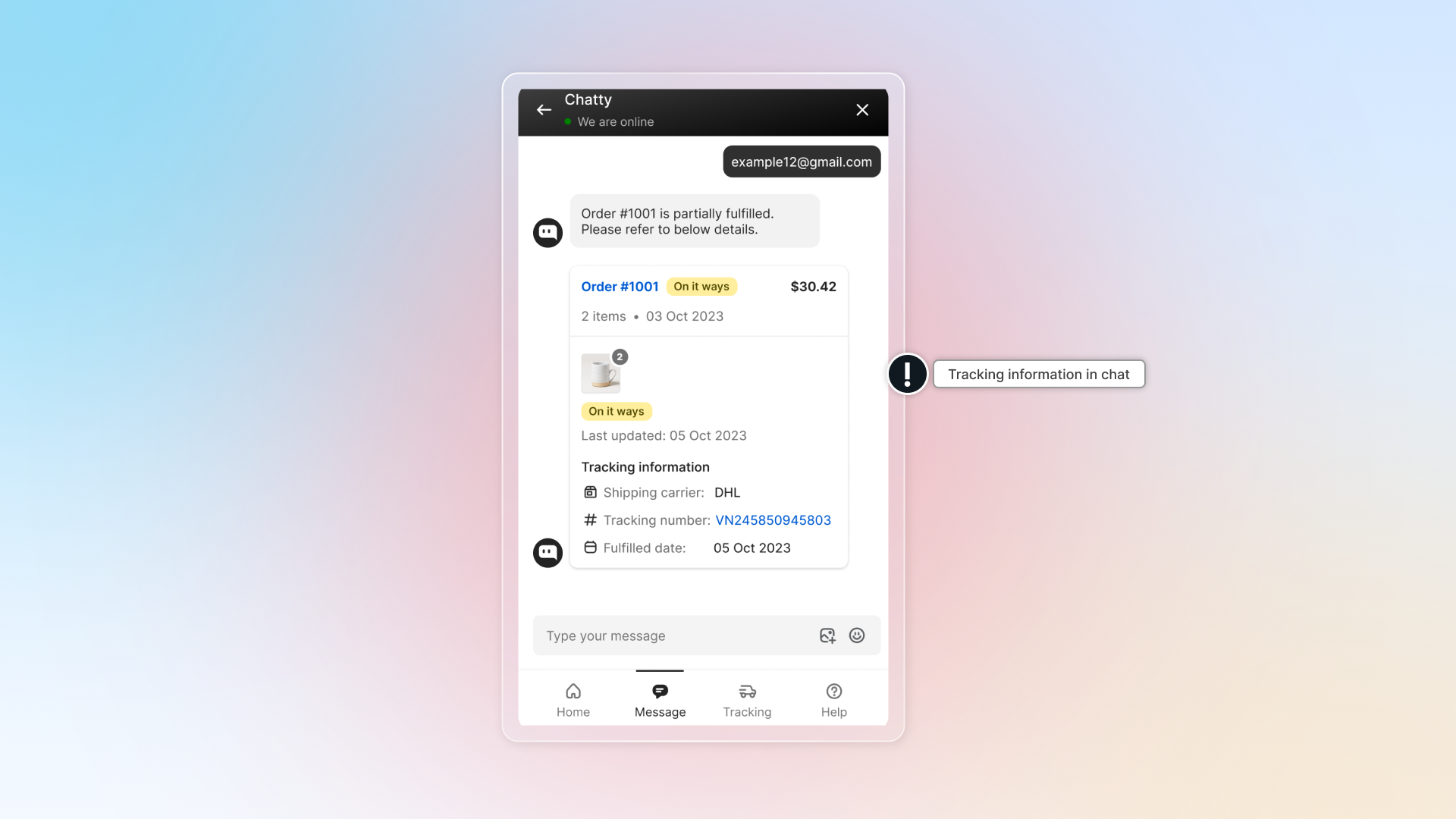
- During conversation with AI, customer can ask for order tracking
- Provide AI your tracking information
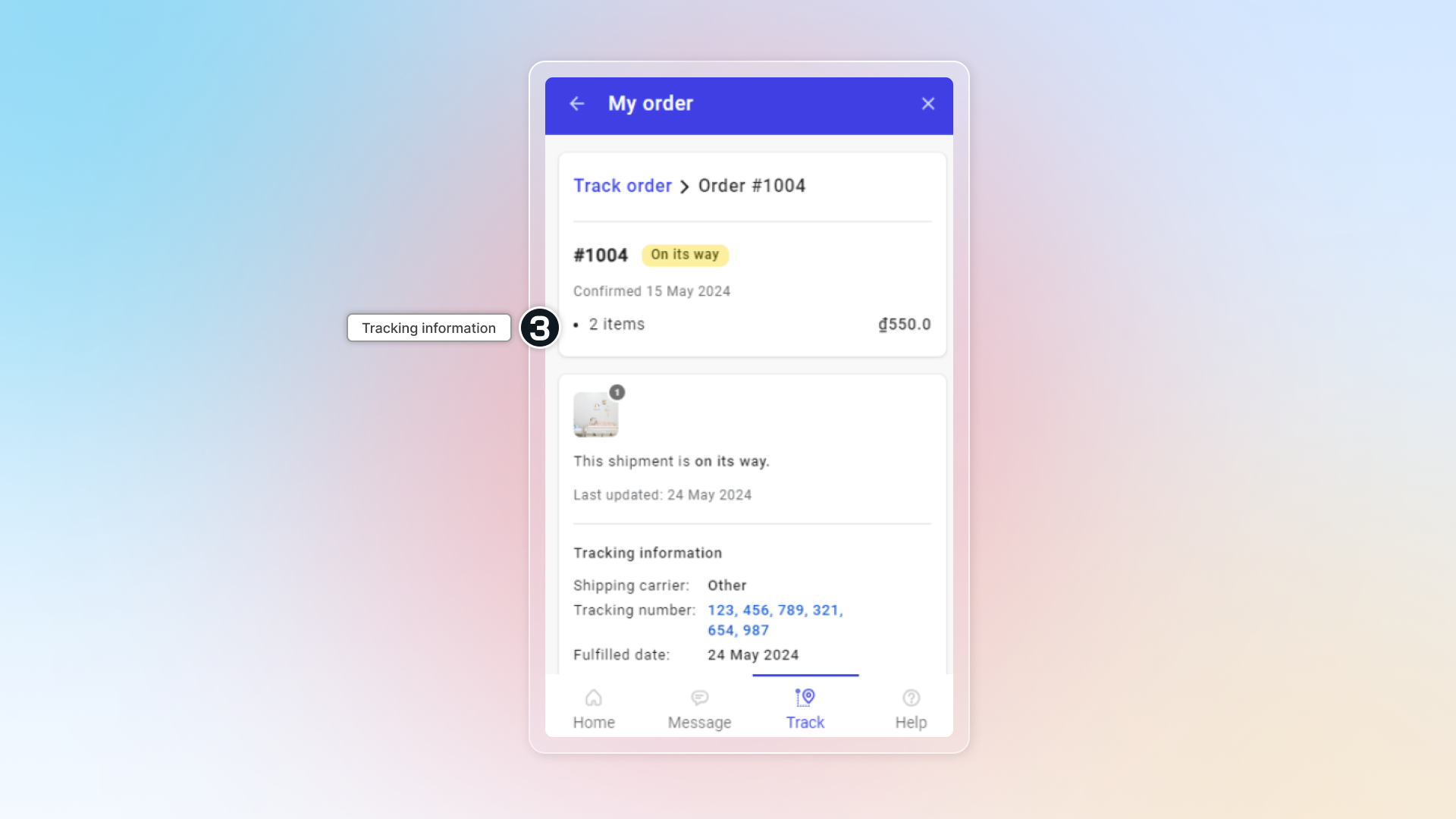
What customers see in tracking information
:a: General order information
- Order number
- Order status (varies by product type)
- Digital orders: Confirmed or Completed
- Physical orders: Confirmed, On its way, or Delivered
- Confirmation date
- Total items
- Total amount
:b: Tracking information
- Product images and quantities
- Shipment status and update date
- For shipped orders: Confirmed → On its way/Attempted delivery → Delivered
- For digital orders: Confirmed → Completed
- Tracking details (for fulfilled/partially fulfilled items):
- Shipping carrier (shows "N/A" if not available)
- Tracking number (shows "N/A" if not available)
- Fulfillment date
What does it mean to fulfill an order?
To fulfill an order means to complete the process of preparing and delivering the items that a customer has purchased. This typically involves several steps:
- Picking and Packaging: Selecting the items from your inventory and packaging them for shipment.
- Labeling: Creating and attaching shipping labels to the packages.
- Shipping: Sending the packages to the customer using a shipping carrier.
In Shopify, you can fulfill orders manually or automatically, depending on your settings. Once an order is fulfilled, its status changes to "Fulfilled" in your Shopify admin.
Why is my order status not updating correctly on the carrier's website?
- For Shopify-supported carriers1: Full tracking details update automatically in real-time
- For non-supported carriers: Only basic status updates show (Confirmed, On its way, Delivered)
Check if your carrier is supported by Shopify (opens in a new tab). If not, consider using Custom tracking method to link directly to your carrier's tracking page.
Footnotes
-
Shipping carriers that integrate with Shopify ↩