Notifications
Info
Who can use this feature?
- This feature is available for all users
Setting notifications for messages helps you take care of all customers. No missing messages.
There are 3 types of notification
- Web push notifications: Send push notifications to your web browser. Make sure that your allow notifications on your device.
- Sound notifications (advanced): Web browser will play sound for new messages (only from end users' web browser, when you send them messages)
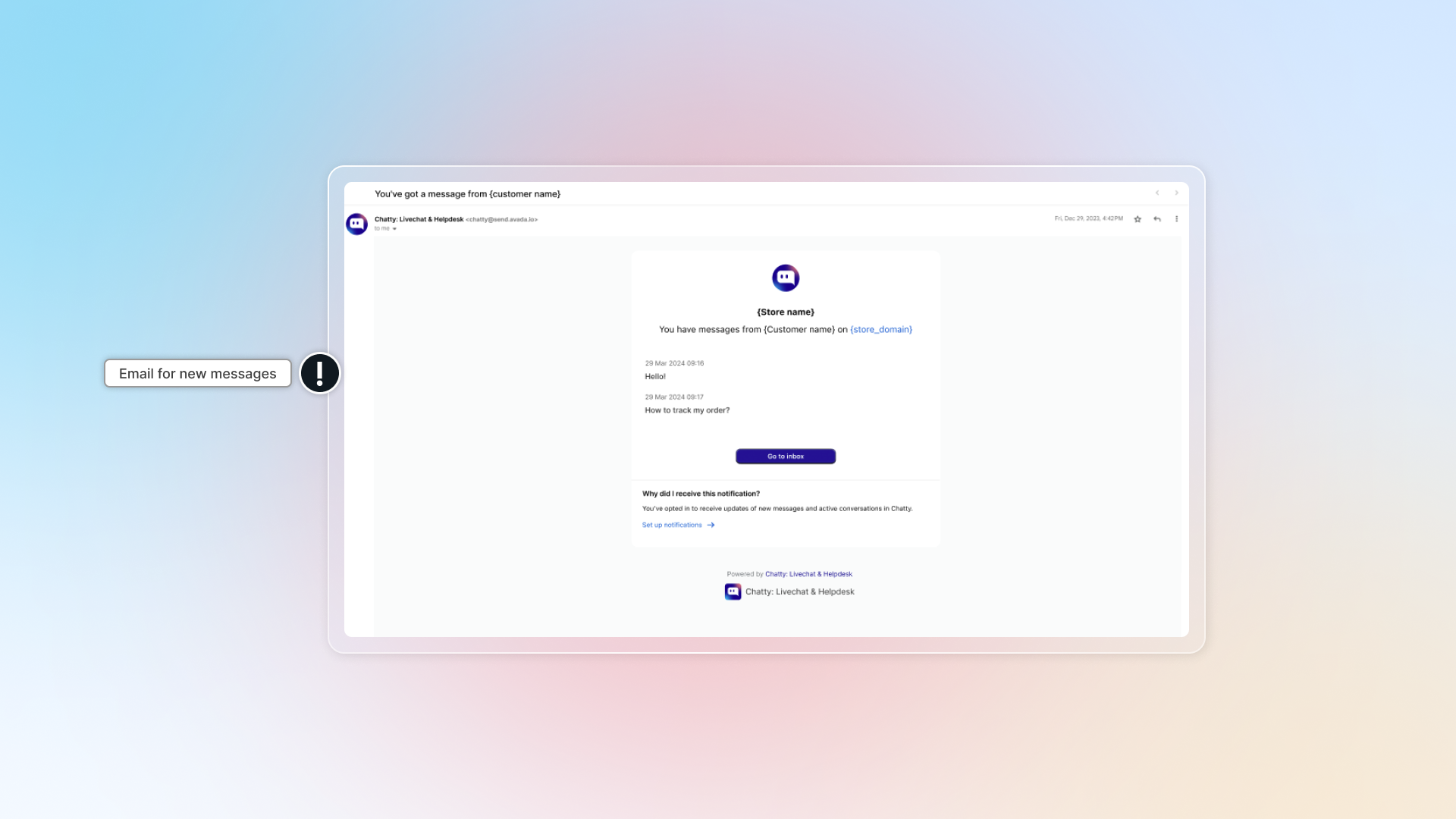
- Email notifications: Send emails for new messages
- Mobile notfication: Download Chatty mobile app for notifications on mobiles
:bell: Web push notifications
You need to turn on notifications
Turn on Notifications in app
Go to Notifications -> In Notify me when, select "Web" for options you want to get notifications:
- There is a conversation assigned to me
- There is a new message from unassigned conversations
- There is a new message from conversations assigned to me
- There is a new message from AI assistant conversations
- There are no replies in 15 minutes from conversations assigned to me
Turn on Notifications on web browser
Currently, we support web push notifications on these web browsers: Chrome, Microsoft Edge, Firefox, Opera, and Samsung Internet.
Read detailed instructions for each web browser below.
Info
If you are using different web browser which is not in the list, contact our support team through live chat in app.
Turn on Notifications on your device
You need to enable notifications for that web browser on your device (Windows, MacOS, Mobile) so that you can receive push notifications.
Windows
- Go to Settings -> System -> Notifications (or Notifications & actions)
- In "Get notifications from these senders", find your web browser
- Turn on notifications
MacOS
- Click Apple menu
 -> Click Notifications
  in the sidebar
 - In Application Notifications, find your web browser
- Turn on notifications
Mobile
To get notifications for new messages on mobiles, download Chatty app.
Turn on Notifications on web browser
Chrome
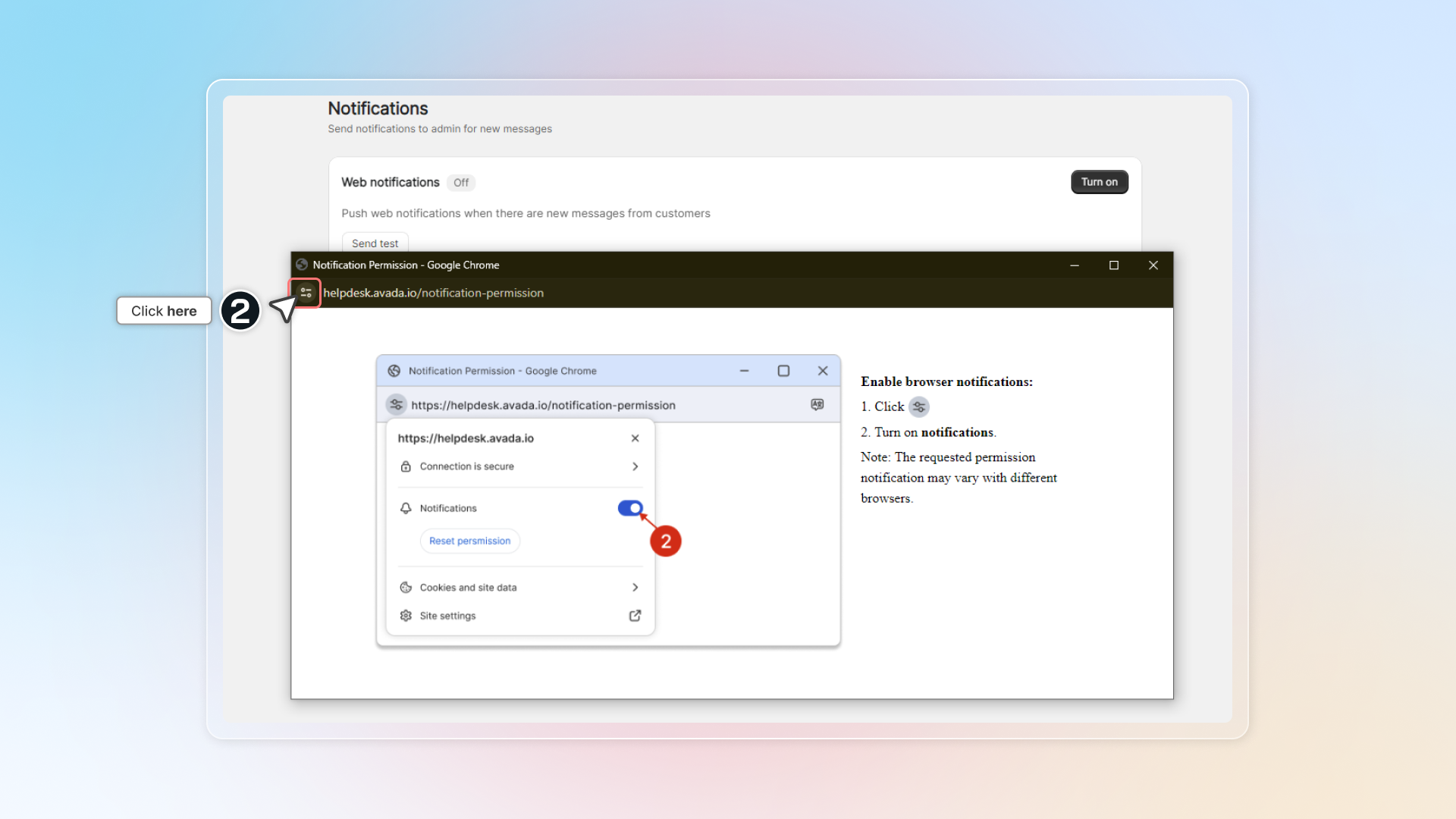
In Web push, click Manage
You might see a new window is opened. Click
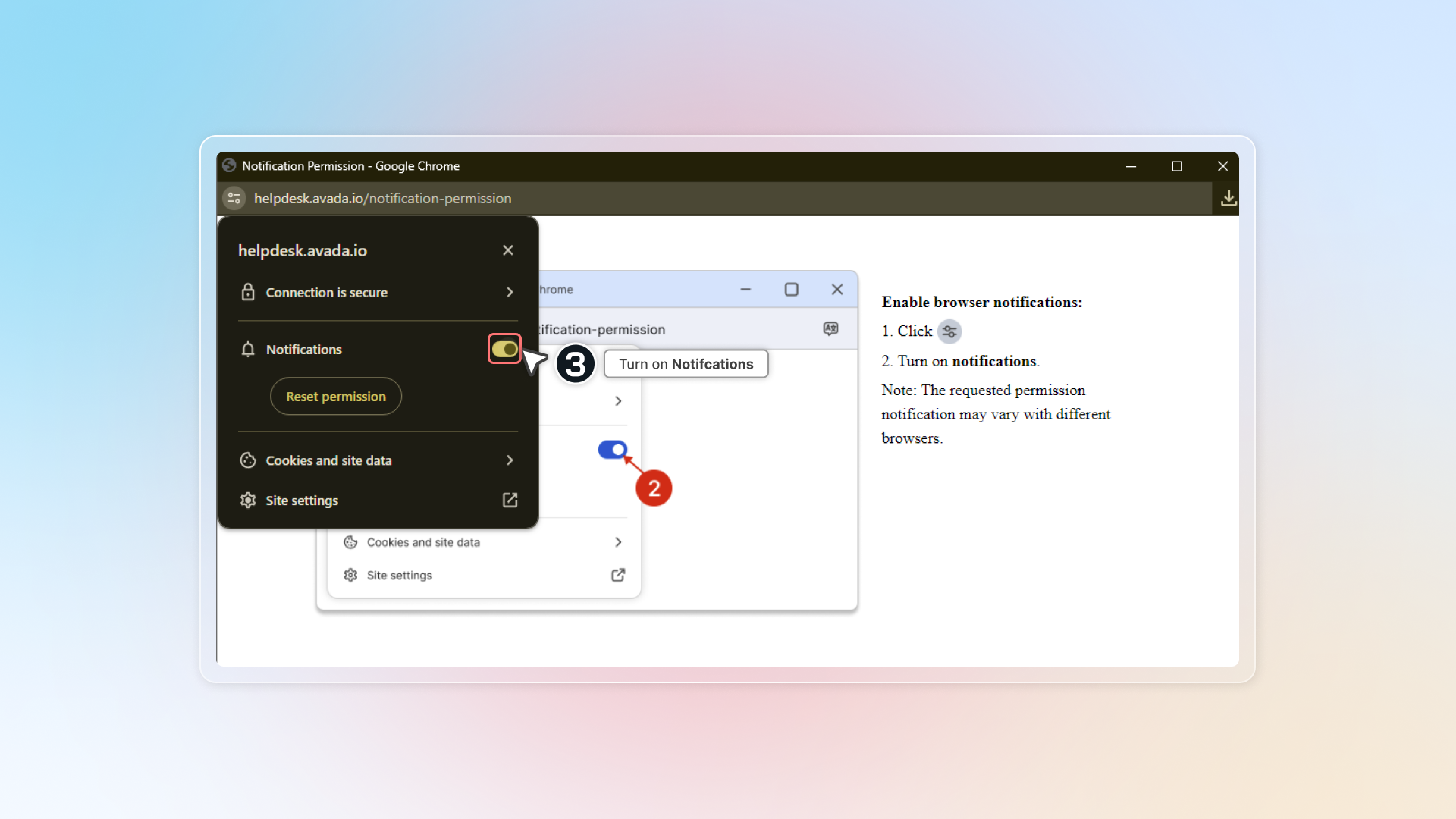
Turn on Notifications
Get back to Chatty and click to Save.
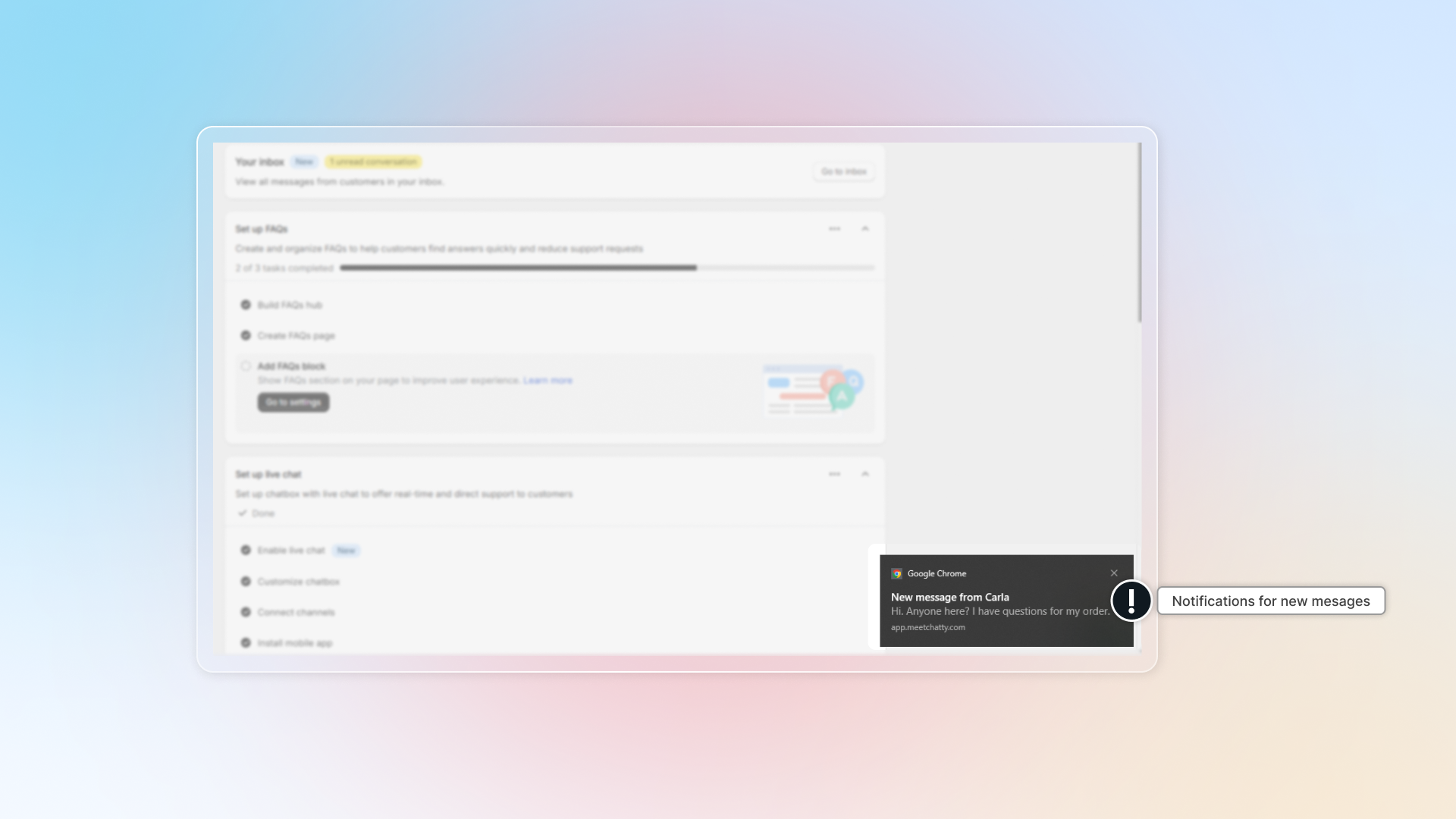
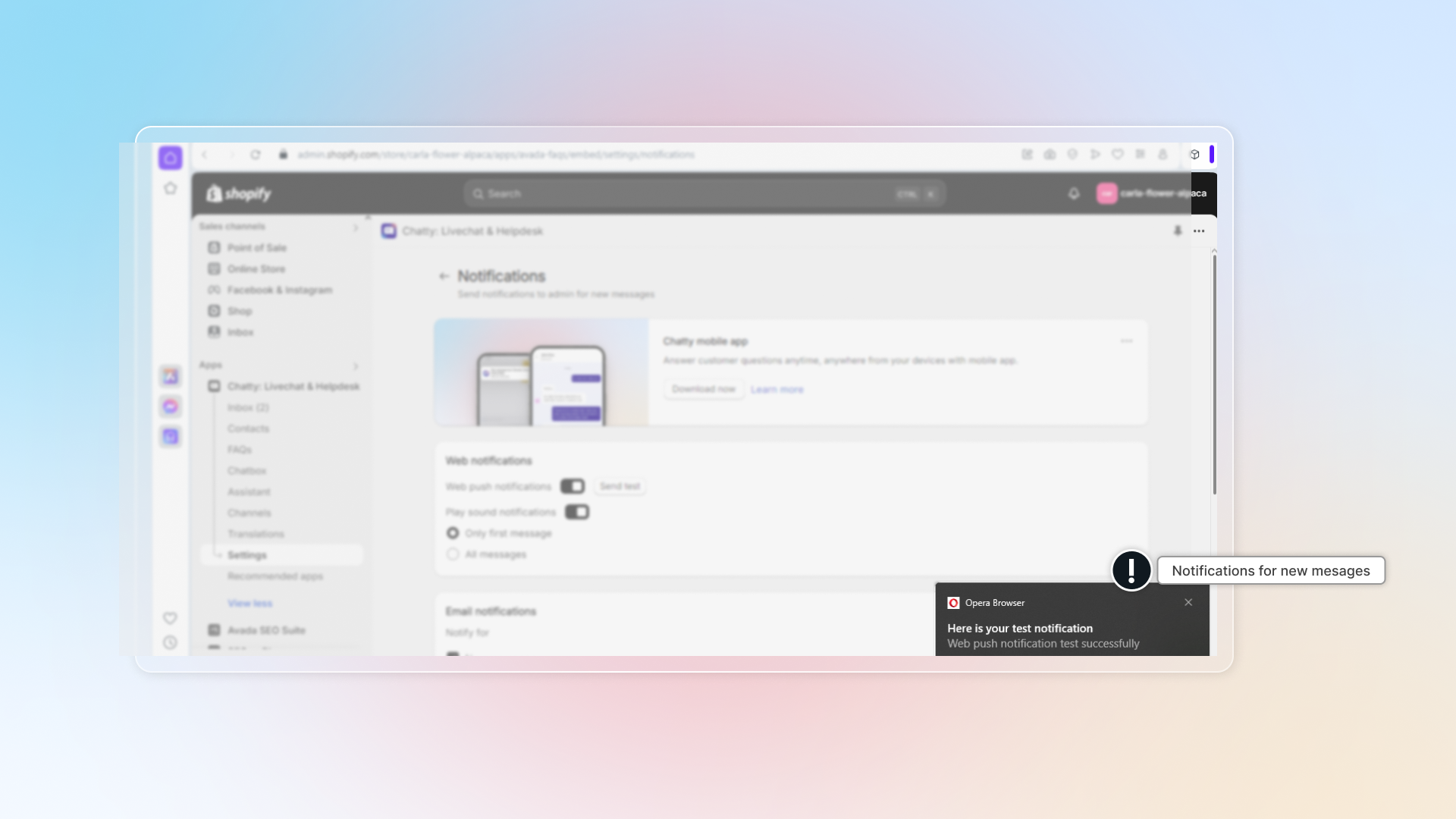
Click Send test to check.
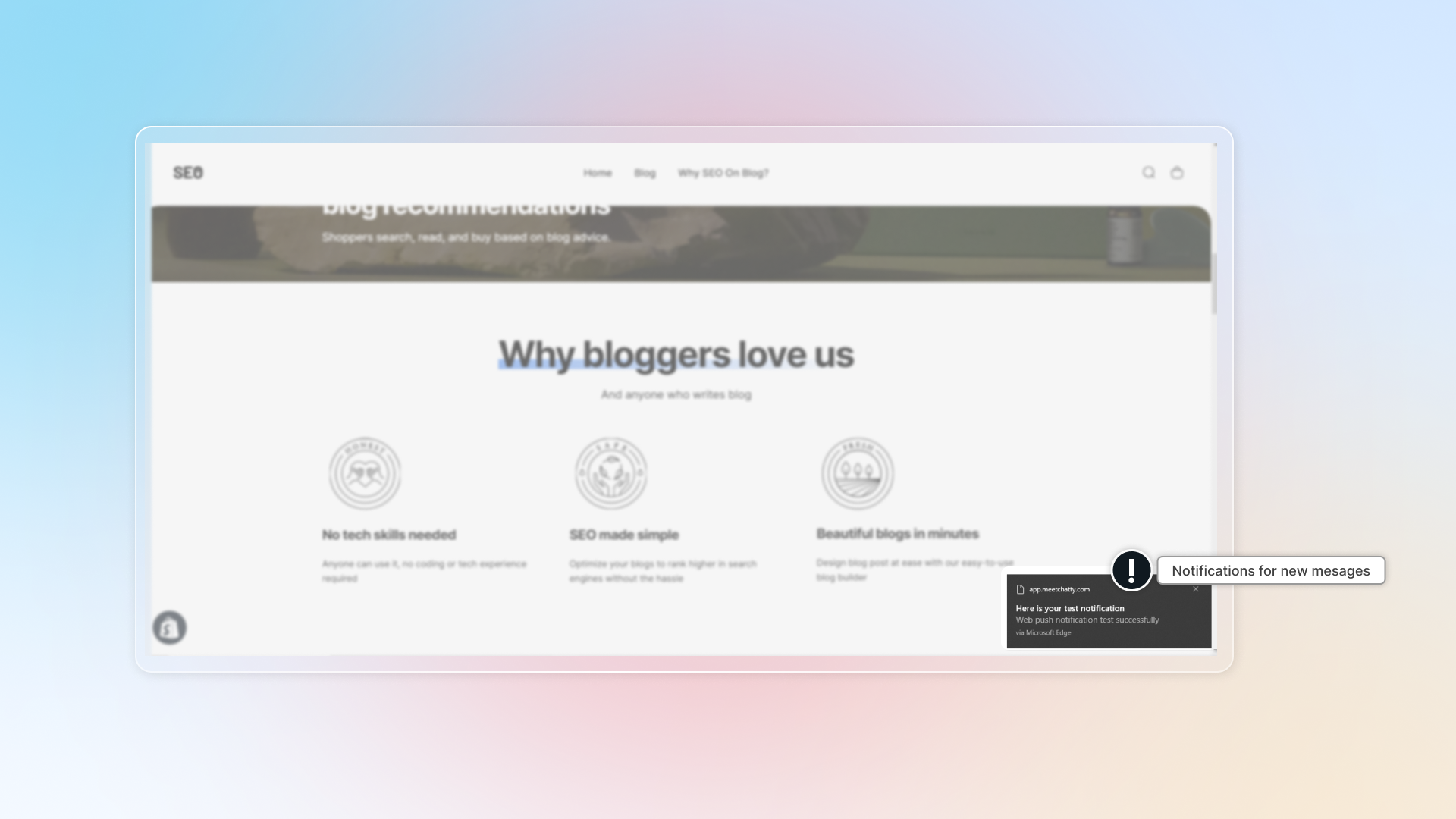
Microsoft Edge
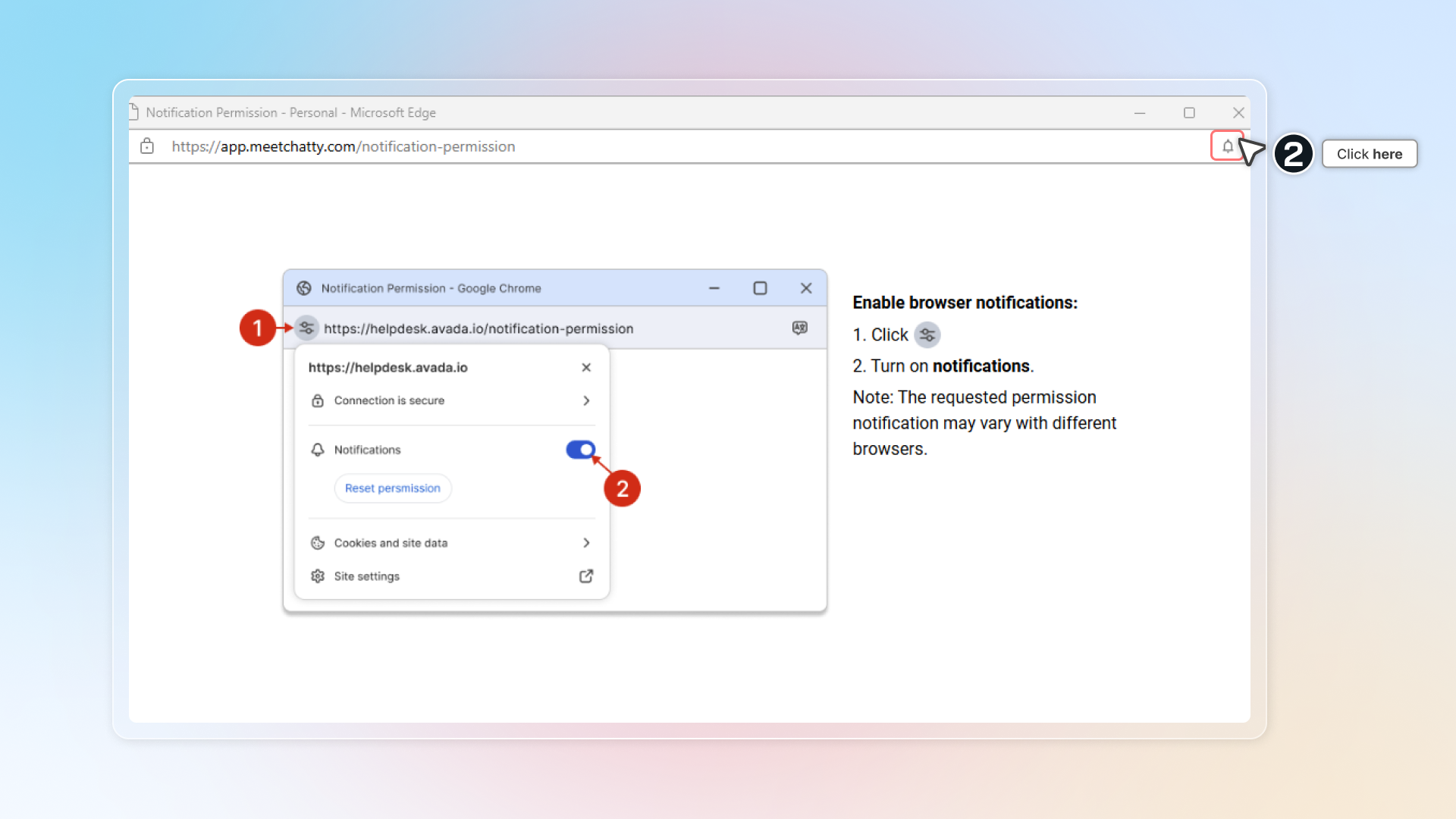
In Web push, click Manage
You might see a new window is opened. Turn on Notifications.
Refresh page. Click to Save.
Click Send test to check if notification works.
Firefox
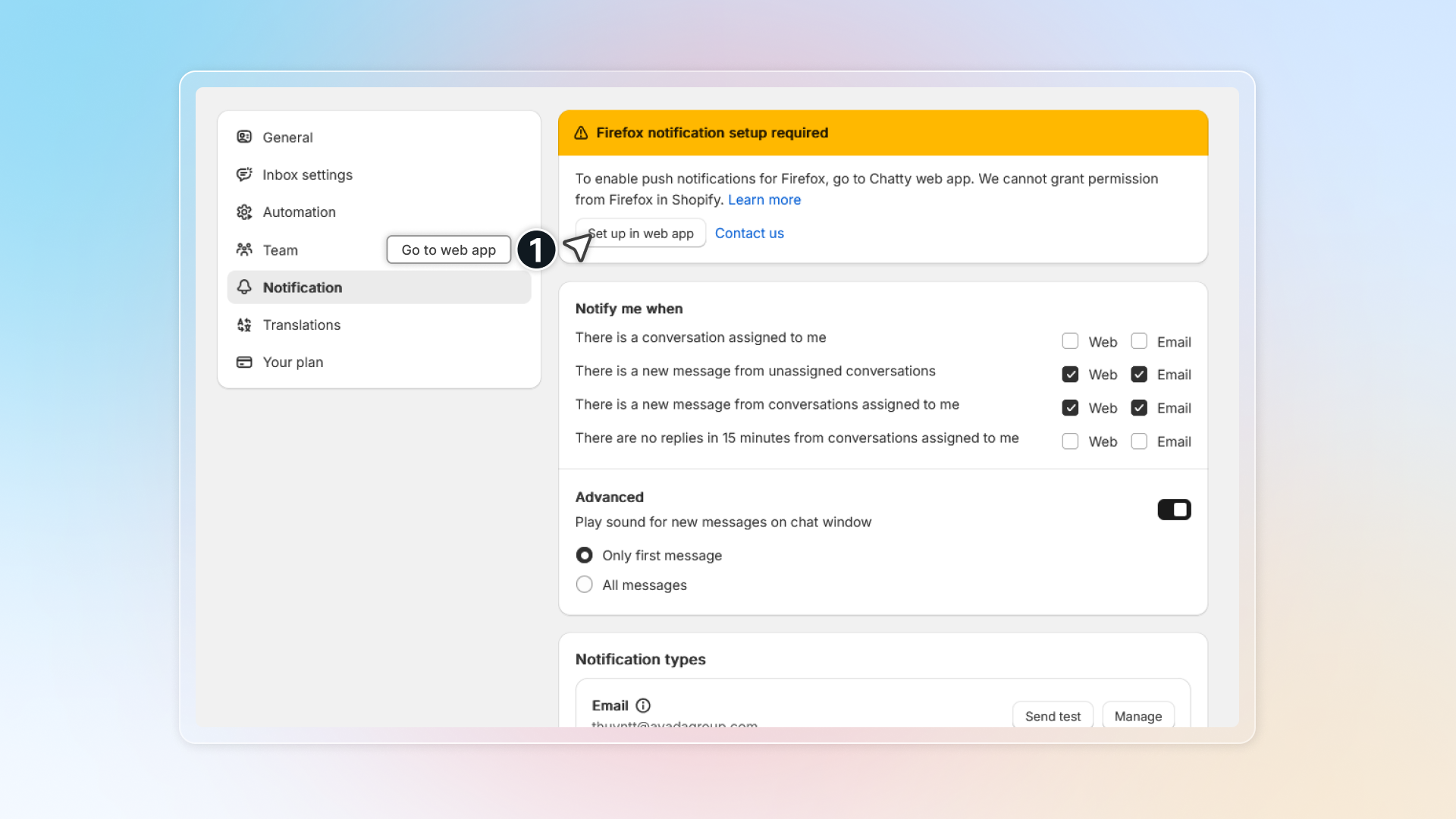
We cannot help you grant permission for Chatty in Shopify embed mode1 if you use Firefox web browser. Go to Chatty web app to activate notification.
In top banner, click Set up in web app. You'll redirected to Chatty web app.
Info
Learn how to activate account for web app.
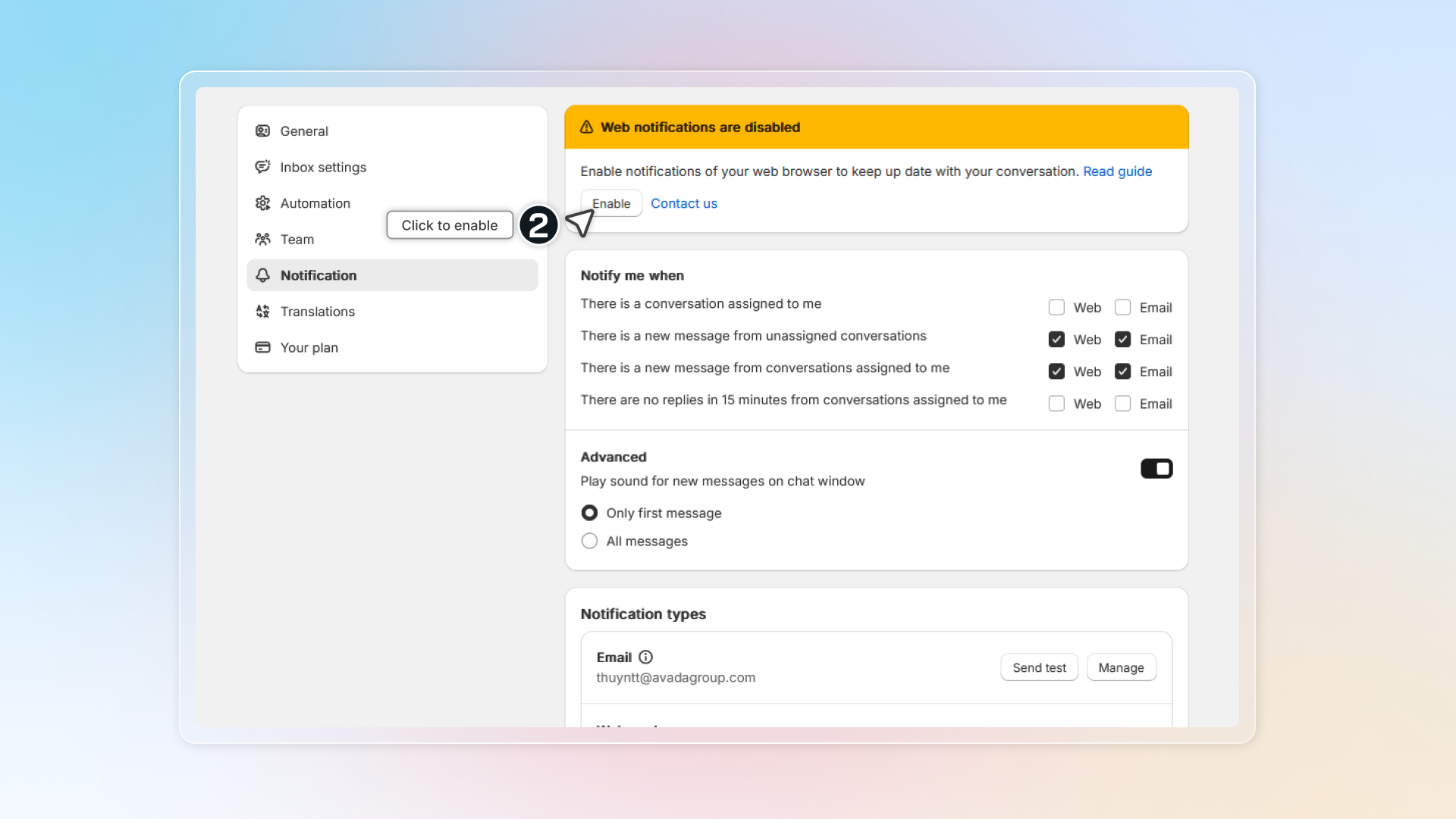
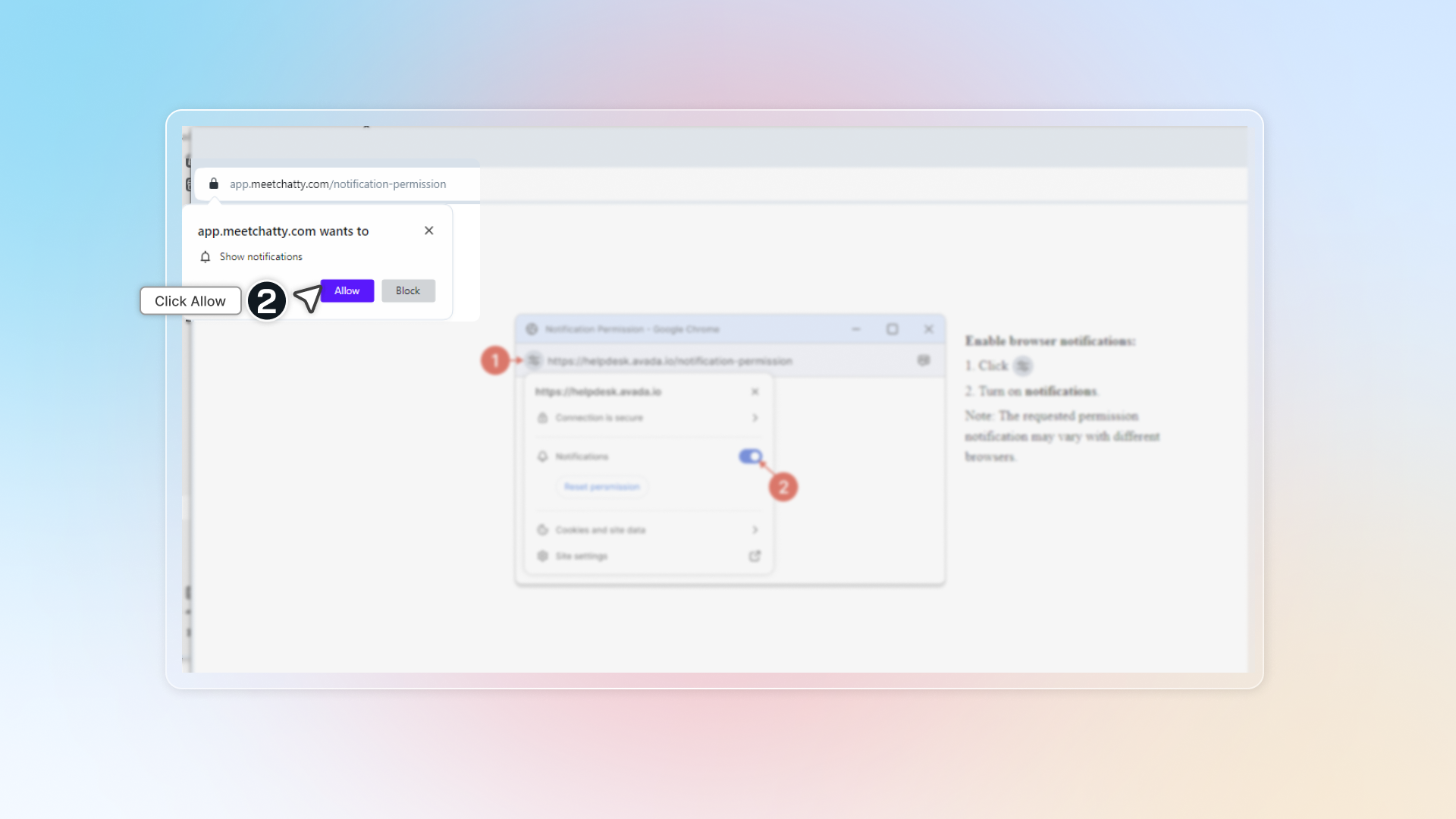
In web app, click Enable in the banner
You will see a browser pop up. Click to open notification settings.
Click Allow
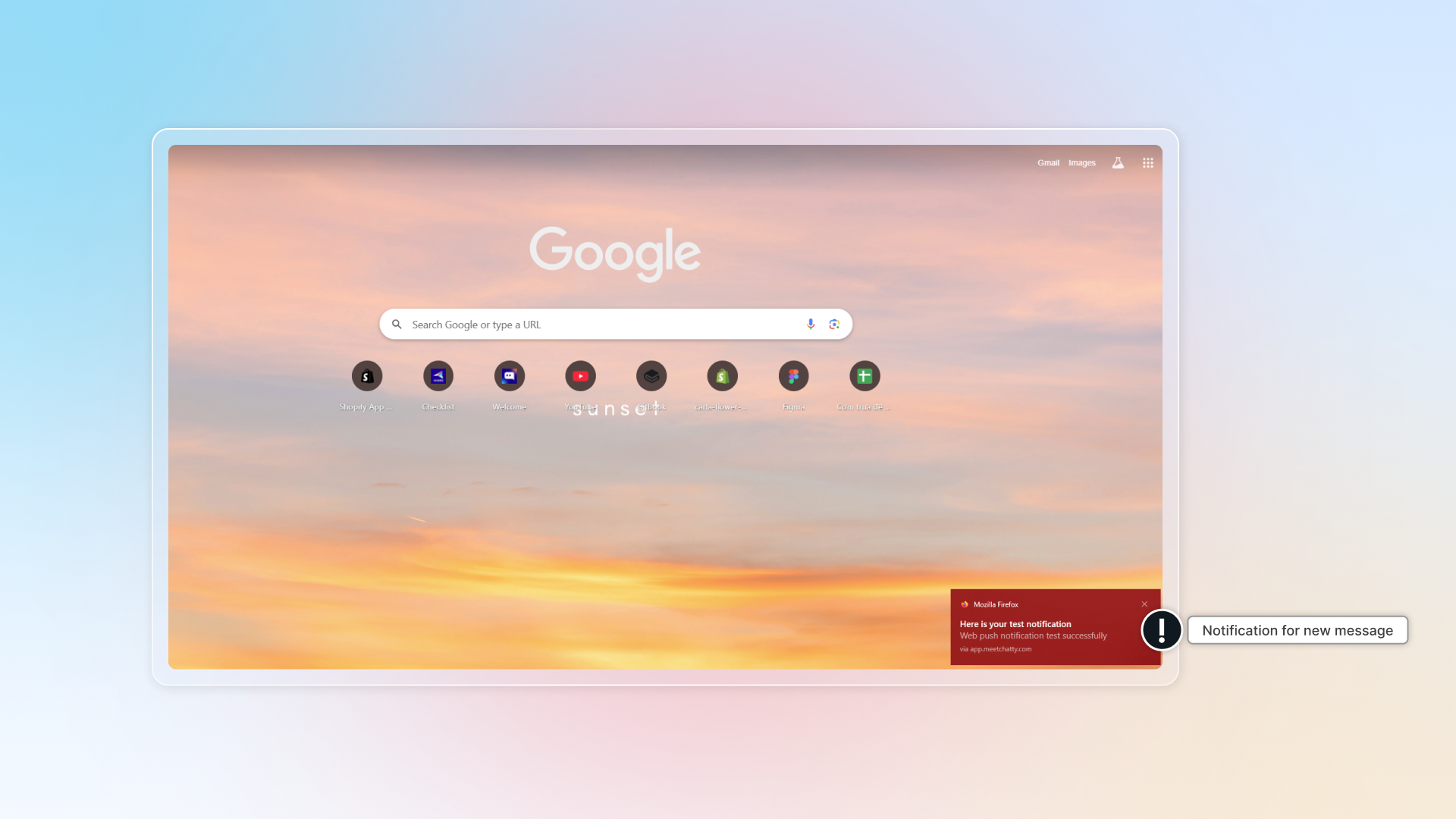
Get back to Chatty and refresh page. Click Send test to check if notification works.
Opera
-
Turn on "Web push notifications"
-
You might see a new window is opened and click Allow
-
Refresh page. Click to Save.
-
After saving, you can click Send test to check if notification works.
:loud_sound: Play sound notifications
By turning sound notification, your customer will get notifications for new messages with sound from devices.
You can select which type of messages you want to get notifications for: Only first message or all messages.
:incoming_envelope: Email notifications
By turning on email notifications, you will get emails for new messages or any other settings you want to.
You can add more emails to get notifications in Manage.
- Go to Notification.
- Select "Email" for options you want to get notifications:
- A conversation is assigned to me
- There is a new message from unassigned conversations
- There is a new message from assigned conversations
- There are no replies (for new messages) in 15 minutes from assigned conversations
- Click Save
Send test email
After saving, you can click Send test email to get sample test.
How to ensure Chatty notifications reach your inbox?
This helps prevent important notifications from being filtered to spam. You'll receive Chatty notifications in your primary inbox and never miss customer messages.
To keep Chatty emails out of spam, you can follow one of these ways:
- Add Chatty email to safe sender list
- Mark emails as important/not spam
:a: Add Chatty email to safe sender list
Open Chatty email
Click the three dots menu (⋮) next to the sender's name
Select "Filter messages like this"
Click "Create filter"
Select "Never send to Spam" and "Always mark as important"
Click "Create filter" to save
:b: Mark emails as important/not spam
-
Open Chatty email
-
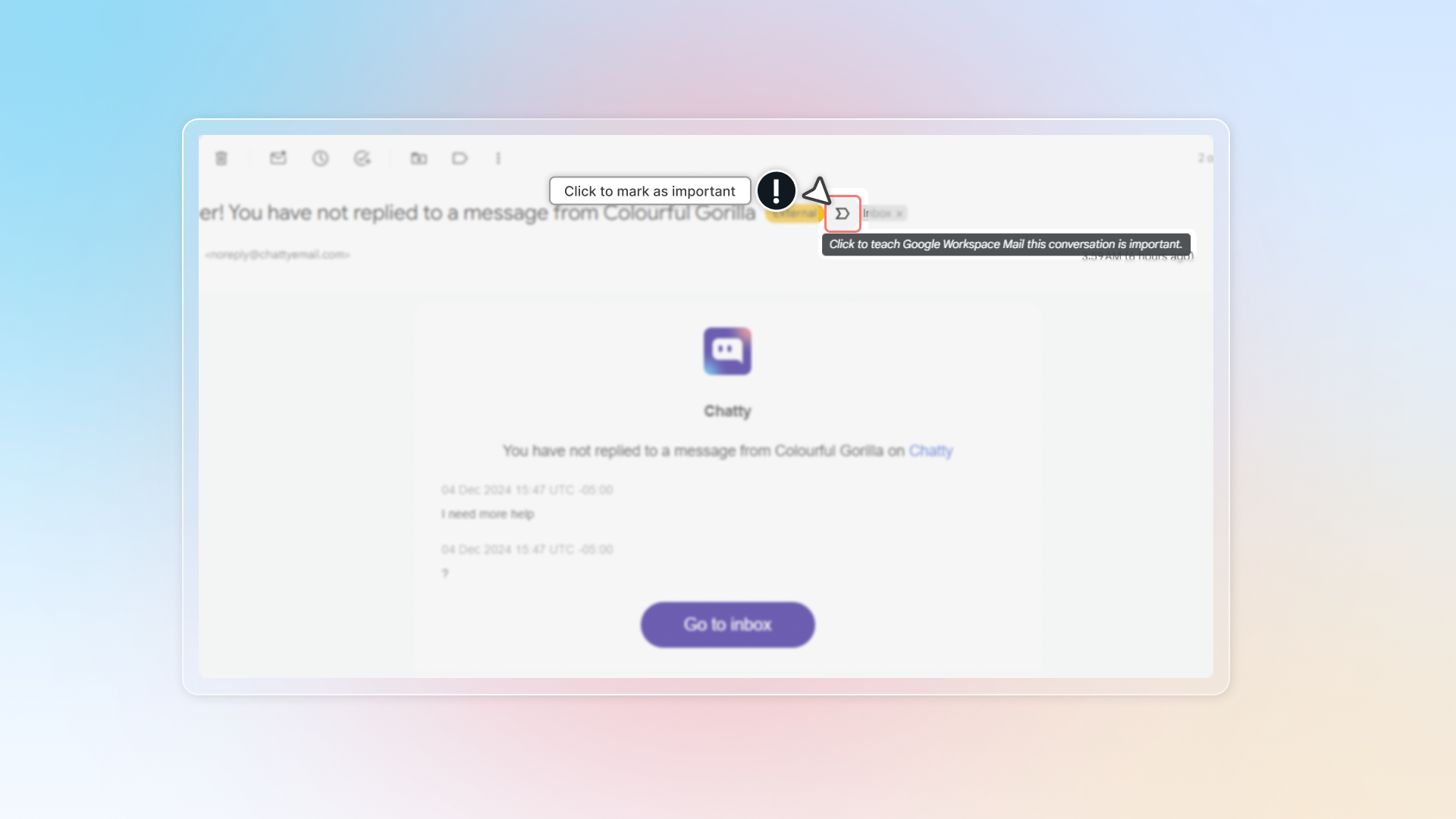
Click the importance marker next to the email subject
When marked as important, the icon will turn yellow.
Footnotes
-
Embed app in Shopify admin ↩