Others
Info
Who can use this feature?
- This feature is available for all users
Resolve conversations
When you resolve a conversation, you mark it as finished.
This moves the conversation out of your "Open" list and to "Resolved" list. This helps with:
- Keep your inbox organized
- See which customers need help
- Track finished conversations
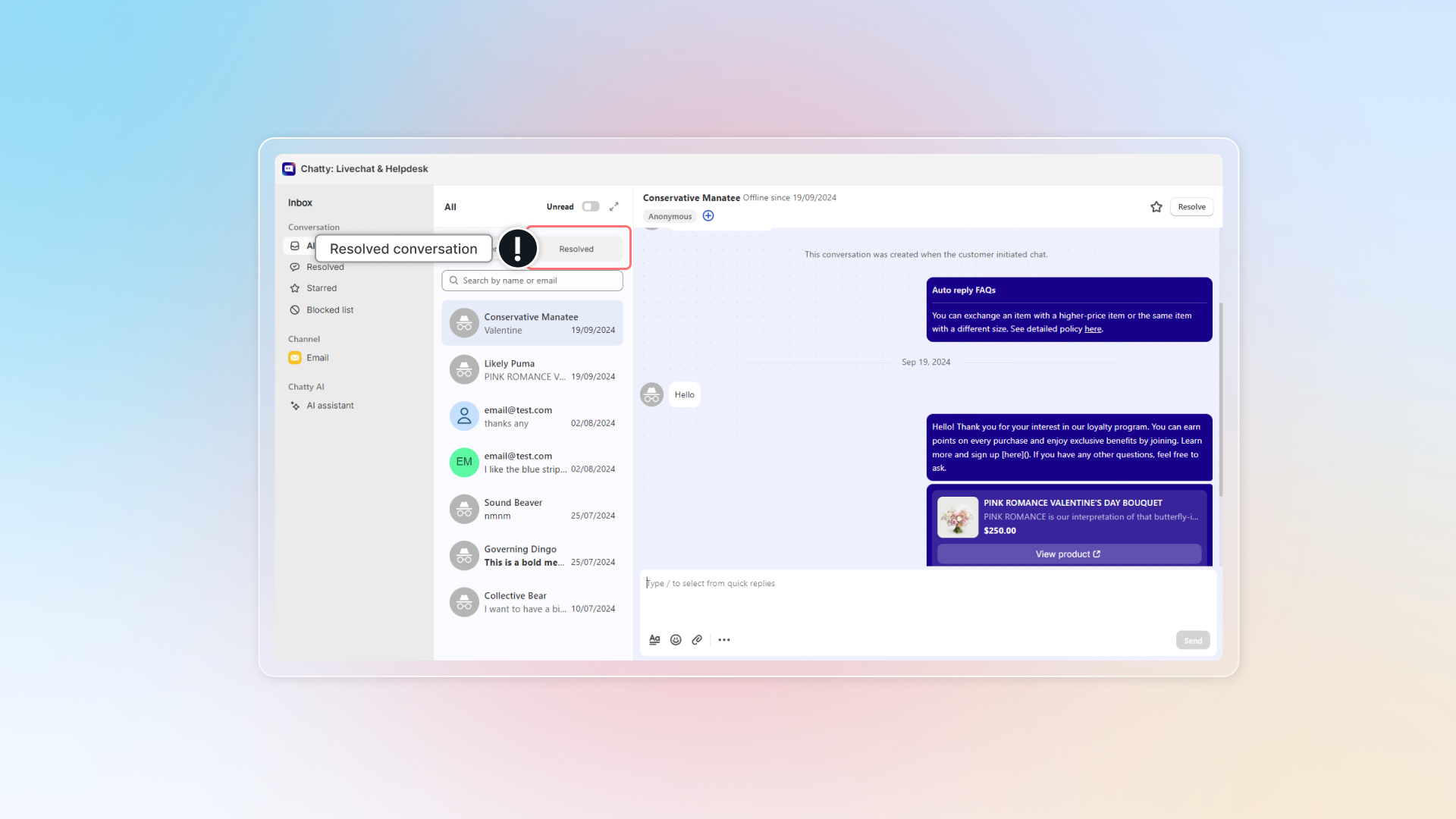
How to resolve conversations?
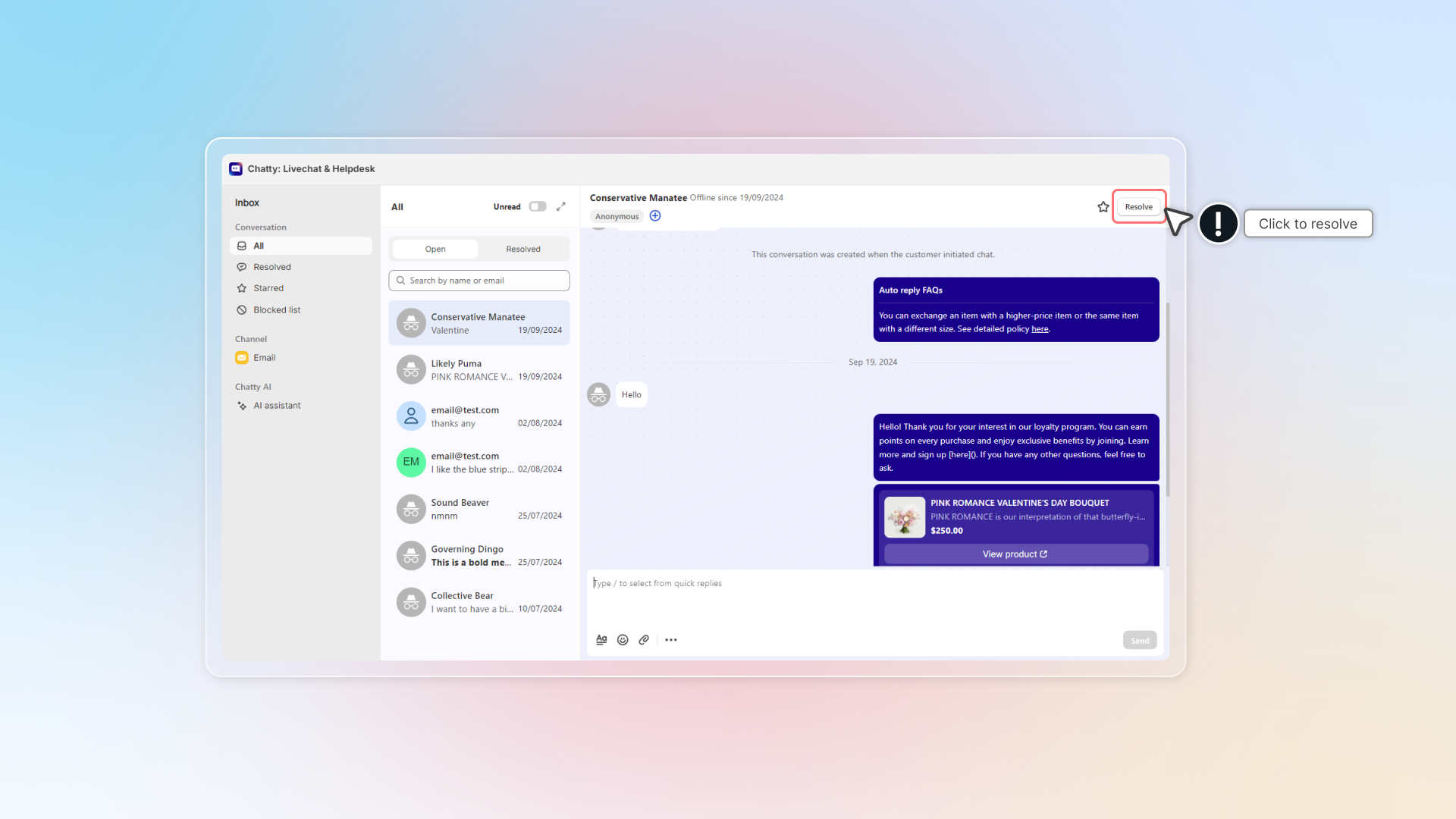
:a: Manually
- Go to the conversation in your Inbox
- Click Resolve in the chat
- The conversation moves to Resolved
:b: Automatically
How automatic resolution works:
- Old conversations with no new messages get resolved
- Customers see your notice message explaining why
- They can send a new message to reopen the chat
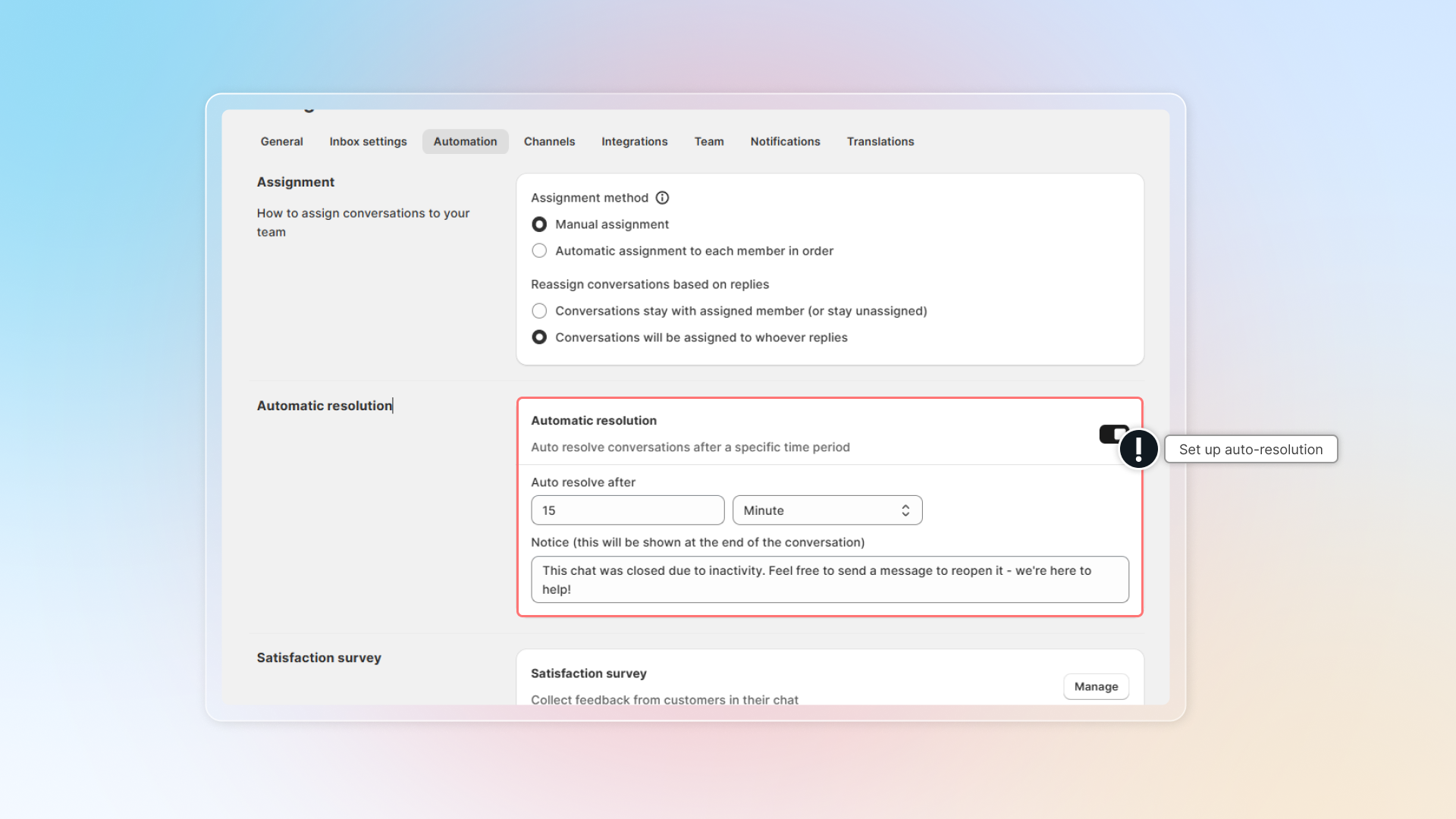
How to set up automatic resolution:
- Go to Settings
- Go to Automation
- Turn on Automatic resolution
- Set up your preferences:
- Auto resolve after: Pick how long to wait
- Time unit: Pick minutes, hours, or days
- Notice message: Message what customers will see
- Click Save
:bulb: Best practices
For manual:
- Don't resolve if you're waiting for the customer to reply
- Ask "Anything else I can help with?" before resolving
For automatic:
- Busy stores: 2-4 hours
- Special support: 24 hours
- Always open stores: 4-8 hours
Notice message tips:
- Keep it friendly
- Tell customers they can restart easily
- Example: "This chat was closed due to no activity. Send a message to reopen it - we're here to help!"
Remind conversations
Reminder lets you set a follow-up alert on any conversation so you never miss a customer follow-up. When the time comes, Chatty reopens the conversation and notifies you with your note.
This is useful when:
- A customer needs more time before you follow up
- You want to check back after an order or a promise to respond
- You need to ask for a review after delivery
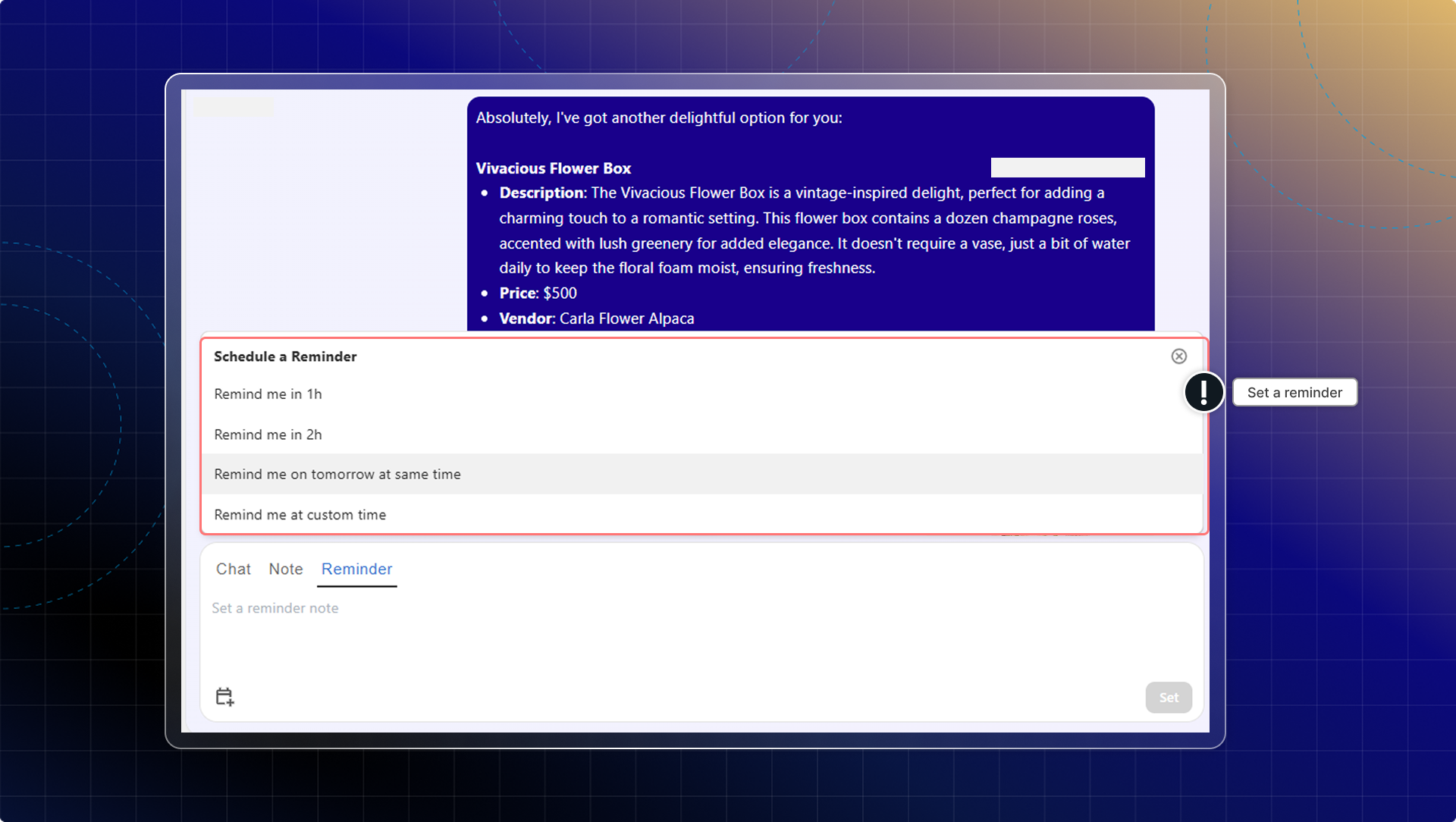
How to set a reminder
- Open a conversation in Inbox
- Click the Reminder icon in the conversation toolbar
- Choose a quick time option:
- 1 hour — reminds you in 1 hour from now
- 2 hours — reminds you in 2 hours from now
- Same time tomorrow — reminds you at the same time the next day
- (Optional) Add a note to remind yourself what to follow up on
- Click Save
The reminder appears as an internal message in the conversation thread.
What happens when a reminder fires
When the scheduled time arrives, Chatty will:
- Send a new internal message in the conversation with your note and an unread badge
- Set the conversation status back to Open
- Send you an email and push notification with your note
Delete a reminder
- Find the reminder message in the conversation thread
- Click Delete to cancel it
Info
- Reminders are personal — only the agent who set the reminder receives the notification.
- Each reminder is linked to one conversation. Set a separate reminder for each conversation you want to follow up on.
Transcript (copies of conversation)
Conversation transcript: An email copy of the complete chat conversation, including all messages, timestamps, and customer information.
Chatty will send you email copies of conversations for easy record-keeping and sharing.
Customers might need transcript to:
- Reference product recommendations or advice later
- Share technical support instructions with others
- Keep track of customer service interactions
Your team might need transcripts to:
- Forward customer issues to other departments
- Keep records for compliance or training
- Share context with colleagues who weren't in the original conversation
How to set up transcript feature
Before customers can request transcripts, you need to enable this feature:
- Go to Settings
- Go to Channels
- Click Email channel
- Go to Preferences
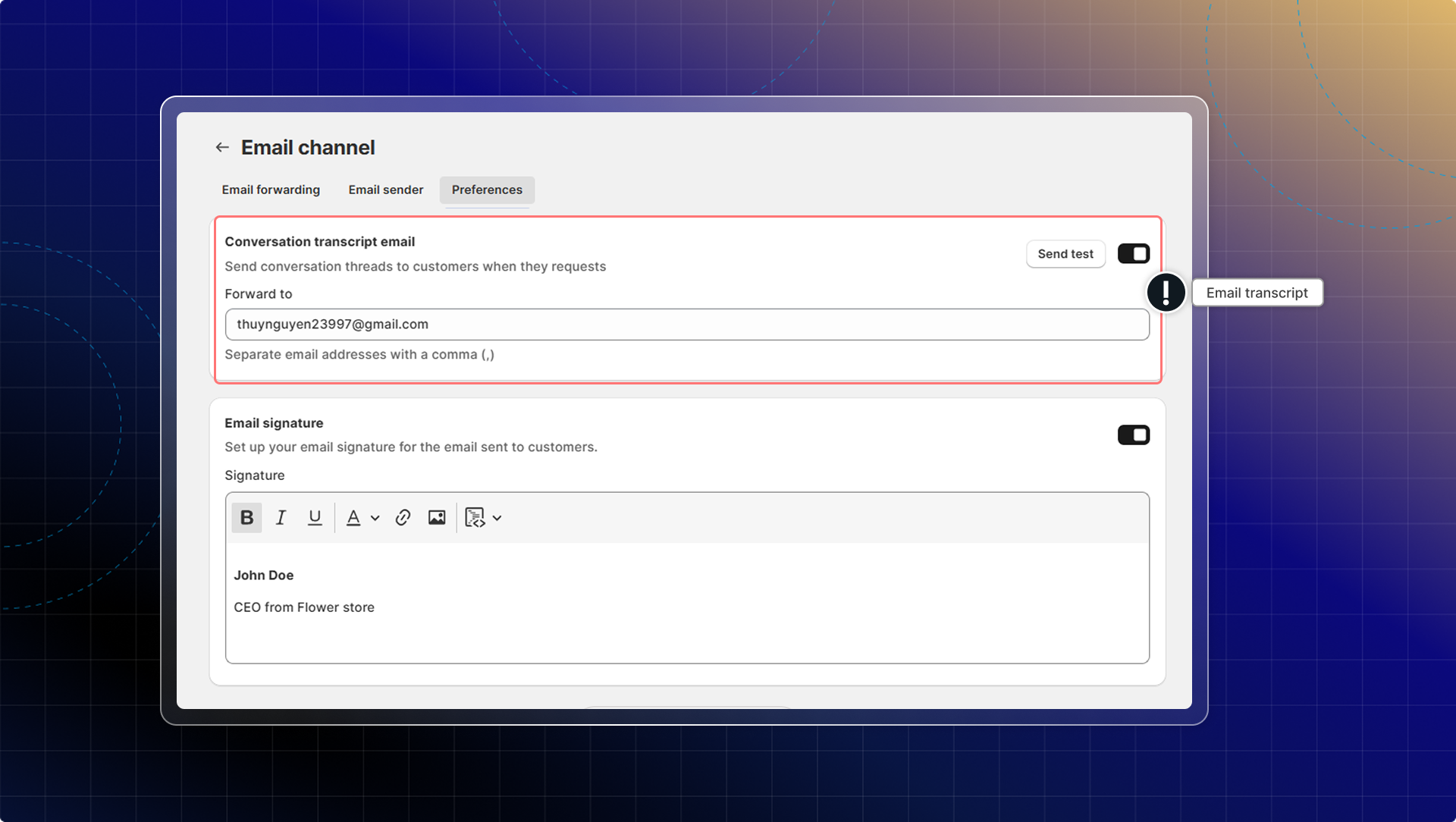
- In Conversation transcript email, turn on the feature
- In Forward to, enter the email address where transcripts should be sent
- You can add multiple email addresses separated by commas
- This is typically your store's support email or team inbox
- (Optional) Set up your Email signature to appear at the end of transcript emails
- Toggle on Email signature
- Add your signature text, including your name and store information
- Click Save
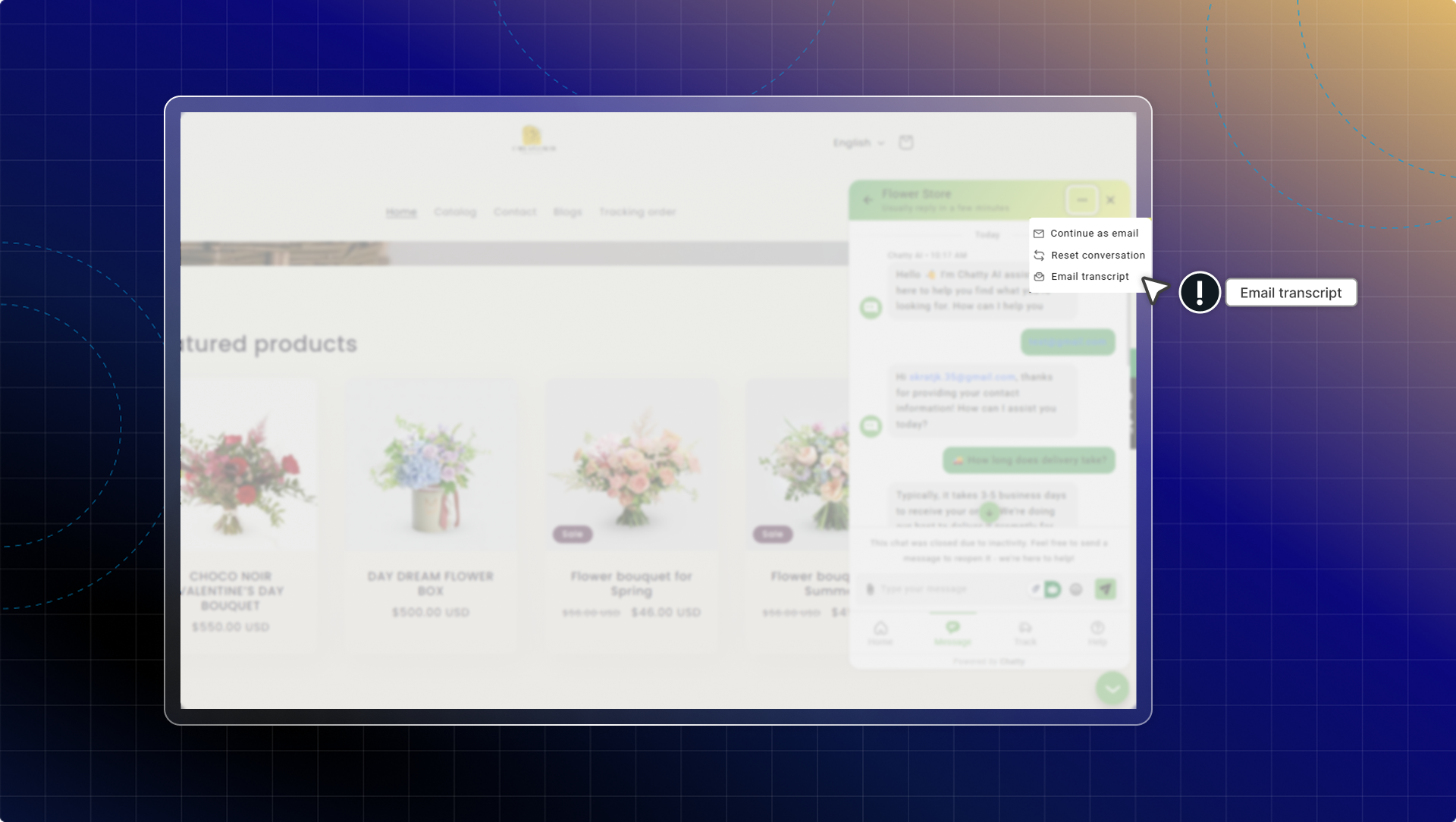
After setup, customers will see the Email transcript option in their chat menu.
How customers request transcripts
Customers can request a transcript at any point during a conversation:
- In the chatbox, click the menu icon (three dots) in the top right corner
- From the menu, select Email transcript
- The transcript is automatically sent to their email address
How team members send transcripts
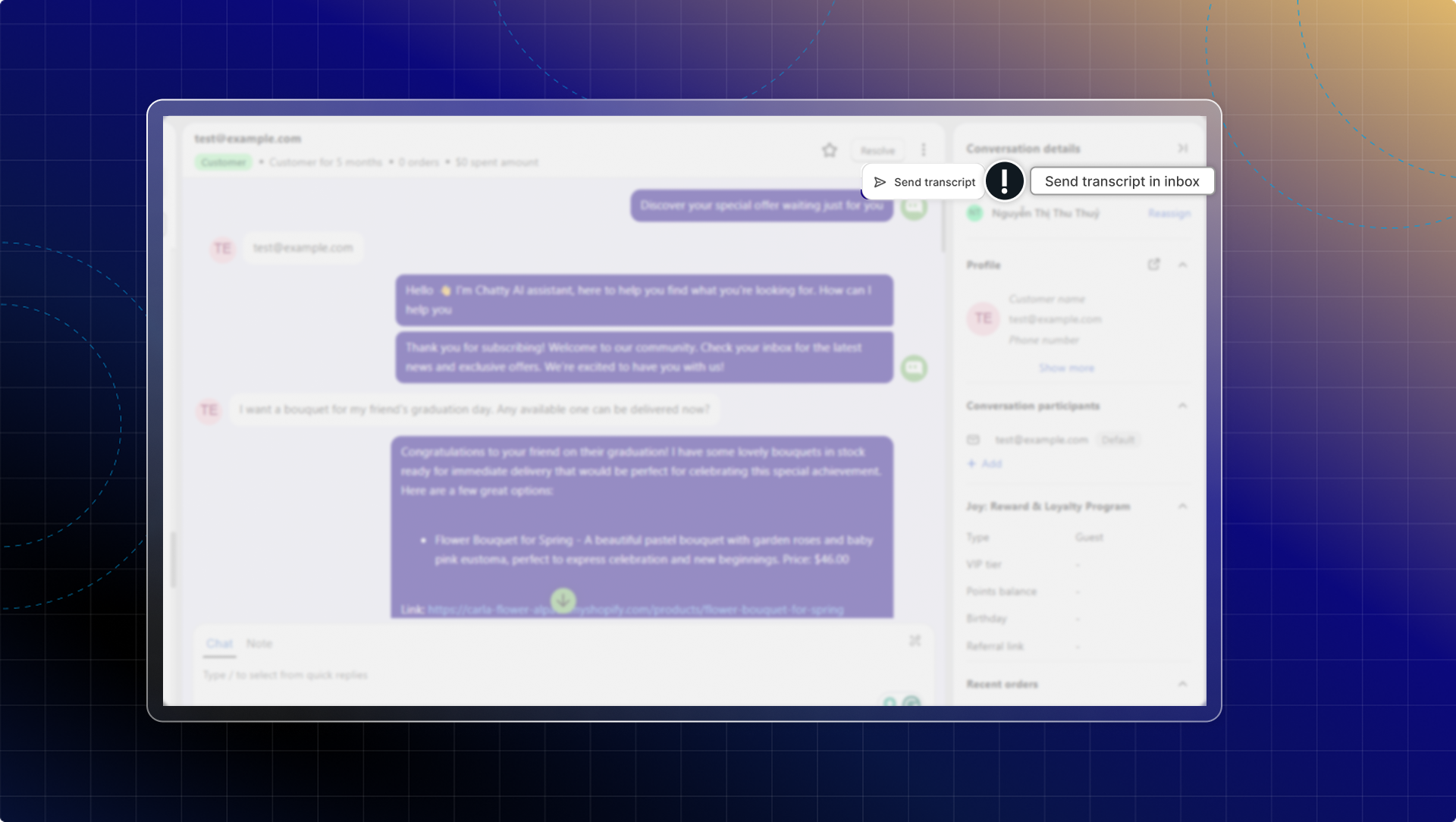
While managing conversations in your inbox, you can send transcripts to anyone:
- Open the conversation in your inbox
- Click 3 dots in the top right corner → Send transcript
- Choose where to send the transcript:
- To me - Send to your Chatty account email
- To [customer email] - Send to the customer's email address
- To someone else - Enter a custom email address
- Click Done
The transcript email includes the complete conversation with timestamps, so recipients have full context.
Satisfaction survey
Satisfaction survey helps you gather feedback from customers after conversations are resolved.
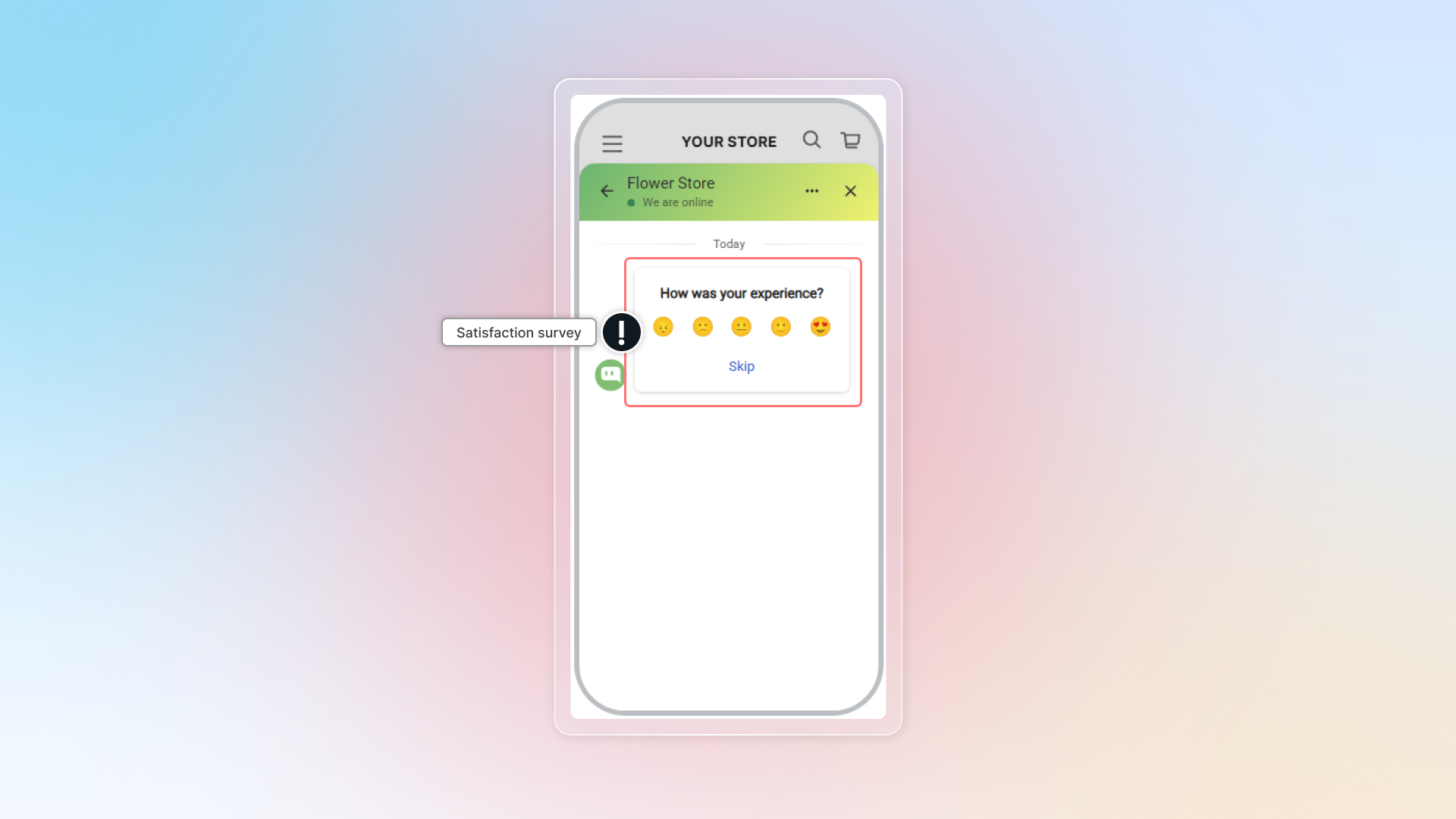
Customers can rate their experience using stars or emojis, helping you understand how well your team handles support. You can:
- Track your team's support performance over time
- Identify which conversations need better handling
- Improve customer satisfaction with data-driven changes
- Show customers you care about their experience
How to set up satisfaction survey
Go to Satisfaction survey
Go to Settings → Automation → In Satisfaction survey, click Manage
Turn on survey
Click to turn on Survey
Select survey format
Select how customers will rate their experience:
Star rating: Customers rate using 1-5 stars
Emoji scale: Customers choose from 5 emoji faces (very unhappy to very happy)
Set survey content
Intro: Enter the question customers see first (Default: "How was your experience?")
Thank you message: Message shown after customers submit feedback. (Default: "Thank you for your feedback!")
Set trigger time
Choose when to send the survey:
Conversation is resolved: Survey appears when you mark conversations as resolved
When specific keywords appear: Survey triggers when customers use certain words
Add keywords like "thank you," "thanks," "got it," "perfect". Customers often use these words when they're satisfied.
Save
Click Save to activate your satisfaction survey