Manage login devices
Info
Who can use this feature?
- This feature is available for all users
Overview
If you've logged into Chatty on multiple devices - a work laptop, a personal phone, a shared computer - it can be hard to keep track of where your account is active.
This gives you a clear view of every active session, so you can stay in control of who (and what) has access to your account.
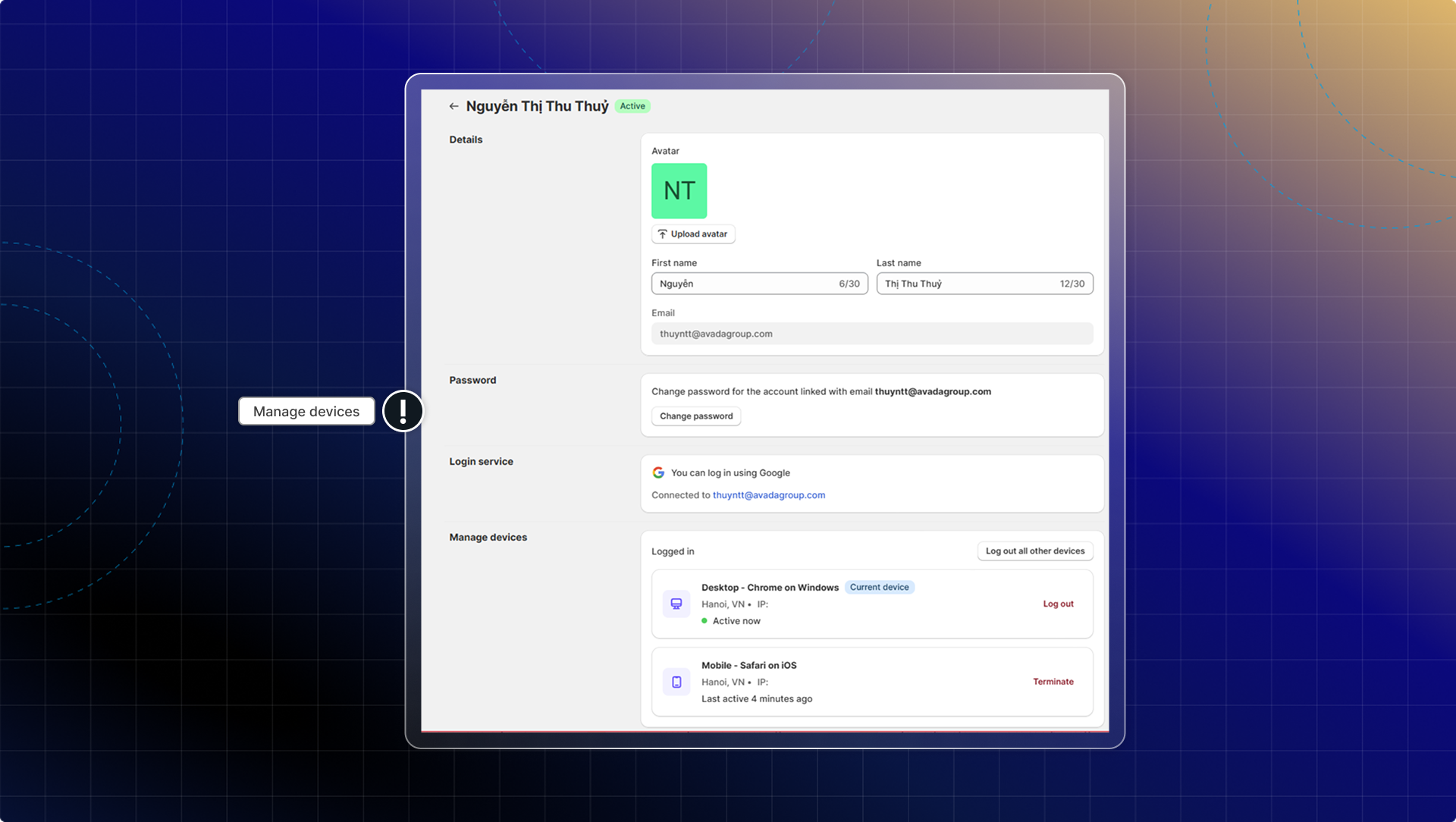
View your active login sessions
When you open the Login Devices page, you'll see a list of all devices currently logged into your Chatty account. For each session, Chatty shows:
- Device type: Desktop, mobile, or tablet
- Browser: The browser used to log in (e.g. Chrome, Safari)
- Location: Approximate location based on IP address
- Last active: When this session was last used
Your current device is always marked with a "Current device" badge so you can identify it at a glance.
How to view your login devices
- Go to Web App
- Click your account avatar in the top-right corner.
- Select Manage Account.
- Go to the Login Devices tab.
- Review the list of active sessions.
Remove a specific device
If you see a session you don't recognize, or a device you no longer use, you can log it out immediately without affecting your current session.
How to log out a specific device
- On the Login Devices tab, find the session you want to remove.
- Click Log out next to that device.
- The session is ended instantly. That device will need to log in again to access your account.
Info
Logging out a device doesn't change your password. If you suspect unauthorized access, log out all devices and update your password as well.
Log out of all other devices
If you want to clear all active sessions at once - except the device you're currently using - you can do it in a single action.
How to log out all other devices
- On the Login Devices tab, scroll to the bottom of the page.
- Click Log out all other devices.
- All sessions except your current device are ended immediately.
Warning
This action cannot be undone. Any team member who was logged in on an affected device will need to sign in again.