Size guide
Info
Available on: All users
Location: AI Assistant → Instruction → Size guide
Overview
Sizing questions are one of the most common reasons customers reach out before buying.
With Size Guide feature, you can teach your AI assistant exactly how your products are sized, so it can give customers accurate, personalized recommendations based on their own measurements.
You can now add size charts in multiple formats, link them to specific products, and define the measurement fields your AI should ask customers about, making every sizing conversation feel tailored and confident.
Add a size chart
Size charts tell your AI how your products are sized. You can enter them as plain text, Markdown, or HTML, whatever format your size data is already in.
Supported formats
| Format | Example use case |
|---|---|
| Plain text | Simple S/M/L tables copied from a doc |
| Markdown | Formatted tables from Notion or GitHub |
| HTML | Size charts exported from third-party sizing apps |
Info
There's no longer a limit on how many size guides you can create — add as many as your catalog needs.
How to add a size chart
- Go to AI Assistant → Instruction → Size Guide.
- Click Add Size Guide.
- Enter a name for the size guide (e.g. "Women's Tops — US Sizes").
- Paste your size chart content in any supported format (plain text, Markdown, or HTML).
- Click Save.
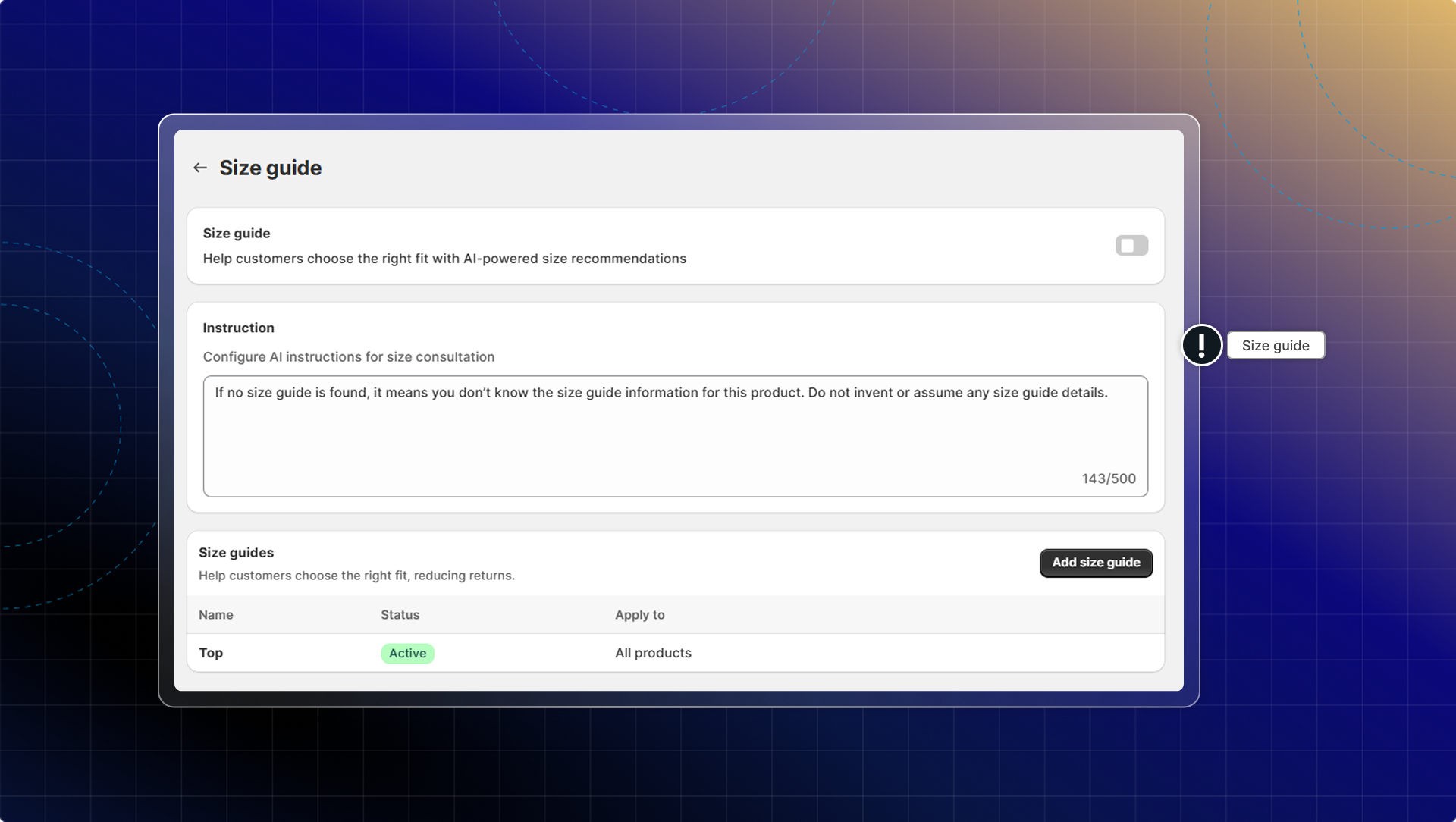
What is the instruction of AI in size guide for?
In the instruction field, tell your AI how to handle size questions. For example:
"If no size guide is found, it means you don't know the size guide information for this product. do not invent or assume any size guide details."
This instruction prevents your AI from generating incorrect sizing information.
Link a size guide to specific products
When you have multiple product categories with different sizing, you can assign each size guide to the products it applies to. Your AI will only use the relevant size guide when a customer asks about a specific product.
How to link a size guide to a product
- Open the size guide you want to assign.
- In the Products field, search for and select the products this size guide applies to.
- Click Save.
When a customer asks about sizing for a linked product, the AI will automatically use that product's size guide and ignore others.
Info
If a product has no linked size guide, the AI will use any general size guide you've set up.
Set up measurement fields
Measurement fields define what body dimensions the AI should ask customers for when helping them find their size. Instead of customers guessing, the AI guides them through a structured sizing conversation.
Common measurement fields include: chest, waist, hip, height, weight, inseam.
How to add measurement fields
- Open a size guide.
- Scroll to the Measurement Fields section.
- Click Add field and enter the measurement name (e.g. "Chest", "Waist").
- Add a unit if needed (e.g. cm, inches).
- Click Save.
Once saved, the AI will ask customers for these measurements during sizing conversations and use them to recommend the right size from your chart.
How the AI uses your size guide
When a customer asks a sizing question, the AI:
- Identifies which product the customer is asking about.
- Finds the size guide linked to that product.
- Asks the customer for the measurements defined in your measurement fields.
- Matches the customer's measurements against your size chart.
- Recommends the best size — and explains why.
The AI automatically detects units (cm or inches) from both the size chart and the customer's message, so customers can answer in whatever unit they're comfortable with.
Tips
- Use descriptive names for your size guides (e.g. "Men's Bottoms — EU" vs. "Men's Bottoms — US") so it's easy to manage them as your catalog grows.
- For stores with third-party sizing apps, copy the HTML output of your size chart and paste it directly — the AI can read it.
- If a size guide applies to your entire catalog, you don't need to link it to specific products — it will be used as the default.