Team
Info
Who can use this feature?
- This feature is available for all users
- Free plan users have one seat for admin. Paid plan users can invite up to 5 team members.
What is Team?
With Chatty Team, you can now invite your staff to help manage customer conversations. Your whole support team can work together in one place to answer customer questions faster.
Best for:
- Stores with multiple support staff
- Busy shops that need quick response times
- Teams working different shifts
- Growing businesses that want to scale their customer support
How does Team help?
- Invite multiple team members to handle live chats
- Share the workload of customer support
- Respond to customers faster with more people available
- Manage your entire support team and keep track of their performance from one place
How does Team work?
Invite member
Go to Settings, click Manage in Teams
Click Invite member
Basic plan users can invite 2 more members.
Pro plan users can invite 4 more members.
Enter member info
You can update member's information later (profile pic, name), but email. Email is connected to an account and can't be edited.
Click Invite to send invitation email
Ask your team member to check invitation email and click Create account
Go to email inbox to check email from Chatty.
Create Chatty account
Log in Chatty to manage conversations
Follow this interactive to invite team members to Chatty.
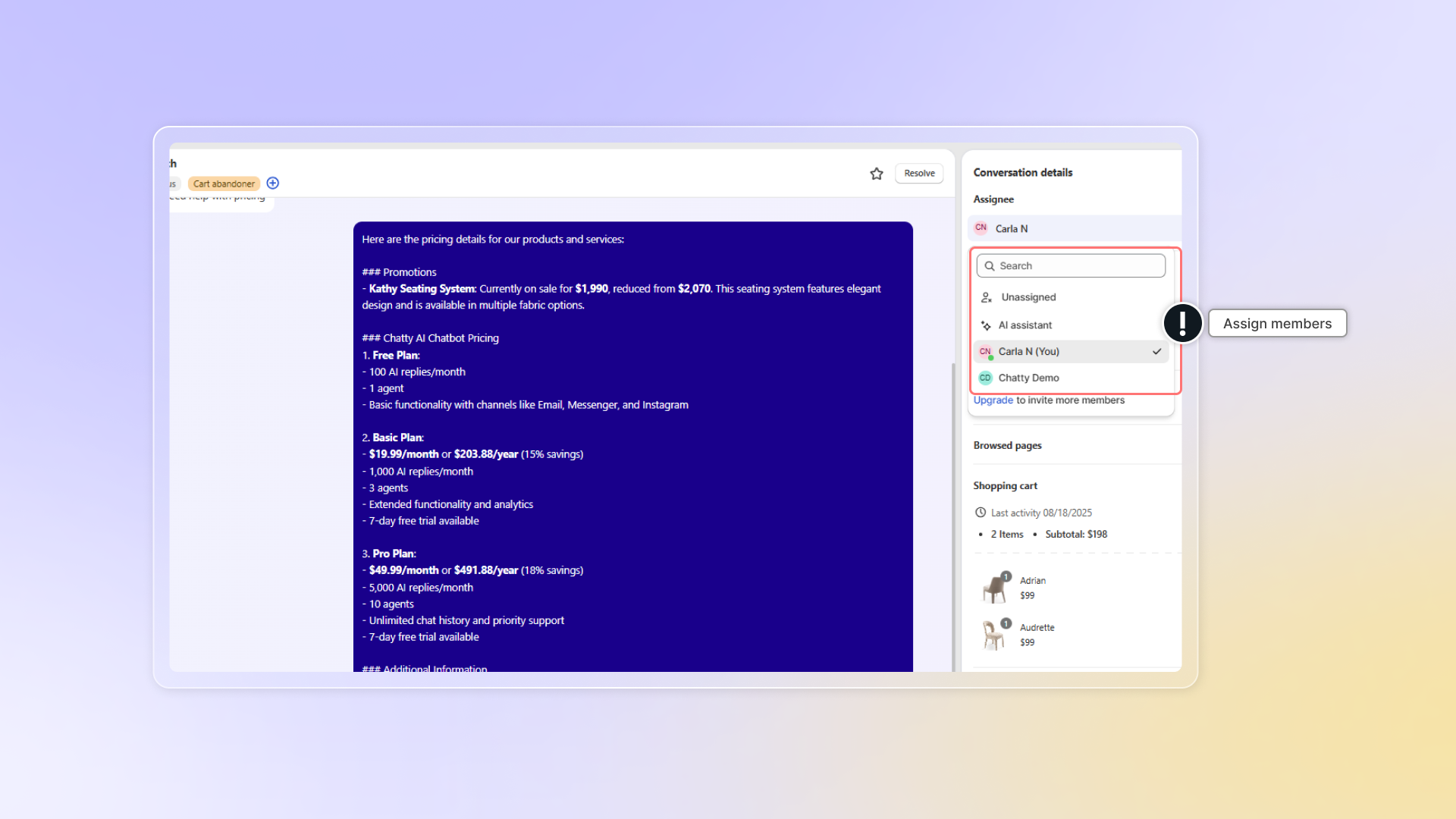
Assign conversation to member
Go to Inbox
Select a conversation
In conversation details, go to Assignee
Click Assign and select team member
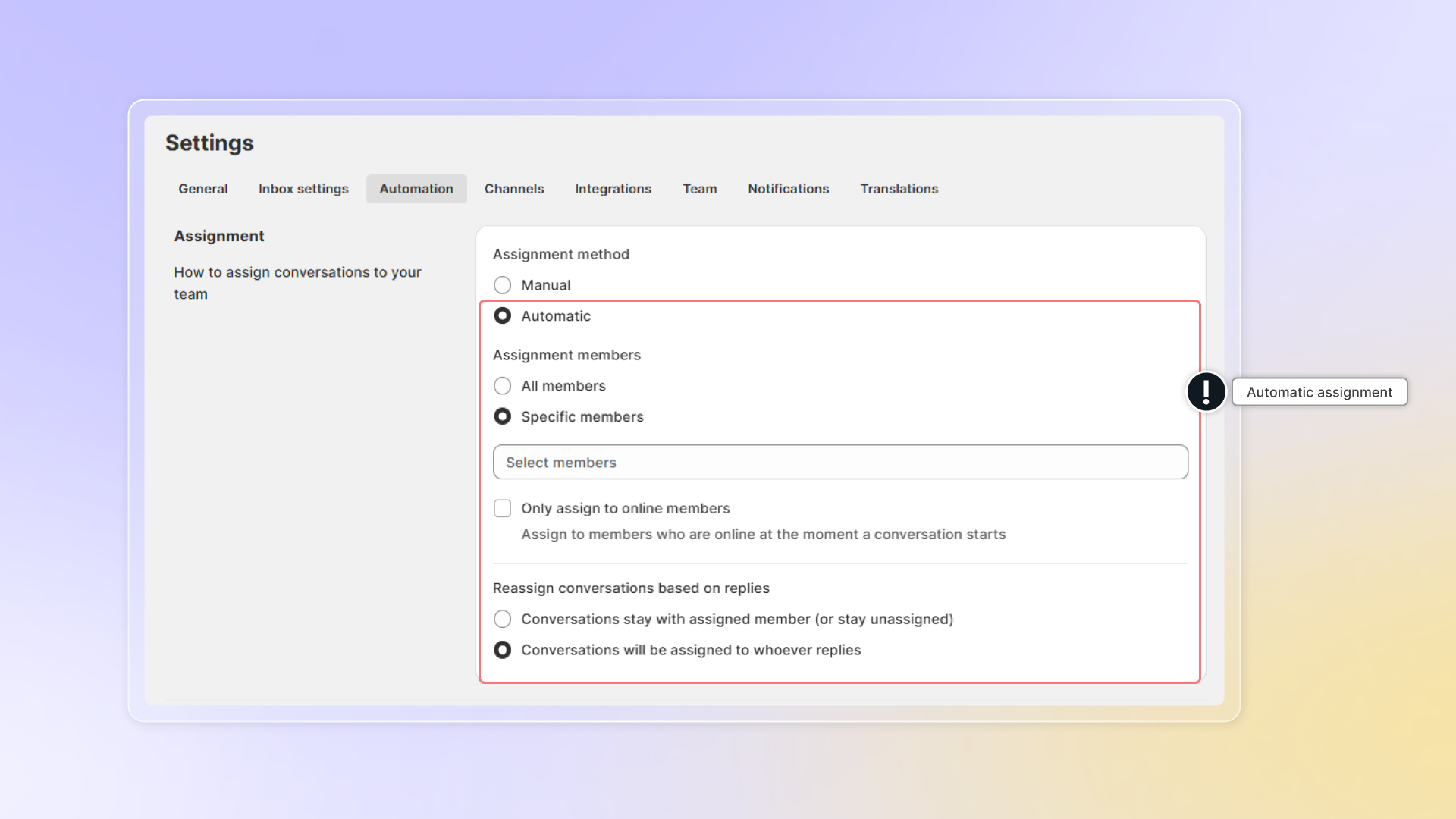
You can also set up auto-assignment in Settings.
Go to Settings → Automation → Assignment → Automatic
Chatty automatically assigns new conversations to team members in rotation. When a conversation comes in, it goes to the next available team member in your list.
Info
These settings will be applied to conversations transferred from AI assistant.
Info
These settings will be applied to conversations transferred from AI assistant.
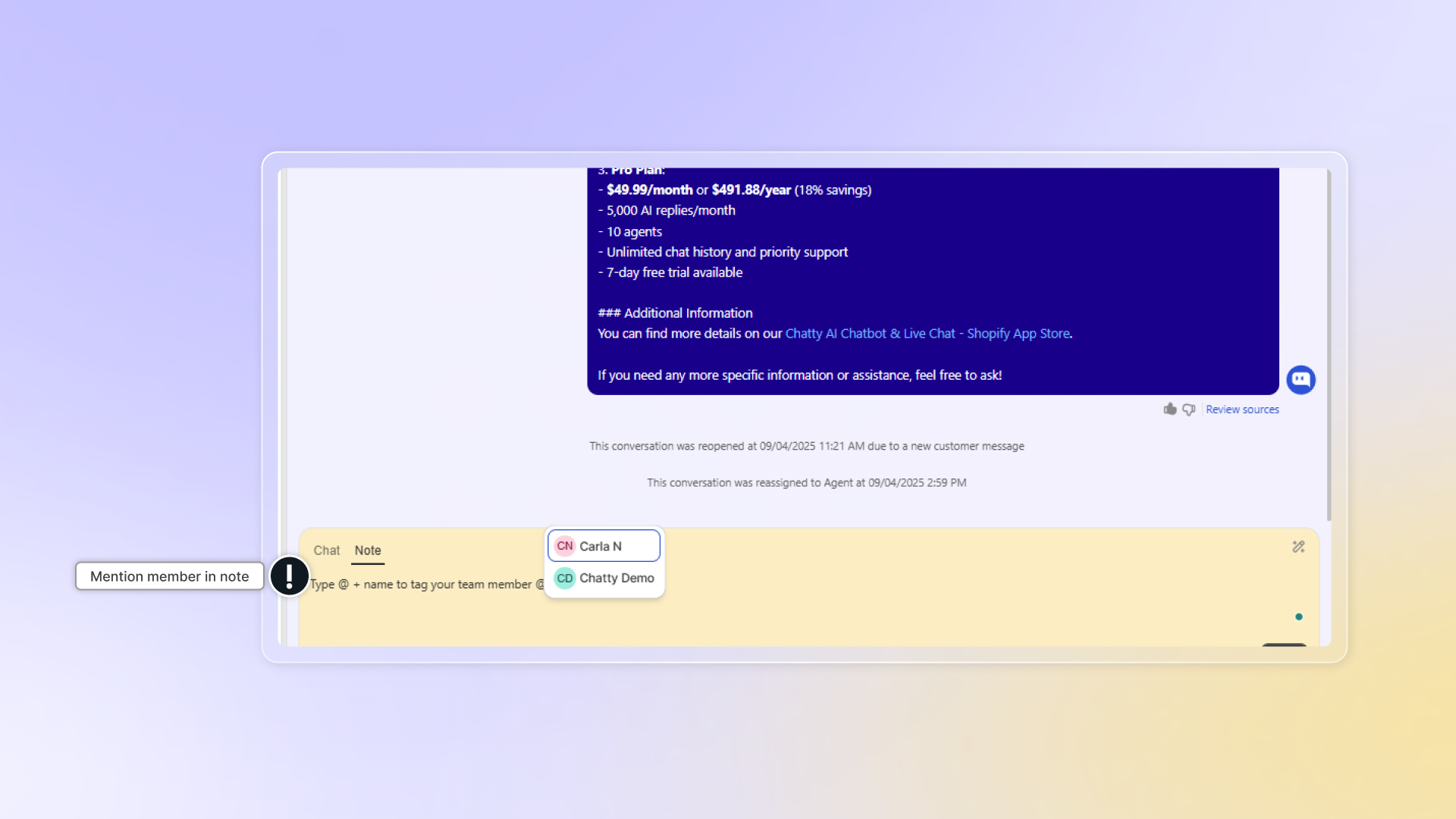
Mention team member in conversation
You and your team can leave private comments within conversations by Internal note.
Info
These notes are only visible to your team members, not to customers.
How to leave a note
- During a customer conversation, click the Notes tab in the chat zone
- Type your note in the text box
- To mention a team member, type
@followed by their name - Click Send to save your note
- Note will be saved in the conversation with timestamp and sender
When you mention someone using @mention:
- They'll receive a push notification
- They'll get an email notification about the mention
- Only members who have access to the conversation can read internal notes
How to reply a note
- Find the note you want to reply to
- Click Reply next to that note
- Type your response in the text box
- You'll see "Replying to [name]" indicating who you're responding to
- For your own notes, it shows "Replying to yourself"
- Click Send to save your reply