Contacts
Info
Who can use this feature?
- This feature is avaible for all users.
You can now manage customer contacts:
- Get access to customer details like: conversation, customer behaviour.
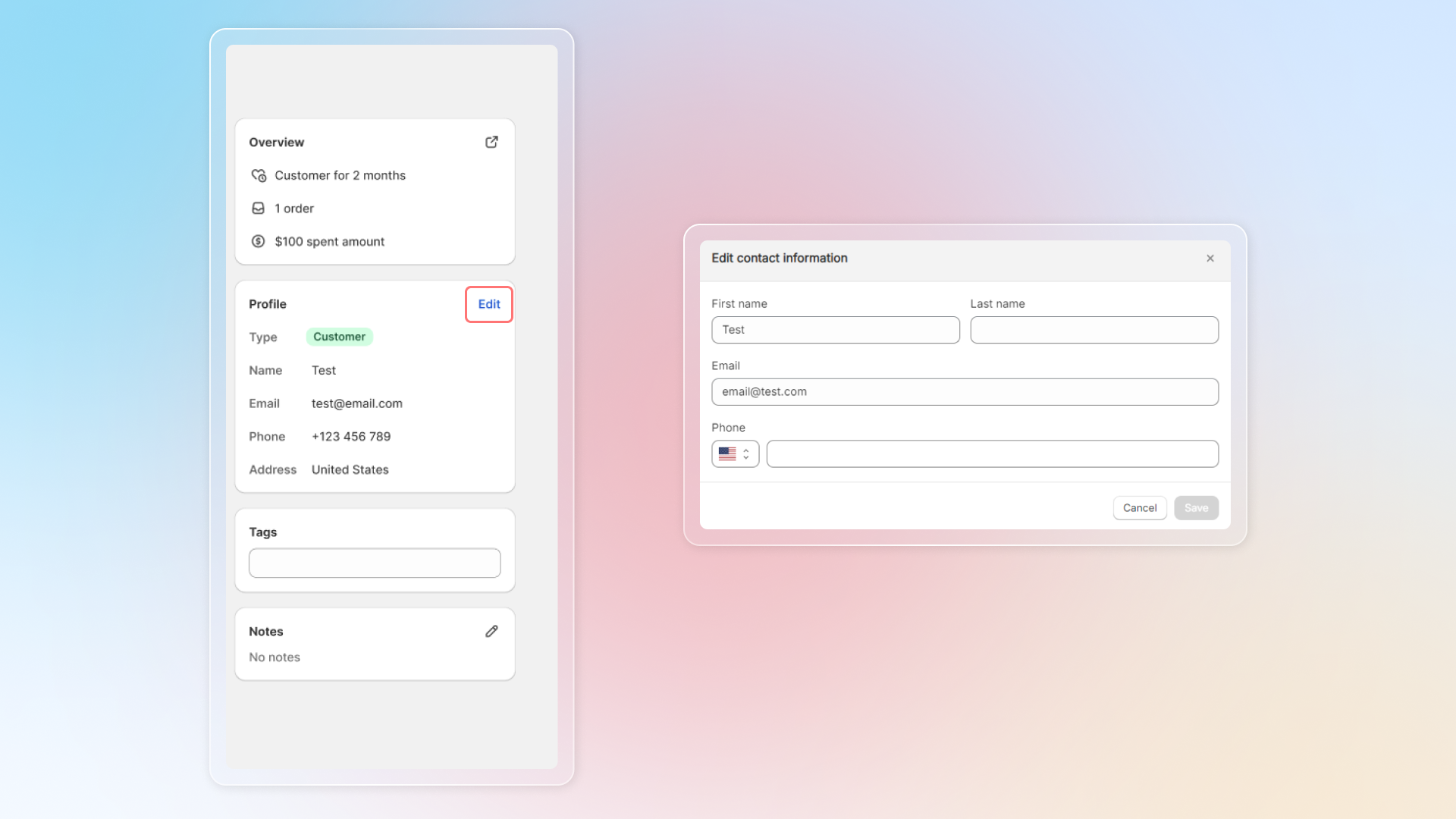
- Edit contact details
- Delete contacts
- Export contacts
Warning
If you delete a contact, all conversations of that contact will be deleted too.
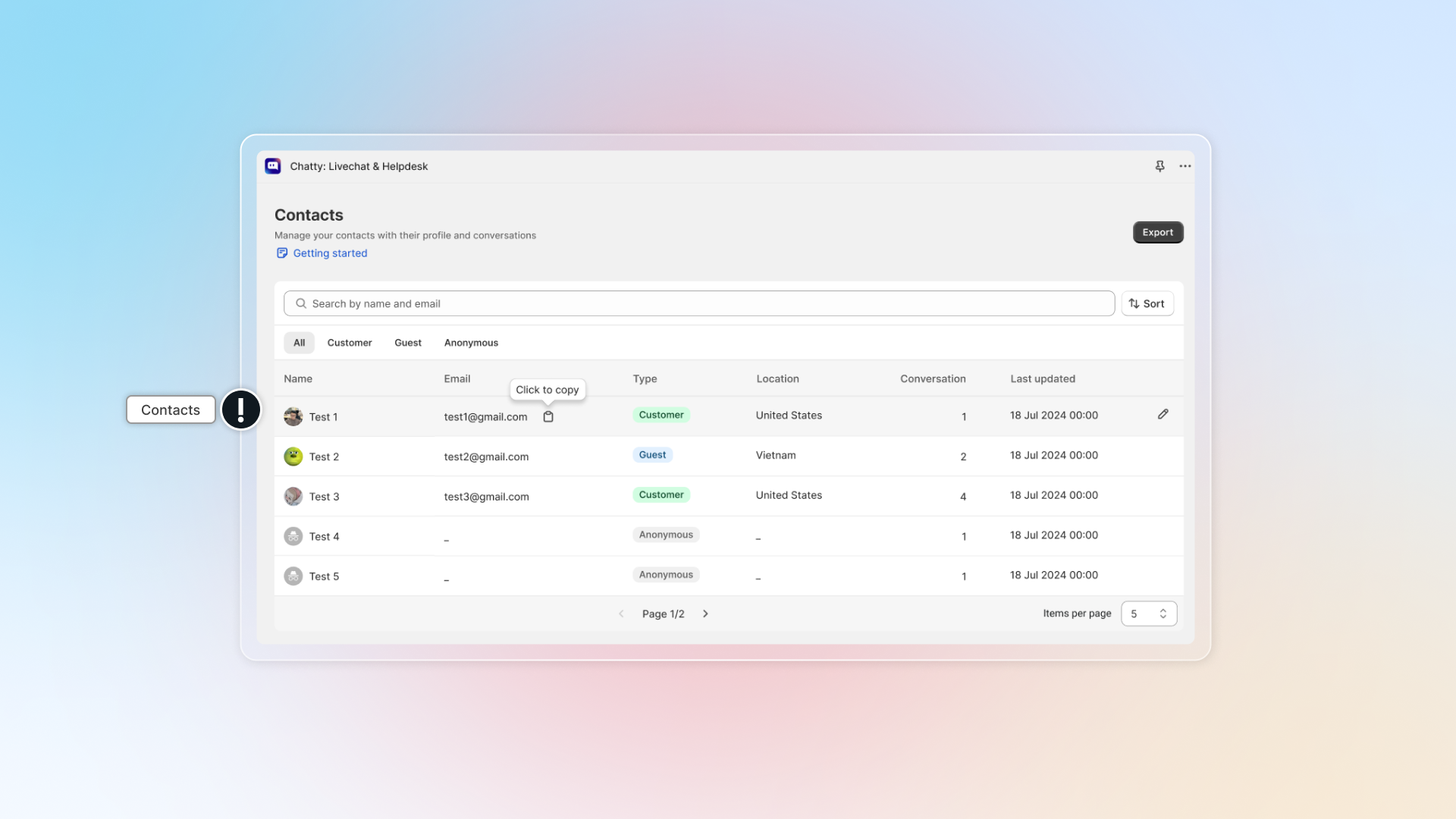
Customer type
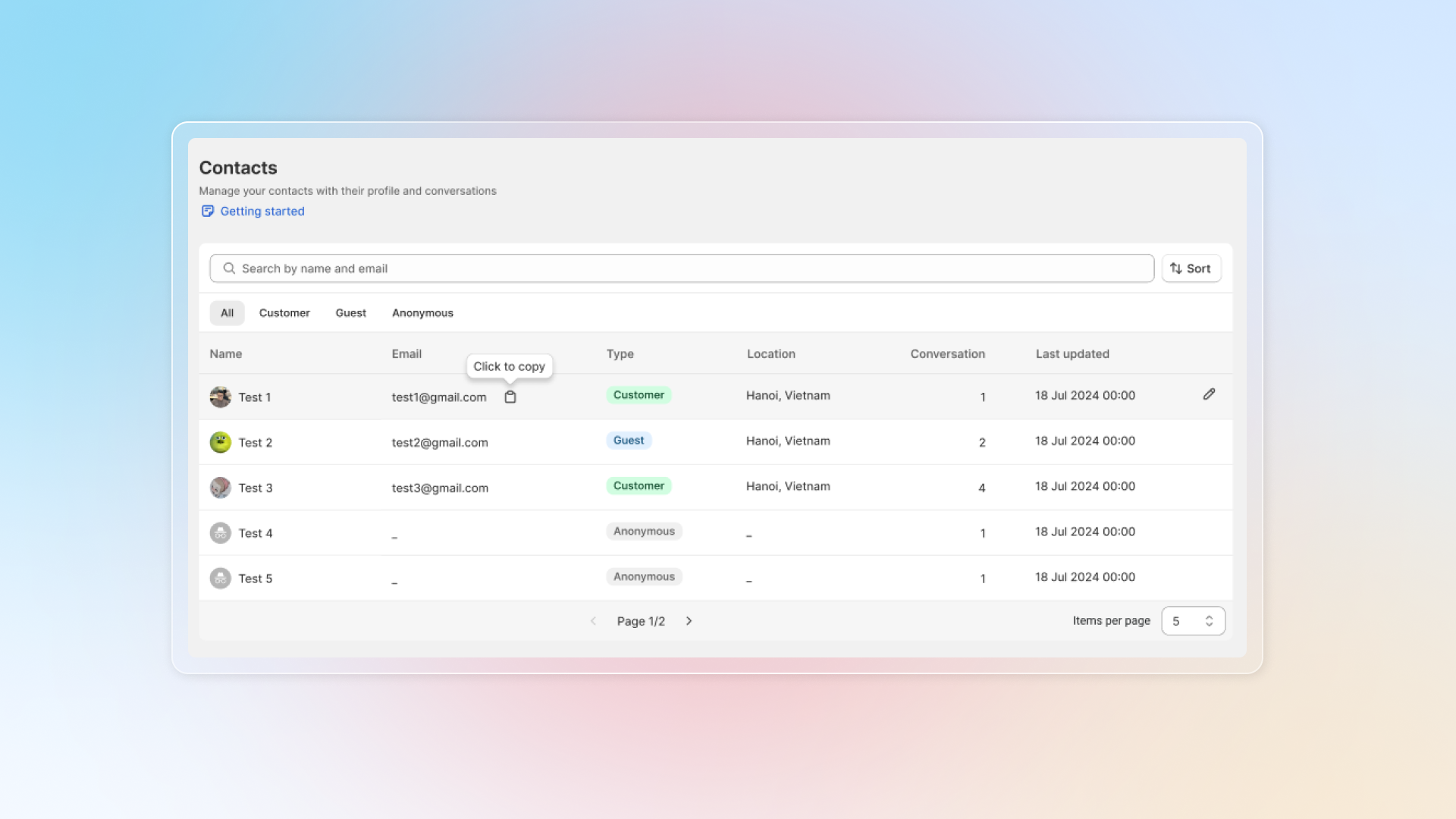
There're 3 types of customers in the list.
| Types | Definition | How it displays in Inbox |
|---|---|---|
| Guest | Who leave their emails to start a chat on your storeWhose conversations are linked through channels: Email, Messenger, Instagram | Customer icon + email |
| Customer | Who made an order on your store Who subscribed to your store | Name in icon + customer name |
| Anonymous user | Who chats on your store by clicking "Chat with us as anonymous" | Anonymous icon + random name |
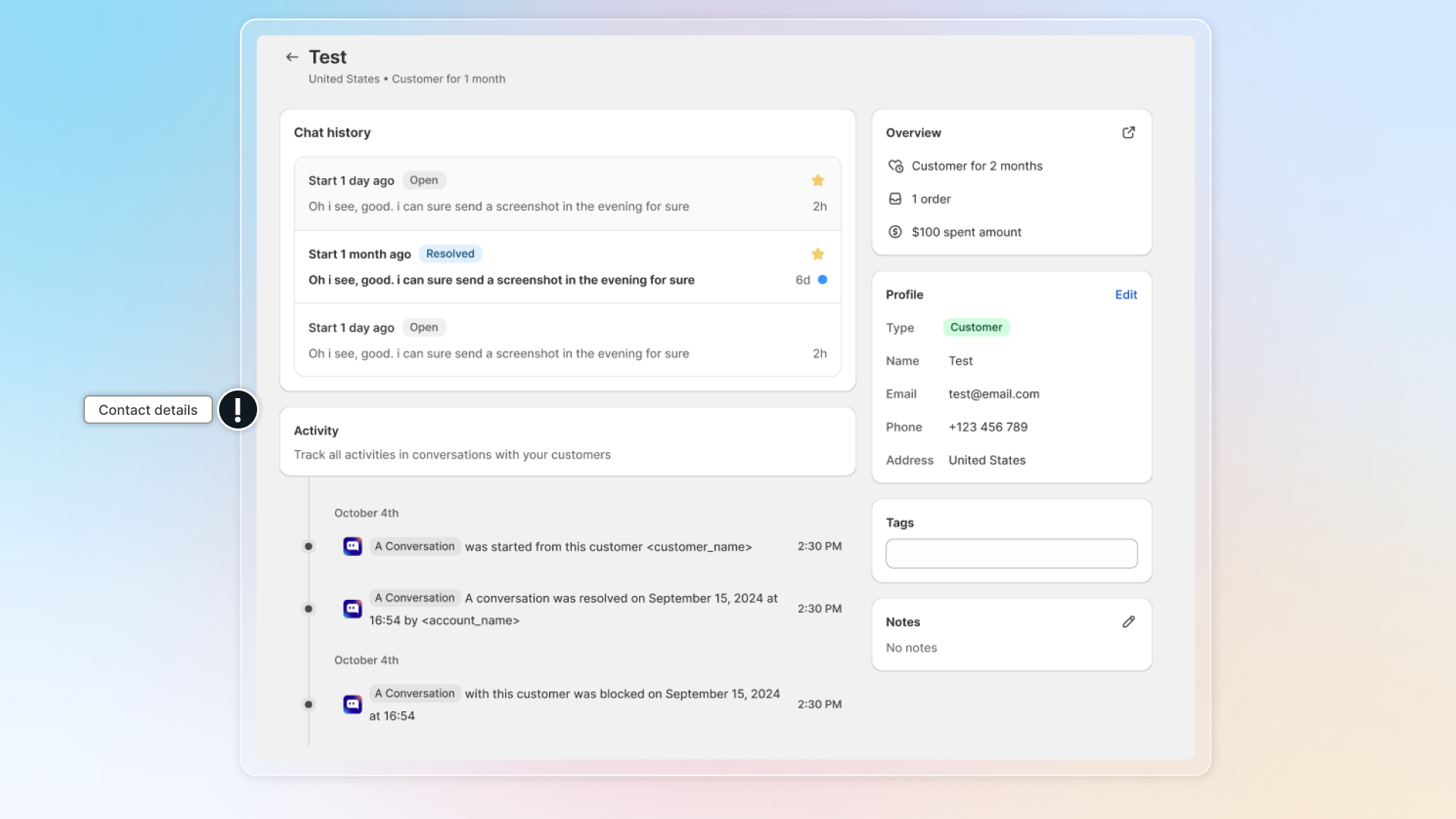
Contact details
In contact, you can view customer details:
- Chat history
- Activity timeline
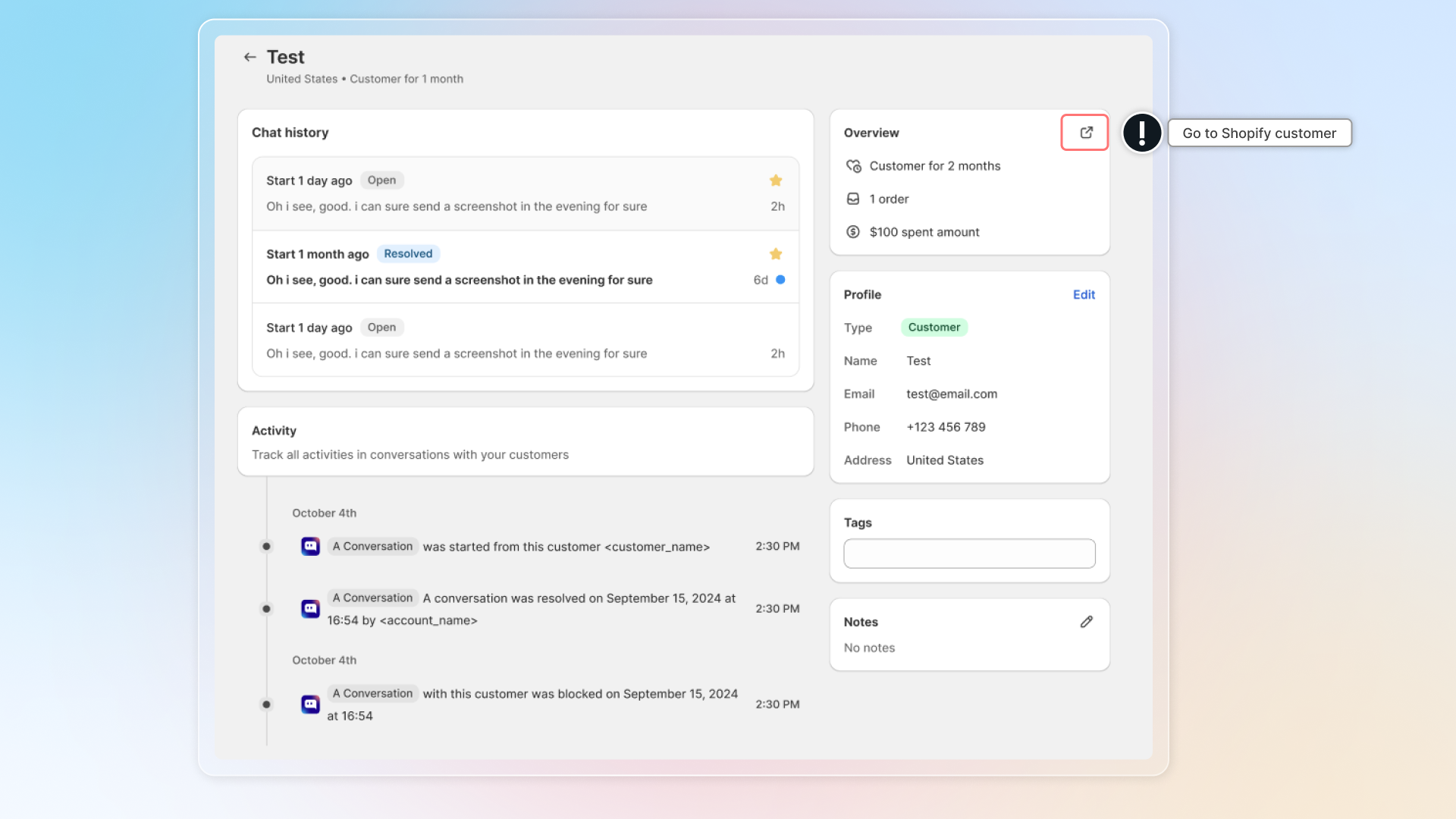
- Overview: total orders, total spent amount, customer since
- Profile: name, email, phone, address
- Others: tags, notes
You can edit customer profile, tags and note.
In overview, click to go to customers profile in Shopify Customer.
Manage contacts
In contact list, you can view total contacts, search for contacts and filter them by customer type.
Export contacts
This allows you to download your customer contact information from Chatty in a standardized format.
It makes it easy to use this data in other platforms and systems, like Email Marketing or Loyalty platform.
What you can export
- Customer type (guest, customer, anonymous)
- Customer contact information (name, email, phone, address)
- Order information (total orders, total spent)
- Interaction timestamps (customer since, last updated)
- Tags and note
How to export contacts
Go to "Contacts"
Select contacts to export
- Current page: All contacts in current page
- All contacts: All contacts in all pages
Click Export
If you export all contacts in your list, export file will be sent to your email.
Check your file
Check file in your download folder. Make any changes to your file