Add questions
Info
Who can use this feature?
- This feature is avaible for all users.
After creating category, you can add questions in category.
Add new question
Go to FAQs
Click Add new
Click Add FAQ
Enter question and answer
Set up FAQ
- Select status: Published or draft
- Select category (required)
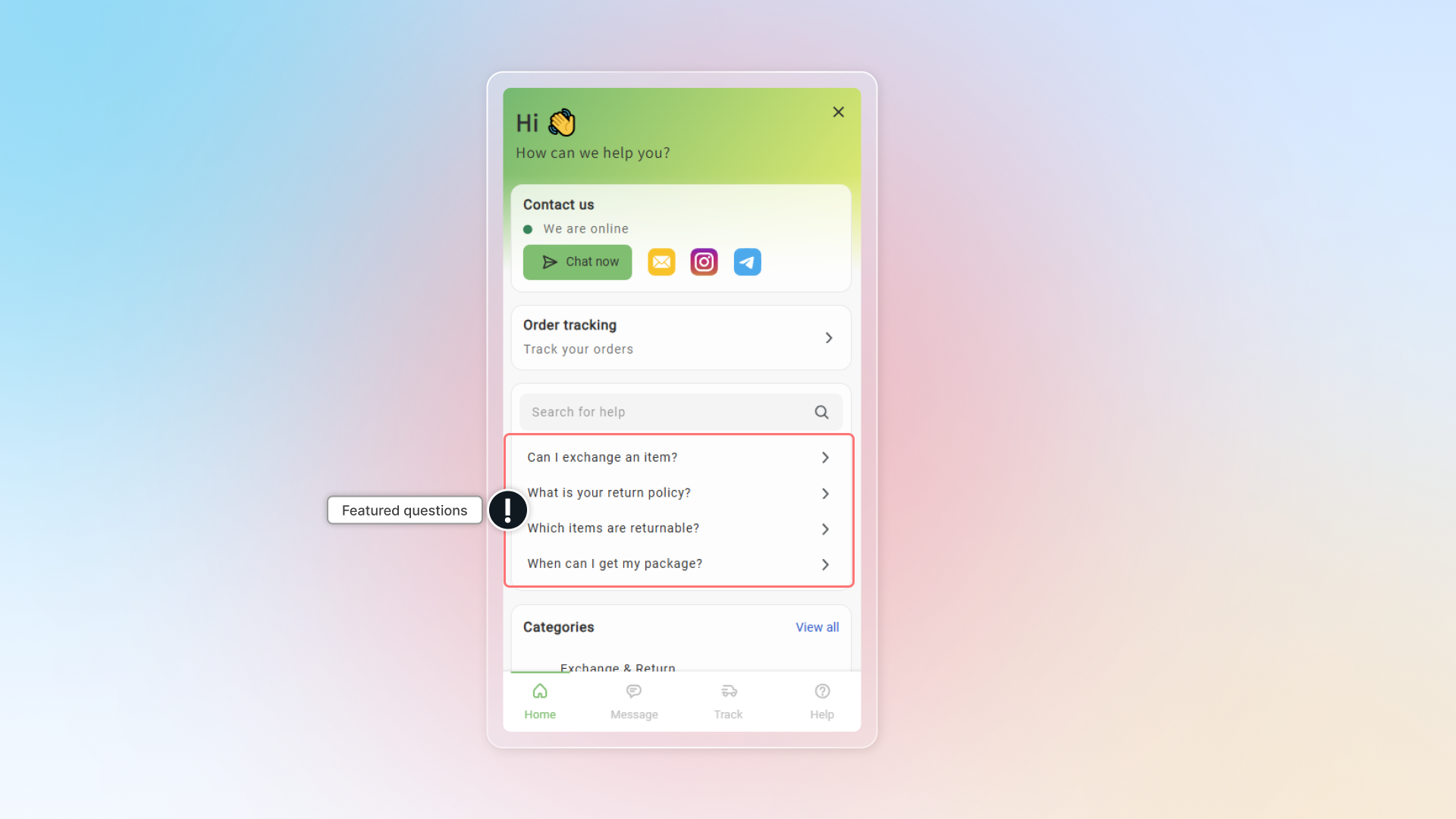
- Featured question: This helps you to list the category in the first page chatbox
Click Save
Manage FAQs
- To edit question, hover on that question and click
- To delete question, hover on that category and click
- Change position of question in a category by dragging it to new position
- Star or unstar category to make it featured
Import FAQs
You can import many questions and answers to Chatty by CVS file.
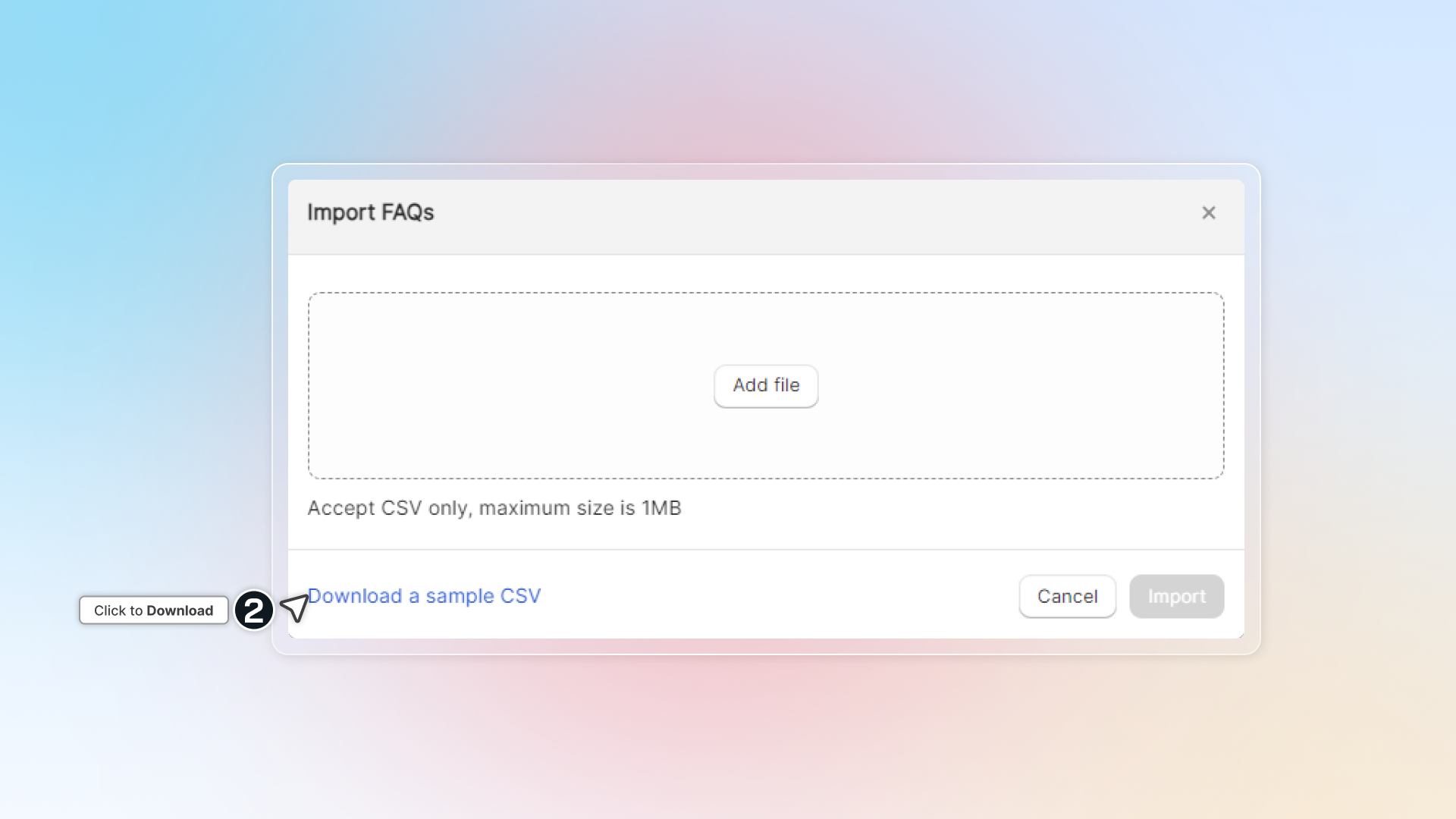
Get the sample file to import FAQs
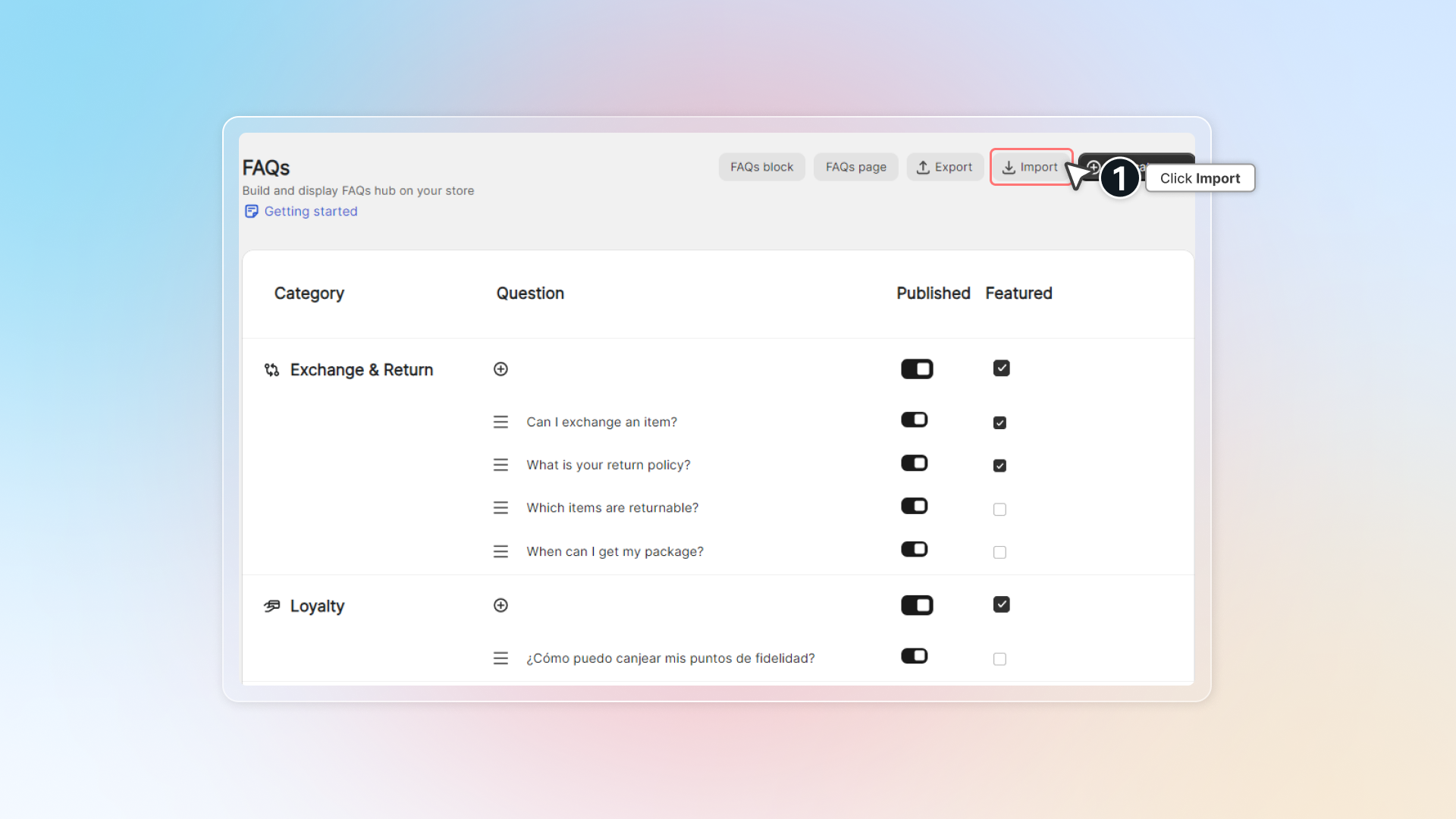
Go to FAQs → Select More actions → Click Import FAQs → Download a sample CVS
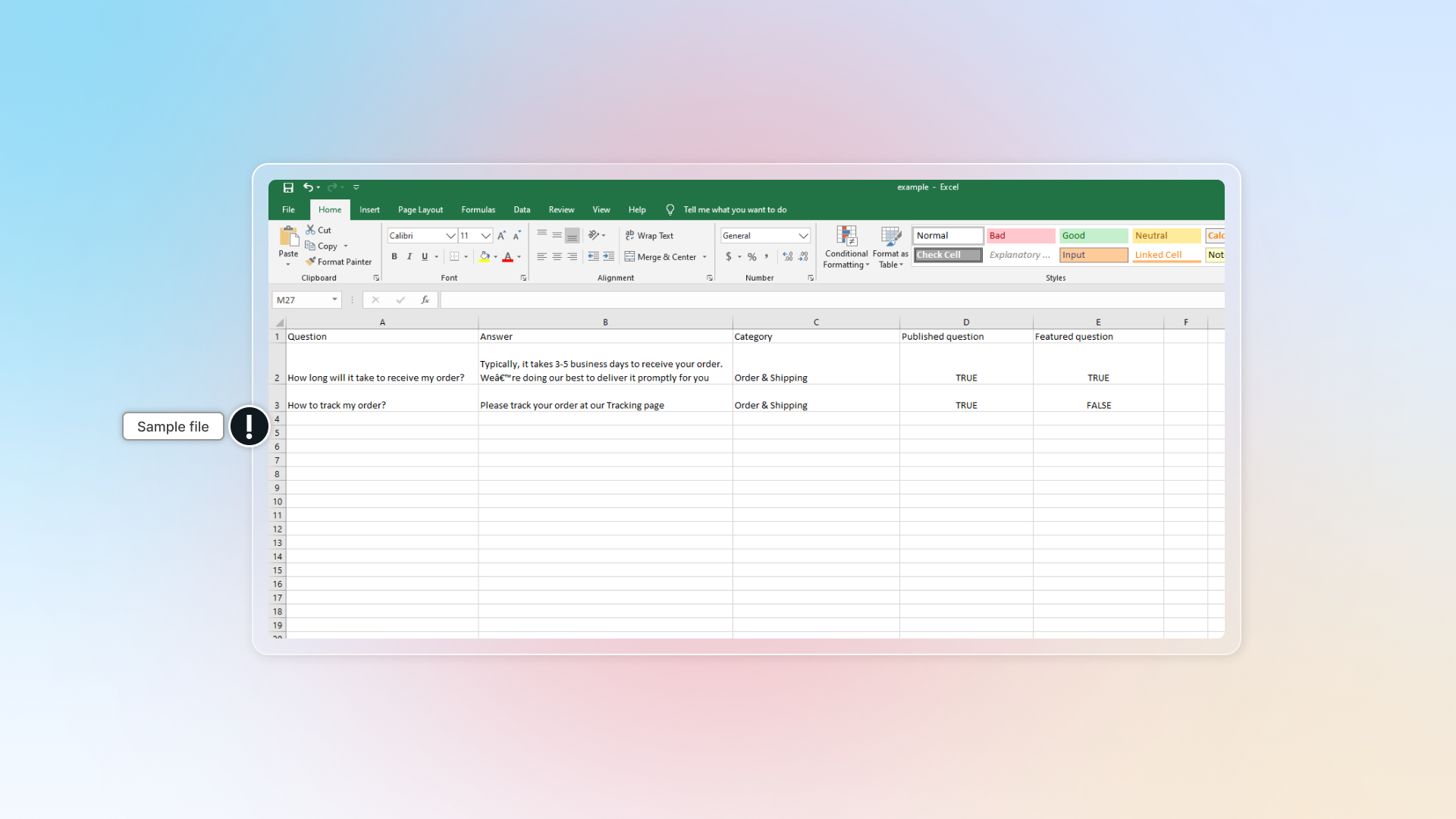
Enter your questions and answers in CVS file
It is required to fill in all information (keep hearders).
In sample file, there are 5 fields:
- Question
- Answer
- Category: Category name that question belongs to
- Published question: TRUE = published question, FALSE = unpublished question
- Featured question: TRUE = featured question, FALSE = not featured question
Info
File size must be less than 1MB
Save and upload file
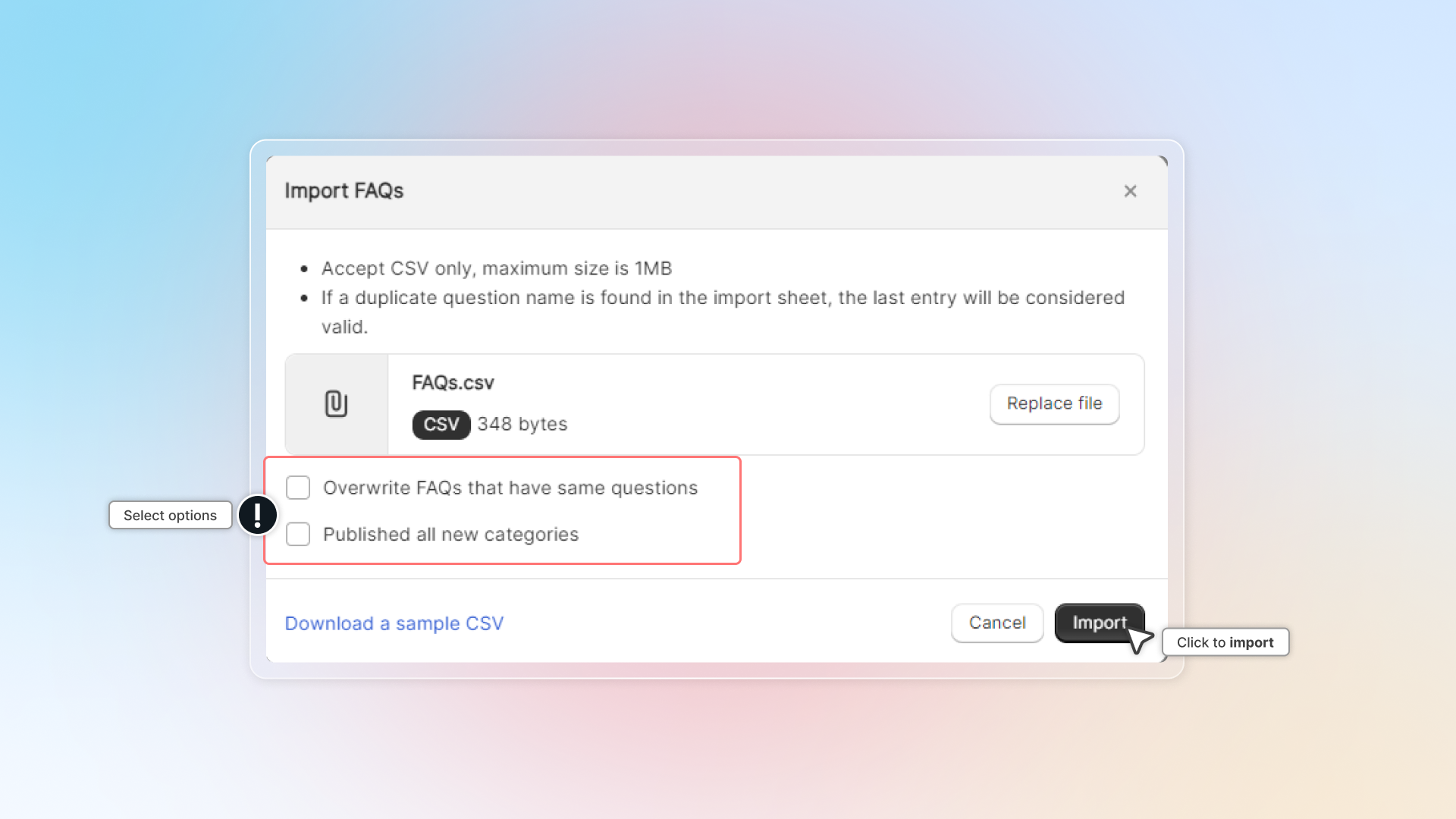
Click Import FAQs -> Drop CVS file and select your option for all FAQs
- Overwrite FAQs that have the same questions
- Published all new categories
Export FAQs
You can also export FAQs in CVS file.
Go to FAQs → Select More actions → Click Export FAQs → Select which FAQs you want to export → Click Export
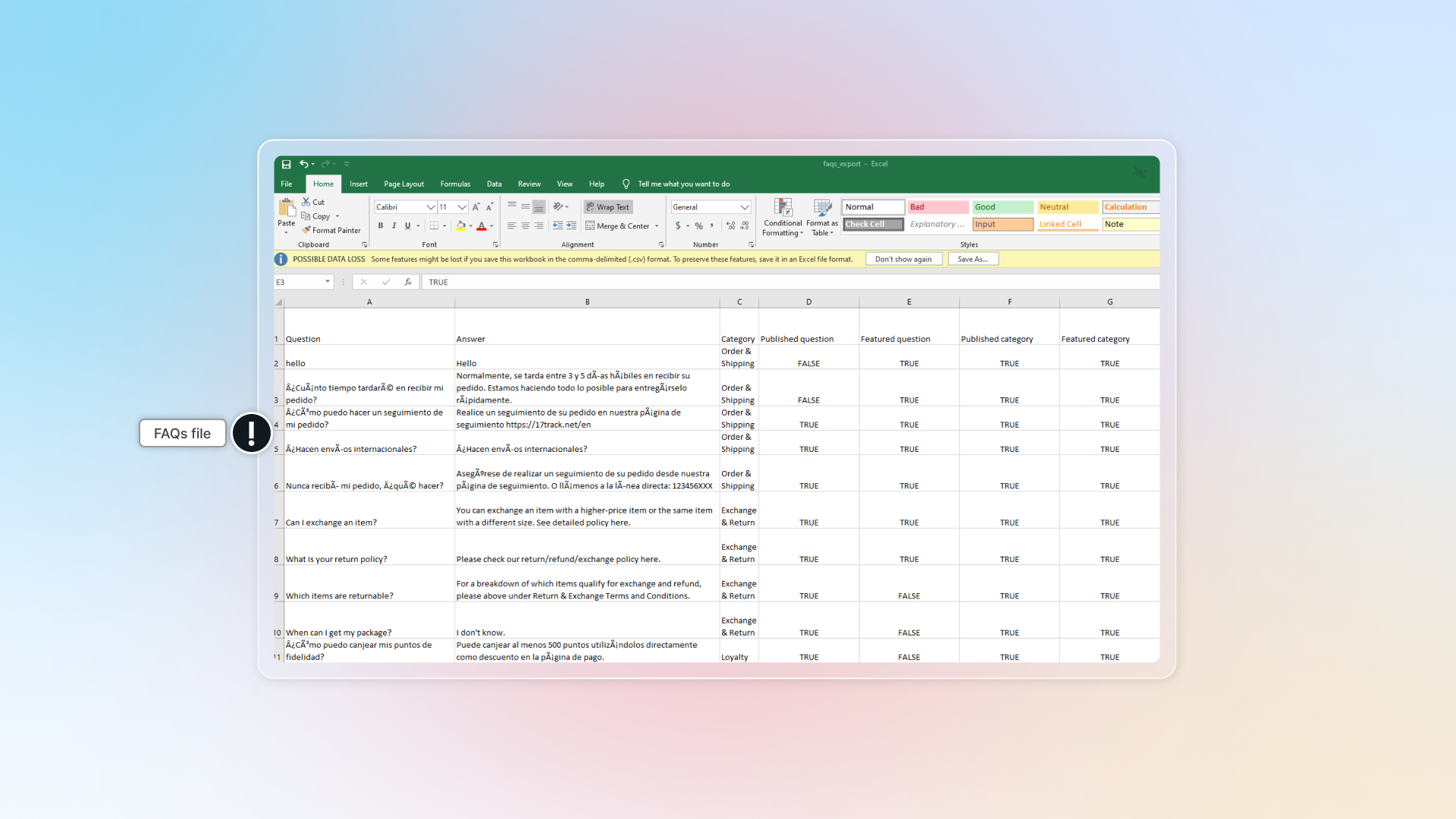
In FAQs file, there are 7 fields:
- Question
- Answer
- Category: Category name that question belongs to
- Published question: TRUE = published question, FALSE = unpublished question
- Featured question: TRUE = featured question, FALSE = not featured question
- Published category: TRUE = published category, FALSE = unpublished category
- Featured category: TRUE = featured category, FALSE = not featured category