Conversation details
Info
Who can use this feature?
- This feature is available for all users.
What is conversation details?
Conversation details is the right-side panel in Inbox that gives you a full picture of who you're talking to.
You can see what's in their cart, their profile, browsing history, past conversations, and more. All while you're in the middle of a chat.
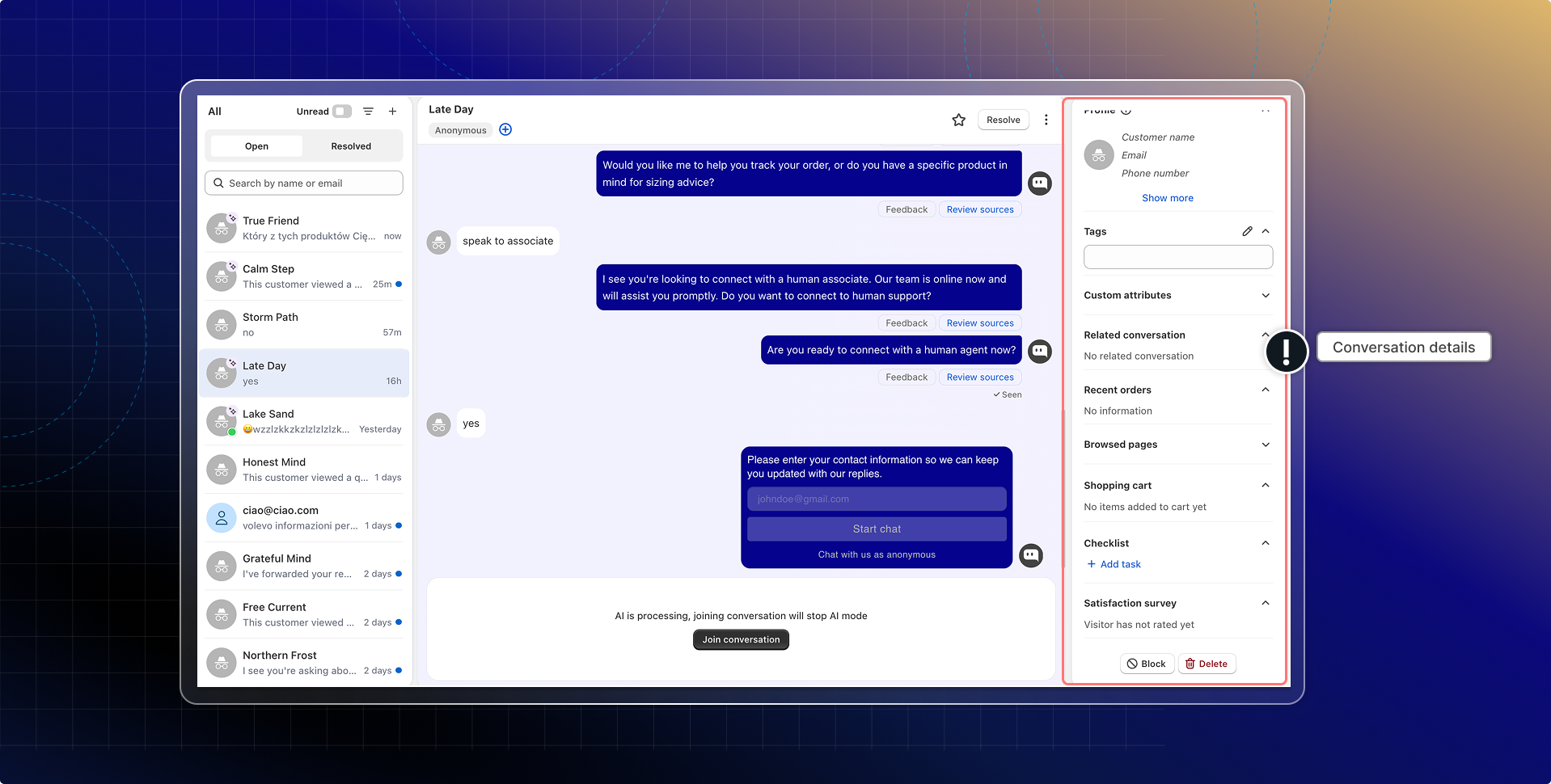
In conversation details, you can check customer details:
- Shopping cart
- Customer profile (email, phone, etc.)
- Browsed pages
- Custom attributes
- Related conversation
- Customer behavior
- Note
- Checklist
- Satisfaction survey
How does this help?
When you're handling a live conversation, switching between tabs to look up customer information slows you down. Conversation details put everything in one place so you can:
- See what a customer has in their cart and help them complete a purchase
- Understand who you're talking to: guest, returning customer, or anonymous visitor
- Review past conversations from the same customer without leaving the current chat
- Track follow-up tasks and notes for each conversation
- Check customer satisfaction ratings after a conversation ends
How conversation details work
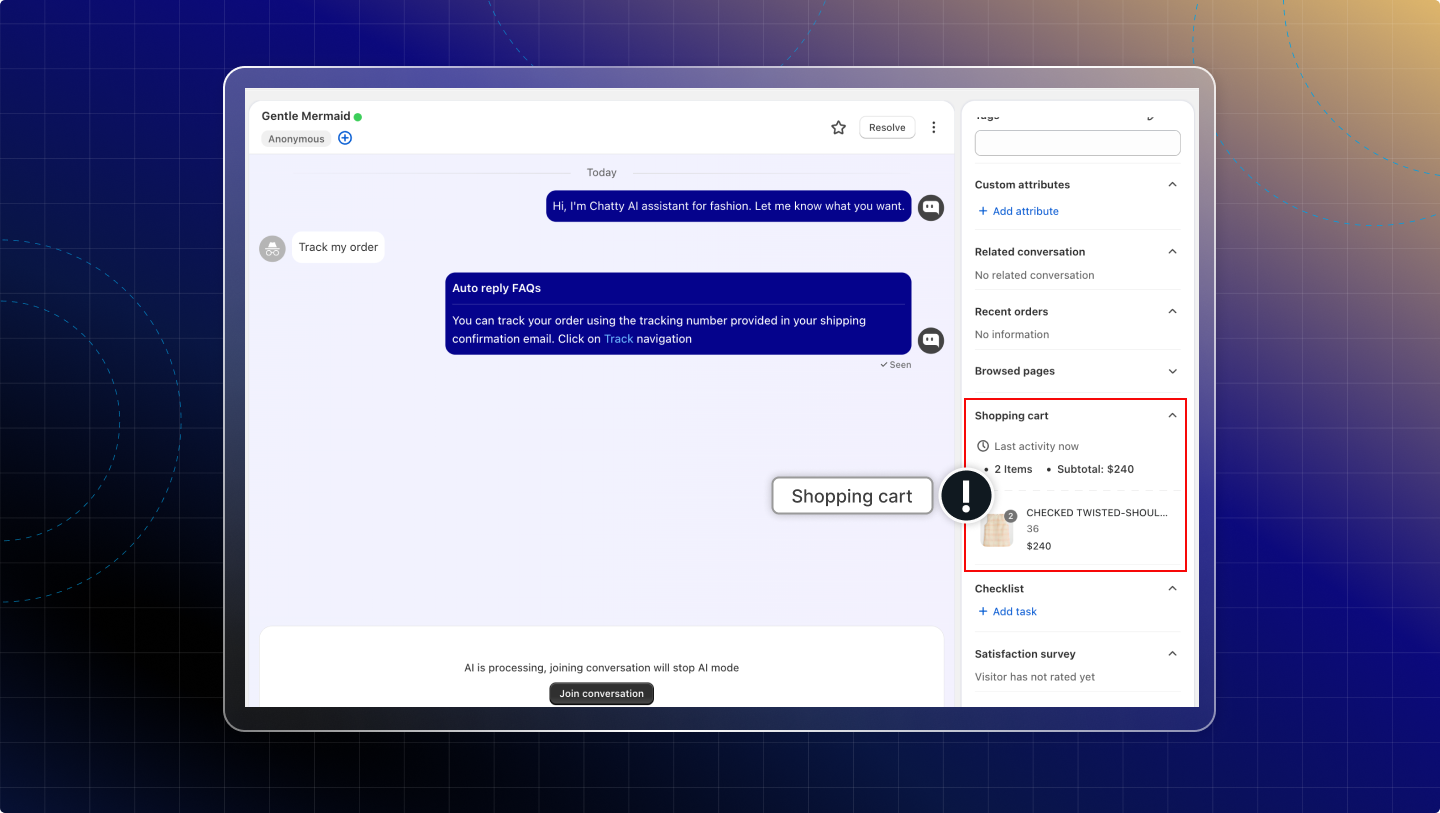
Shopping cart
Shopping cart shows the items the customer has added to their cart. This helps you understand what they are interested in and support them faster during the chat.
If the customer has not added anything yet, the shopping cart shows "No items added to cart yet".
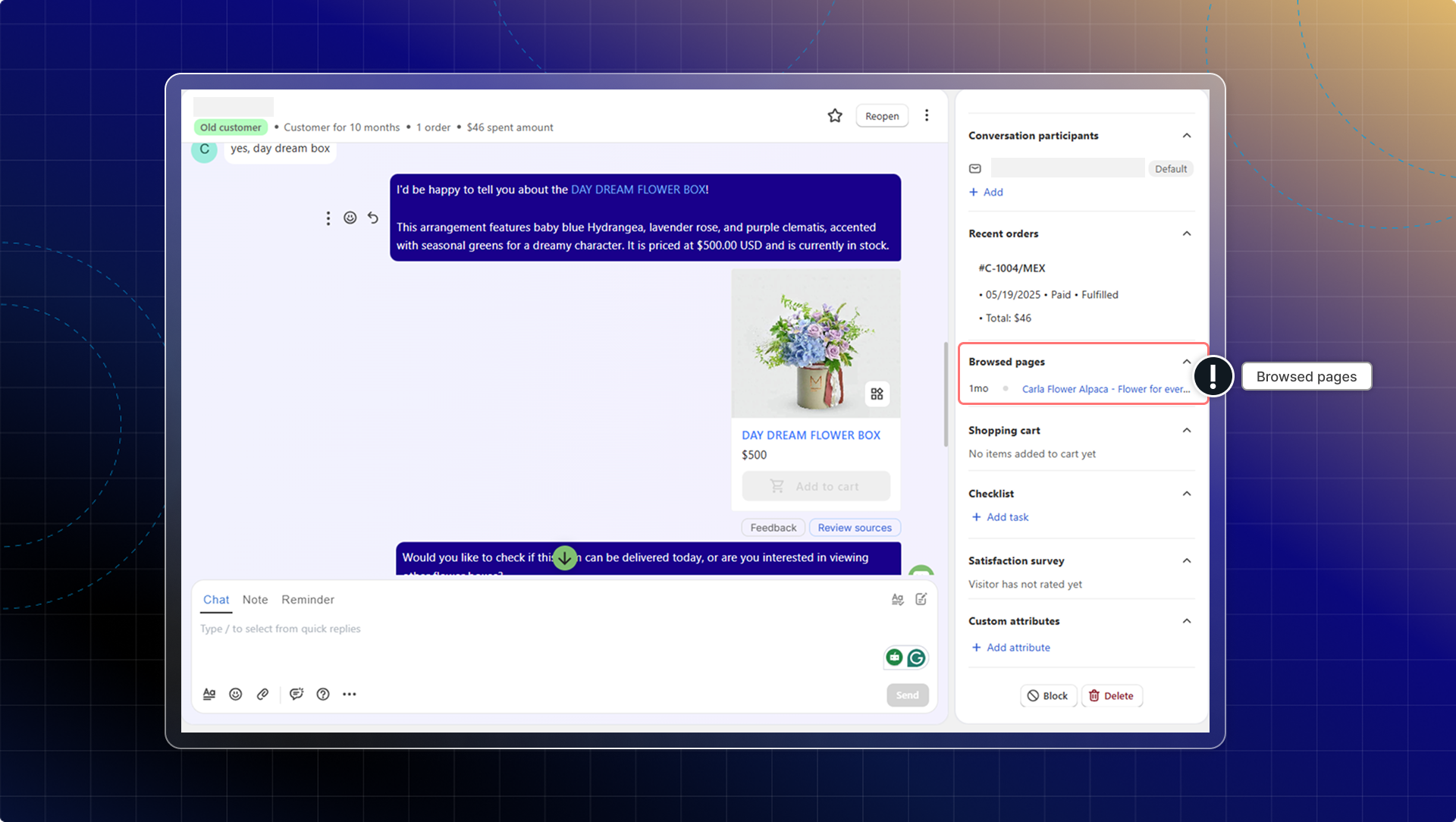
Browsed pages
You can check a customer's browsing history in the browsed pages.
Customer profile
To each type of customer, you get access to different information. There are 3 types of customers: guest, customer, and anonymous user.
Guest
Guests are visitors who have not been linked to a customer profile. You can see some basic information in Profile, depending on what the visitor shares during the chat: Email, Phone, and Name.
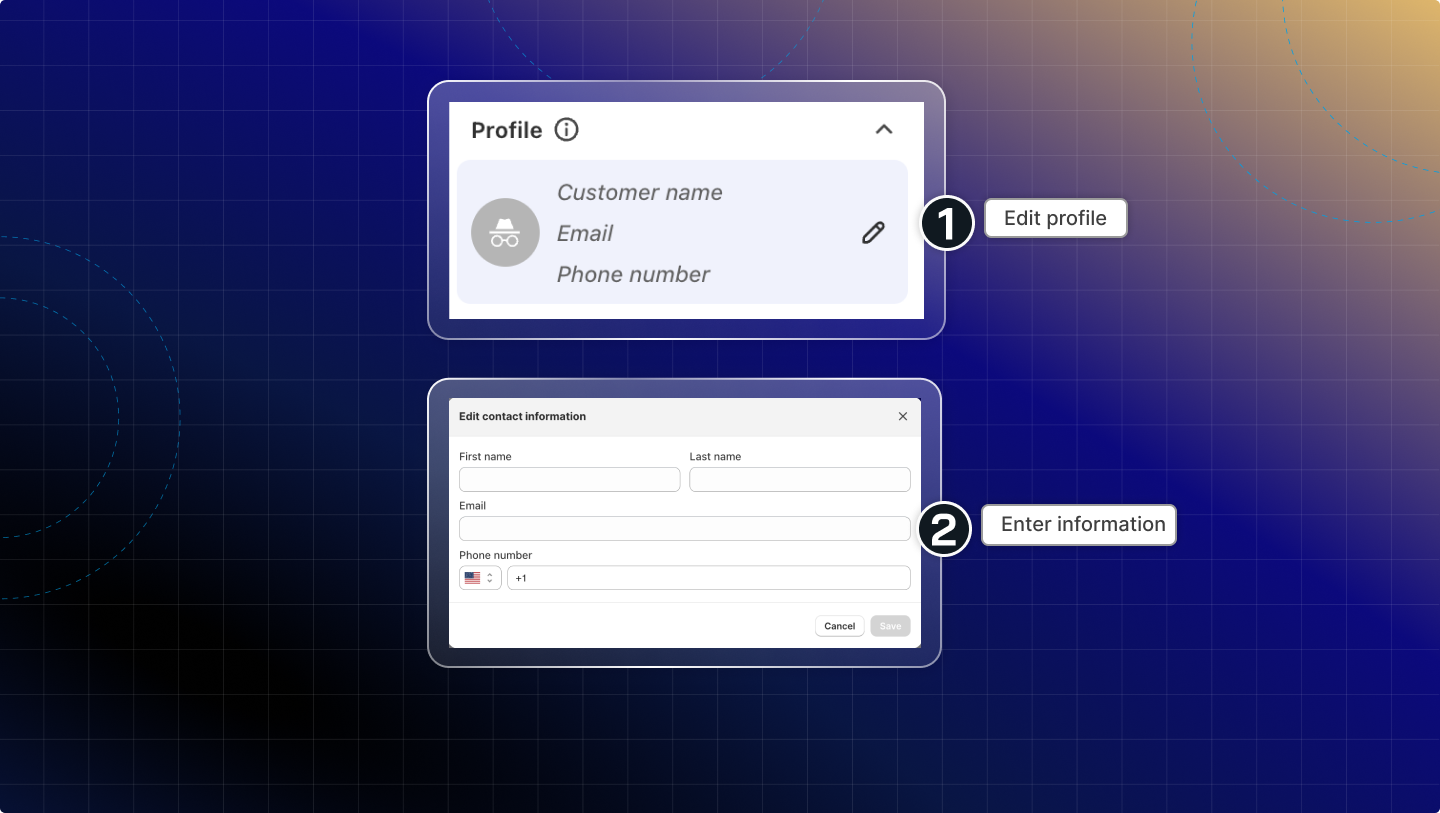
You can convert a guest to a customer by adding contact information right inside the Inbox. This helps you identify the person and keep their chat history under one customer.
In Edit contact information, enter the customer’s First name and Last name (optional).
Enter the customer’s Email.
Enter the Phone number and select the country code (optional).
Click Save.
Expected result: The Profile updates, and the conversation is linked to a customer (you will see customer information in Profile).
Note: If the visitor logged in with an email account, the chat form will suggest or auto-fill their email address. In this case, you can see the guest’s email in Profile even before converting them to a customer.
Customer
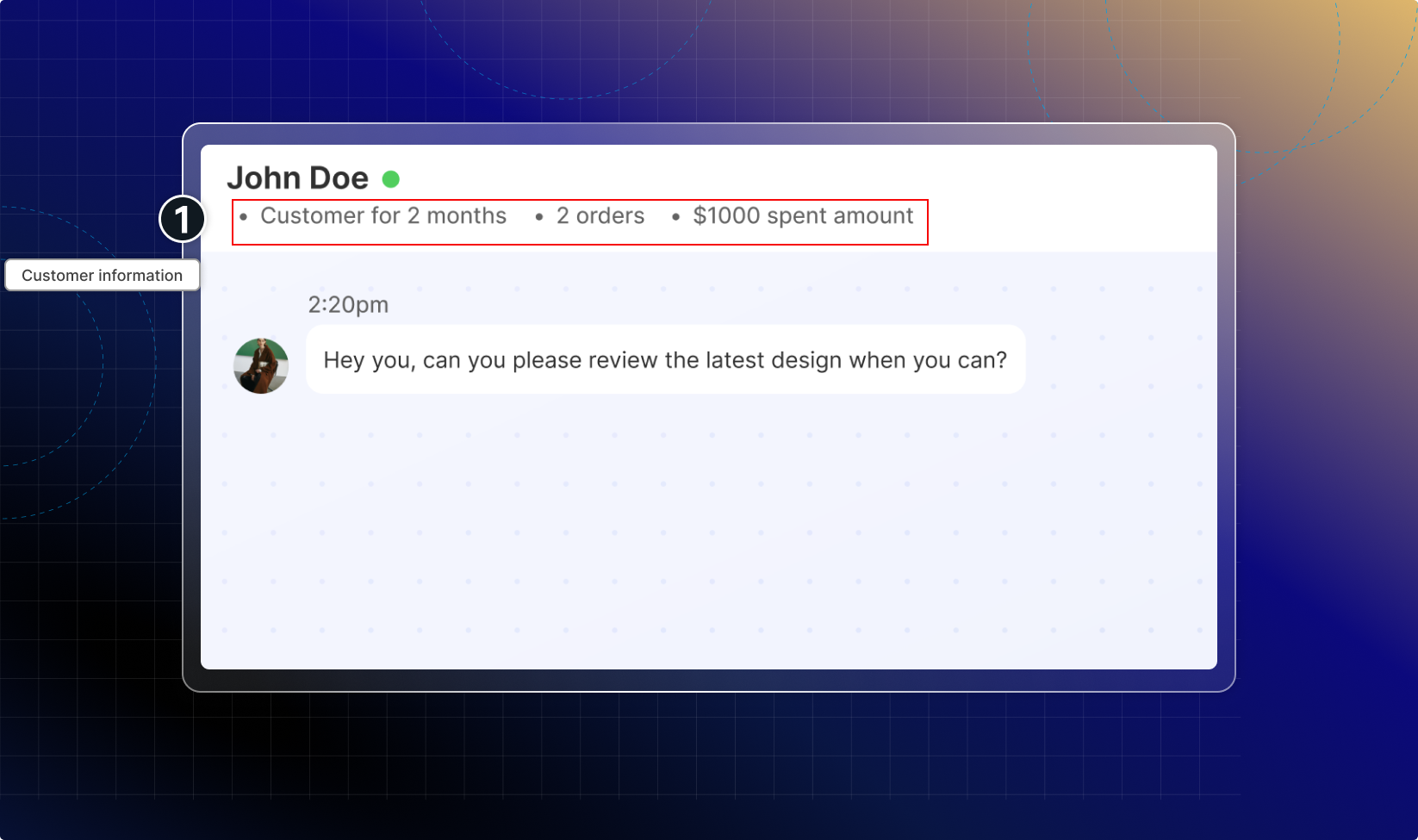
This customer already purchased from your store. All information in Shopify Customer will be synced to the profile: Name, Email, Phone, Location, Tag

This information will also be shown under the customer name.
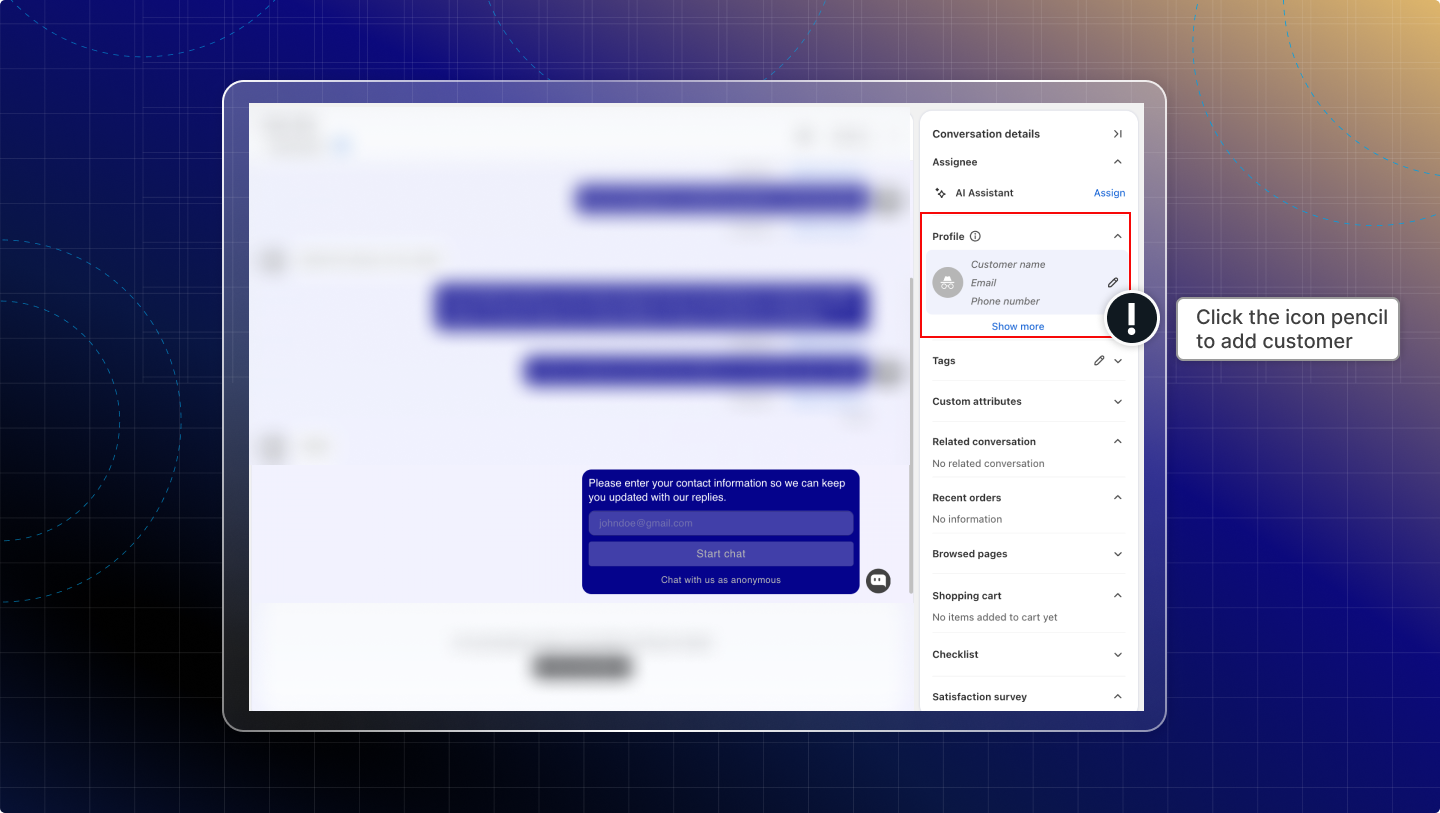
Anonymous user
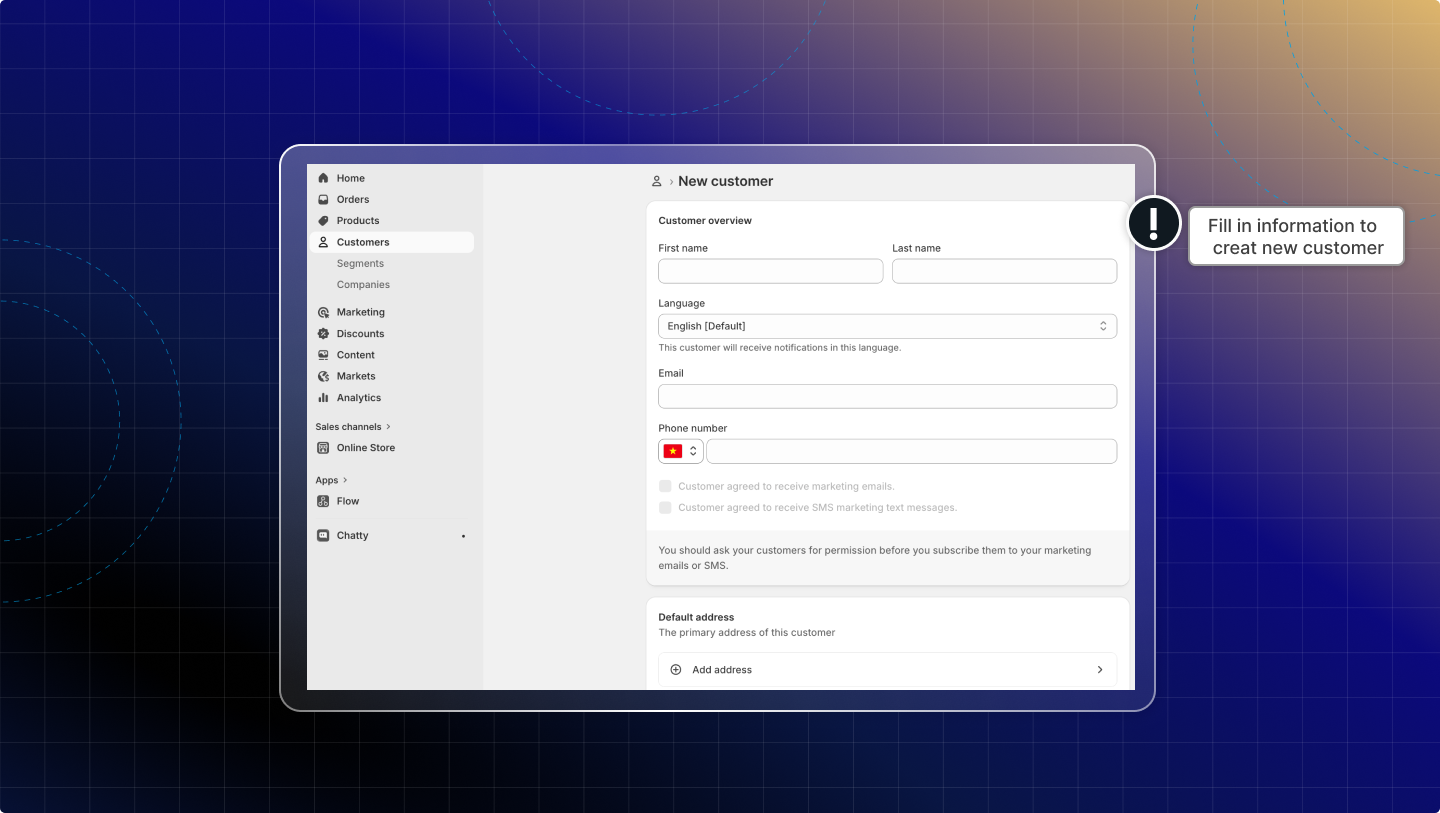
With an anonymous user, you can still add them as a new customer by clicking the pencil icon to add a customer.
Custom attributes
Custom attributes let you add your own extra information for each conversation to manage chats and prepare for easier filtering and reporting later.
- Name: what the info is about
- Value: the detail you want to save
Example:
- Name: Order type → Value: Pre-order
- Name: Priority → Value: High
- Name: Issue → Value: Deliver delay
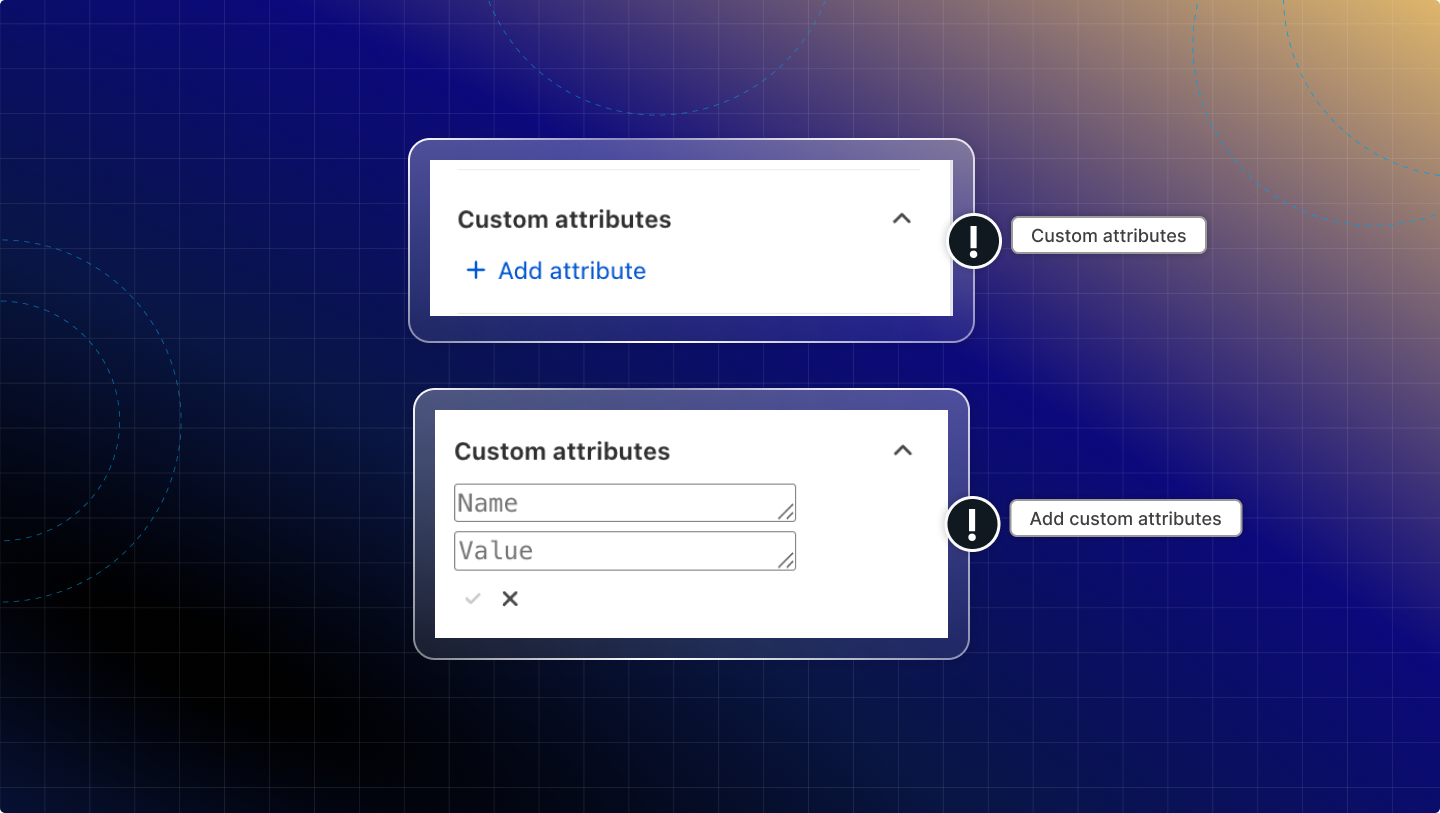
Add an attribute
In Conversation attributes, click Add.
Enter the attribute Name.
Enter the attribute Value.
Click save.
Delete an attribute
Find the attribute you want to remove.
Click Delete (X icon).
Info
- Attributes are added to this conversation only. This won't be applied to other conversations.
- A filter by attributes will be added in a future update to search and group conversations using these attributes.
Related conversations
Related conversations let you see other conversations from the same customer while you are replying, so you can support faster without leaving the current chat.
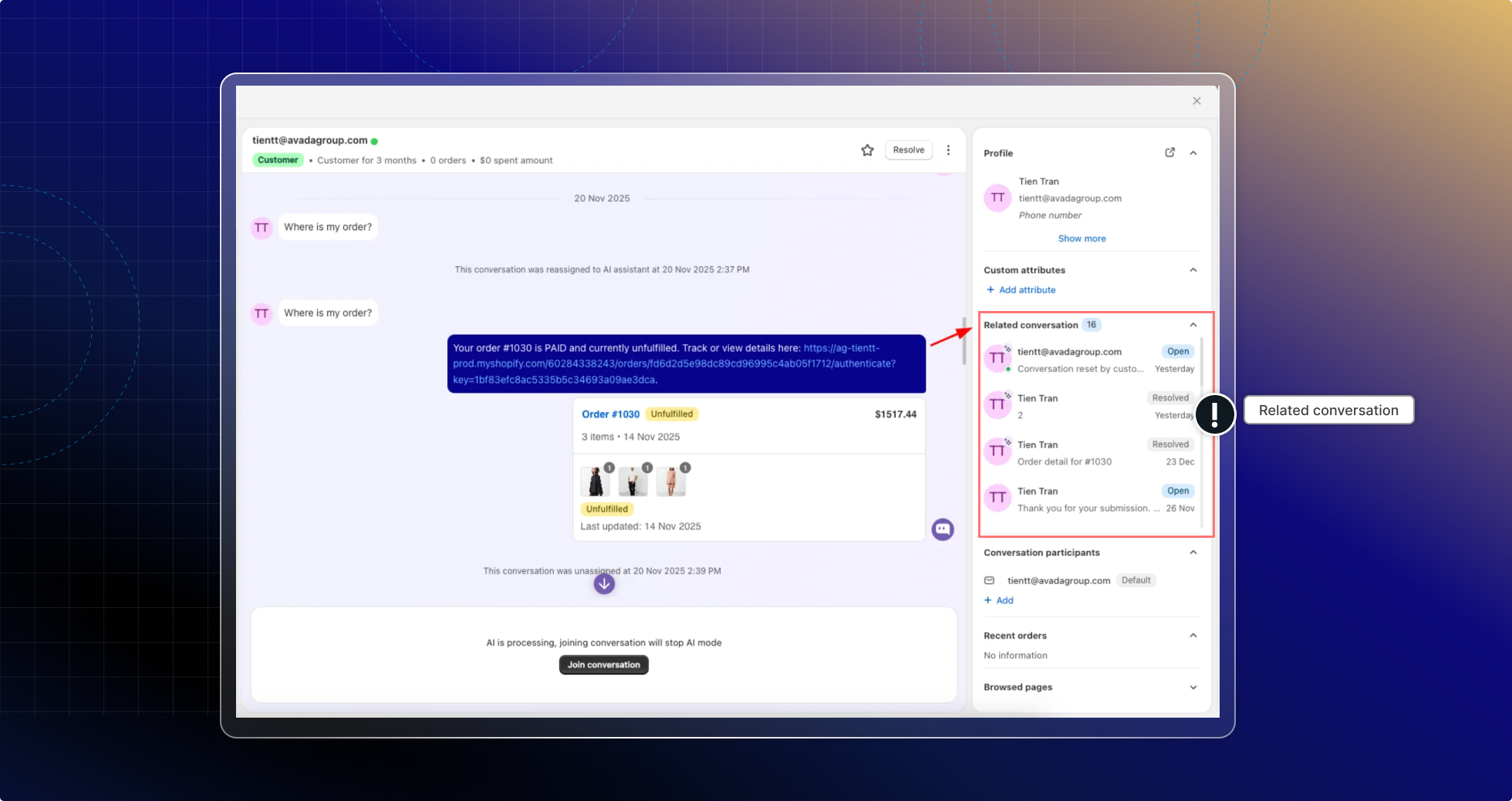
What do you see in related conversations?
- Customer name
- The 5 most recent conversations are by default
- Conversation status
- Assignee
How does Chatty choose related conversations?
Chatty finds the related conversation based on who the person is and the same visit.
| Customer type | How Chatty matches |
|---|---|
| Customers (logged-in customers) | Same customer profile, including reset conversations and converted leads |
| Lead (guest) | Same email, same phone number, or same active session |
| Anonymous user | Same session only |
If you don’t see any related conversations, this means there are no conversations that match the same customer (email/phone/profile) or the same session.
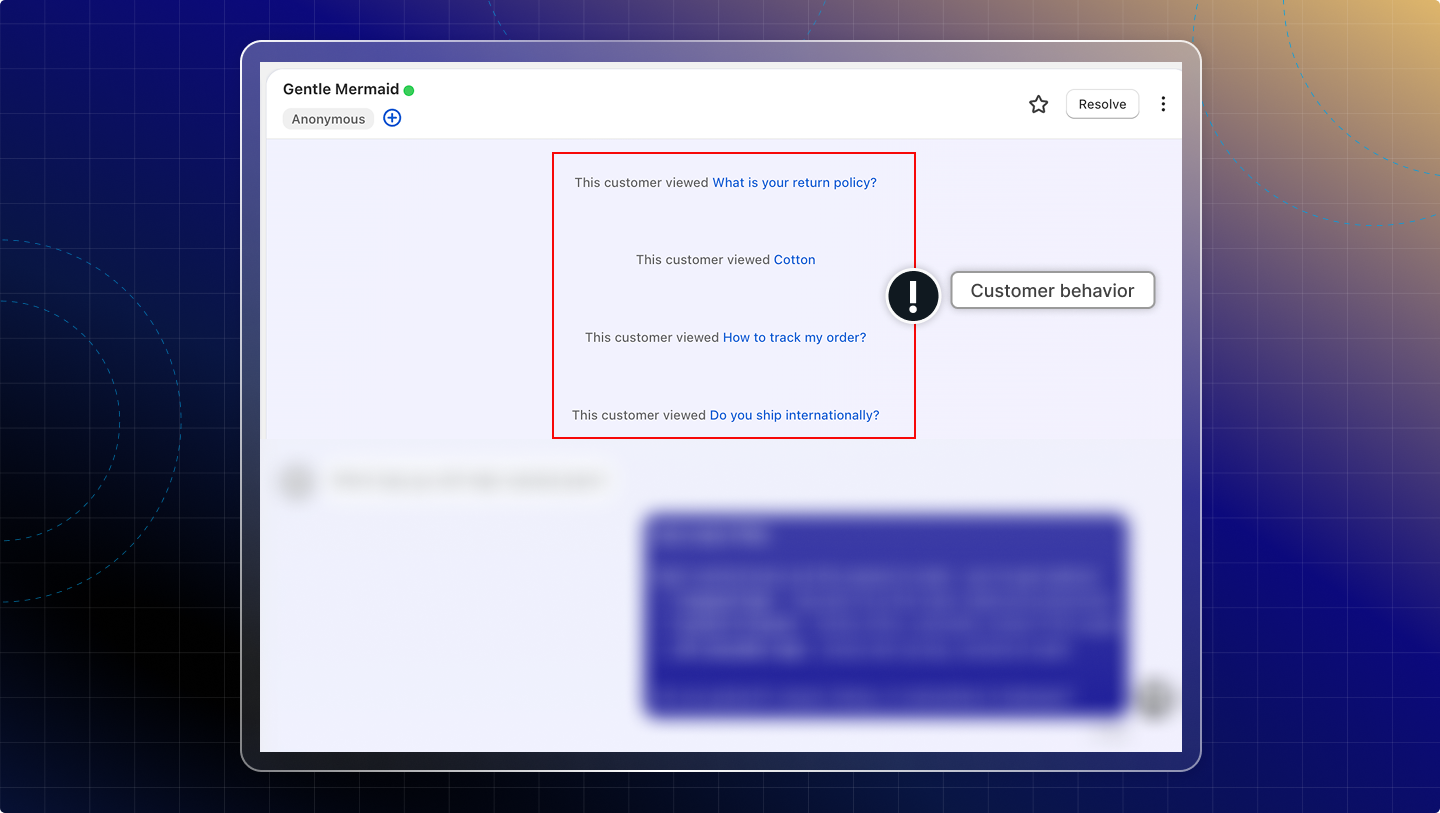
Customer behavior
In the chat zone, you can check customer behavior in real-time, like add to cart or place an order.
List of customer behavior:
- Start a chat
- Add products to empty cart (show with product details)
- Add products to existing cart (show with product details)
- Remove products from cart (show with product details)
- Place an order
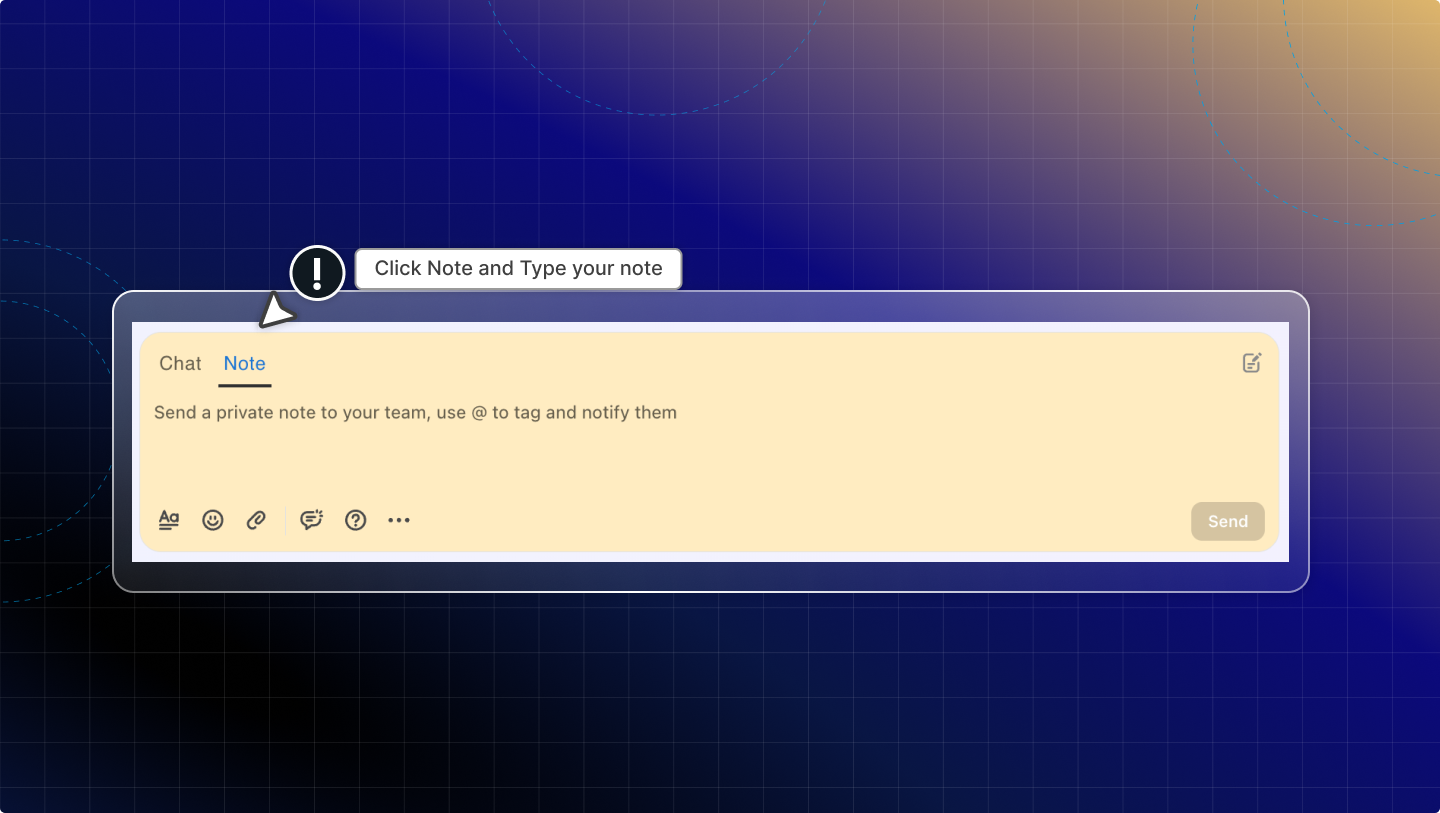
Note
You can leave a note for each customer for further information. A note will go together with the created time. You can edit or delete a note.
Checklist
A checklist helps you keep track of follow-up tasks for each conversation, so nothing is missed during support or handover.
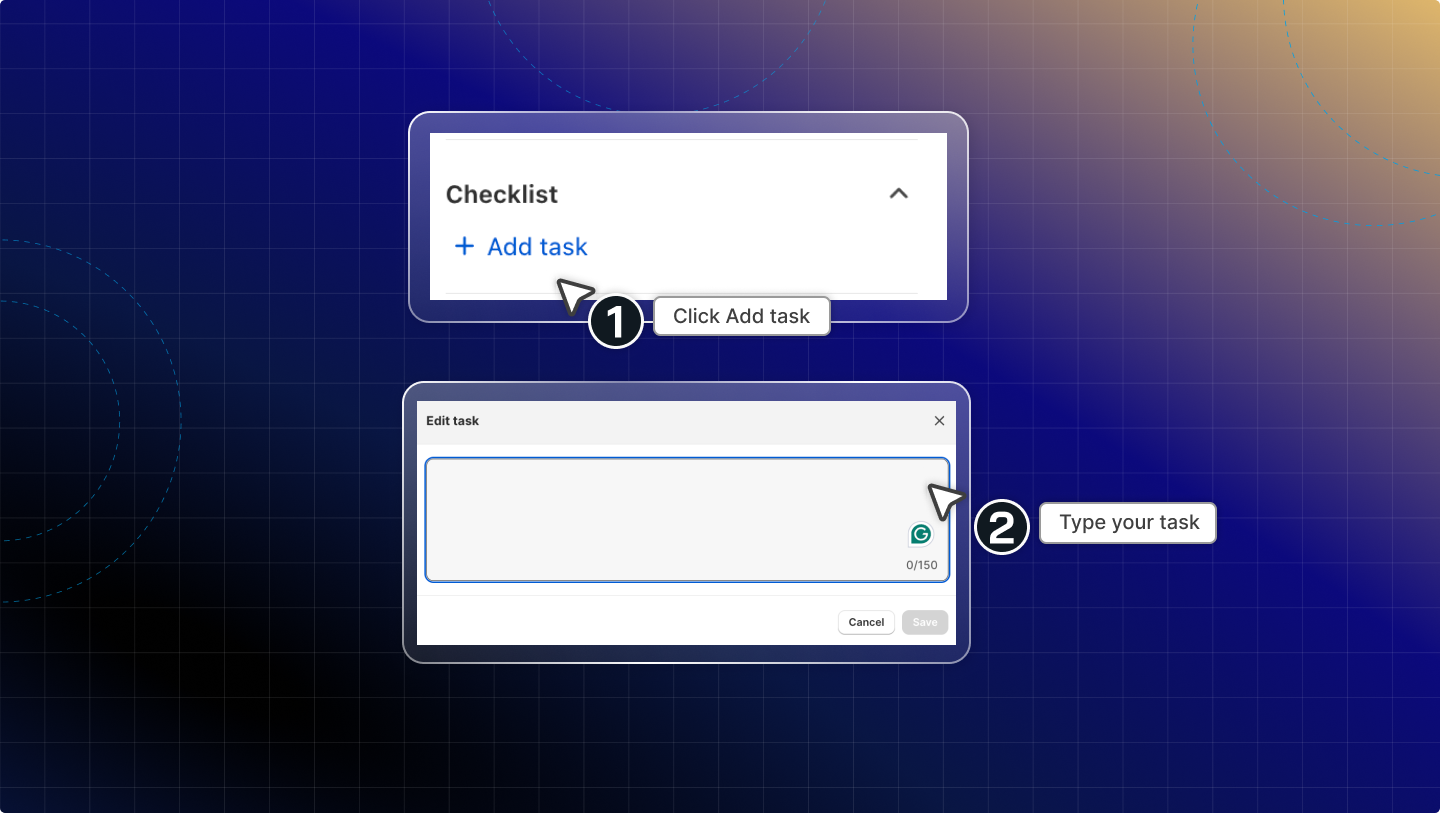
Add a task
In Checklist, click Add task.
Type your task
Example: “Check with the internal team and respond within 1 hour”.
Press Enter to save.
Edit a task
In Checklist, find the task you want to update.
Click the Edit icon (pencil).
Update the task text.
Press Enter to save.
Delete a task
In Checklist, find the task you want to remove.
Click the Delete icon (trash).
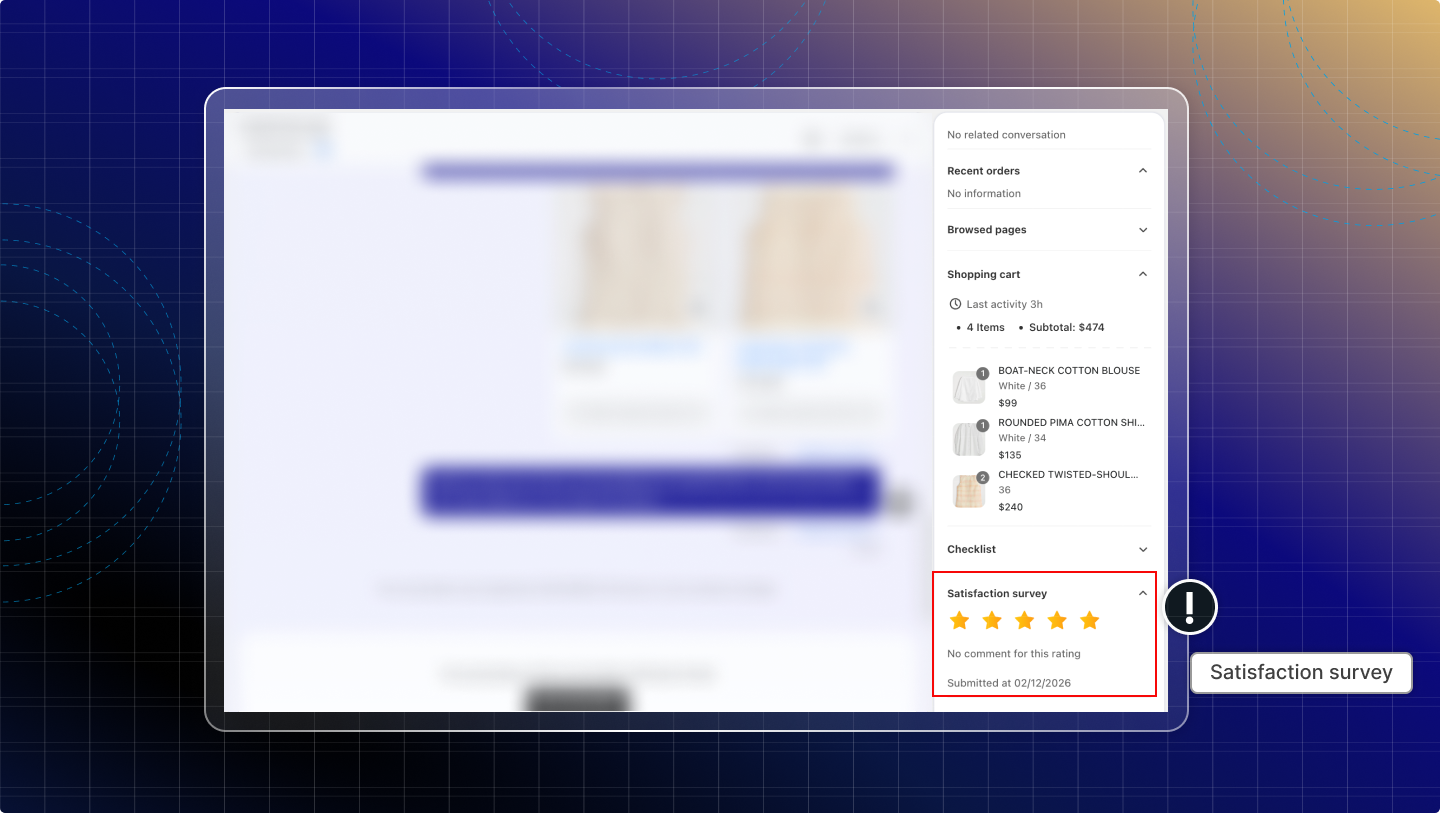
Satisfaction survey
The satisfaction survey shows the customer’s rating for this conversation after the chat ends. This helps you understand how satisfied the customer is and track service quality over time.
What you can see
- Rating status (rated/not rated yet)
- Rating result when the customer submits a rating.