Inbox
Info
Who can use this feature?
- This feature is available for all users
What is Inbox
Inbox is your central hub for managing all customer conversations across multiple channels.
It brings together messages from live chat, email, Facebook Messenger, and other connected channels into one workspace
You can easily track, respond to, and organize every customer interaction.
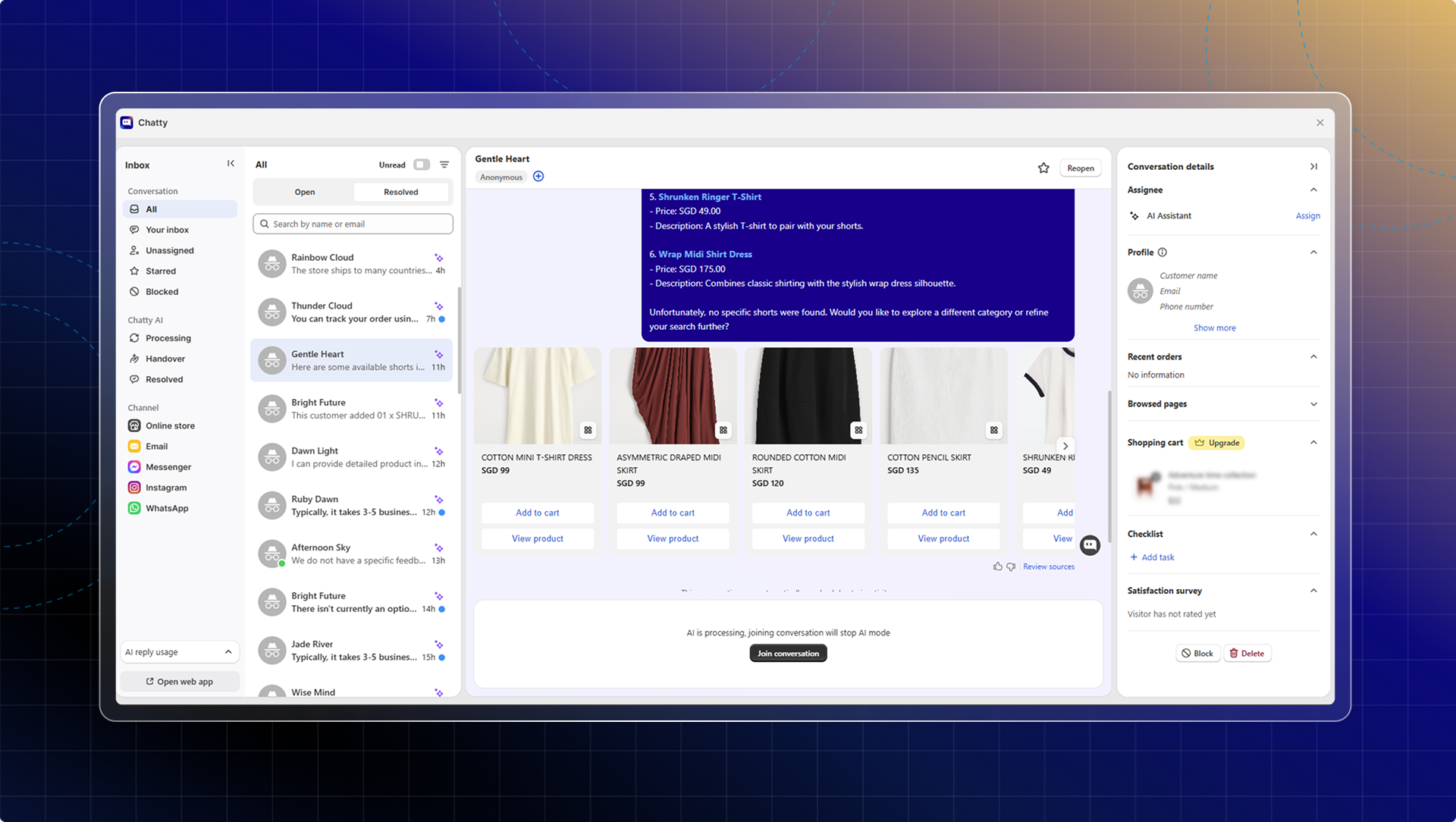
What Inbox helps you do
- Respond to all conversations from all channels in one place
- Easily find conversation with smart filter & search
- Check customer details while chatting
- Manage conversations effectively: star, mark as resolved, etc.
How to use Inbox
Access your inbox
- Go to Chatty in your Shopify admin
- Click Inbox tab in the main navigation
- Or click Go to inbox from Dashboard
Your inbox opens with the conversation list on the left and chat details on the right.
Respond to conversations
Send messages
- Select a conversation from the list
- Click the message input field at the bottom
- Type your message
- Press Enter or click Send
Info
With conversation assigned to AI, click Join conversations to start responding. You can reassign to AI anytime for AI auto-reply.
Change send behavior
By default, pressing Enter sends your message. You can change this in settings (Settings → Inbox settings → Message preference)
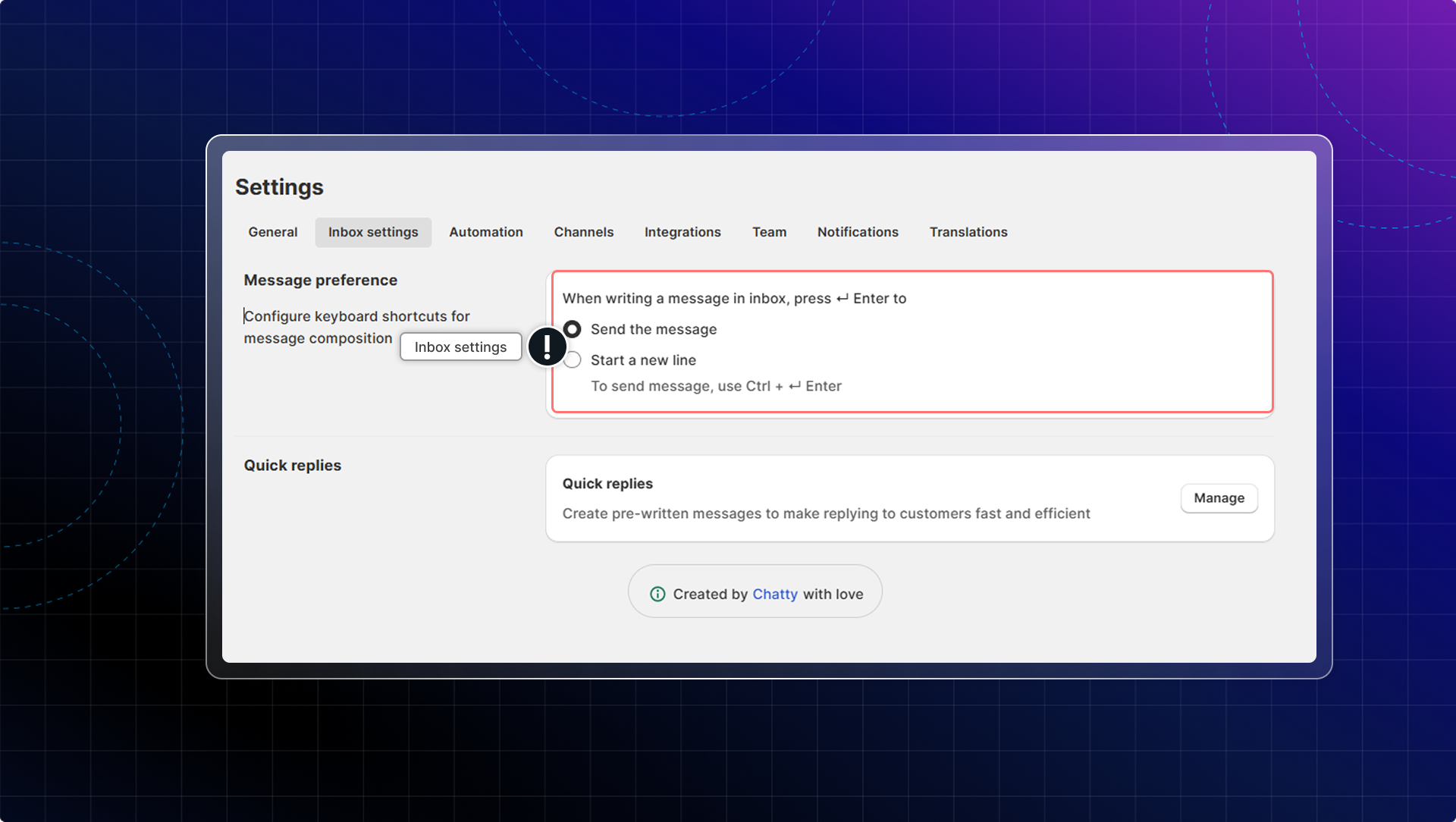
Learn more about responding in chat zone.
Filter conversations
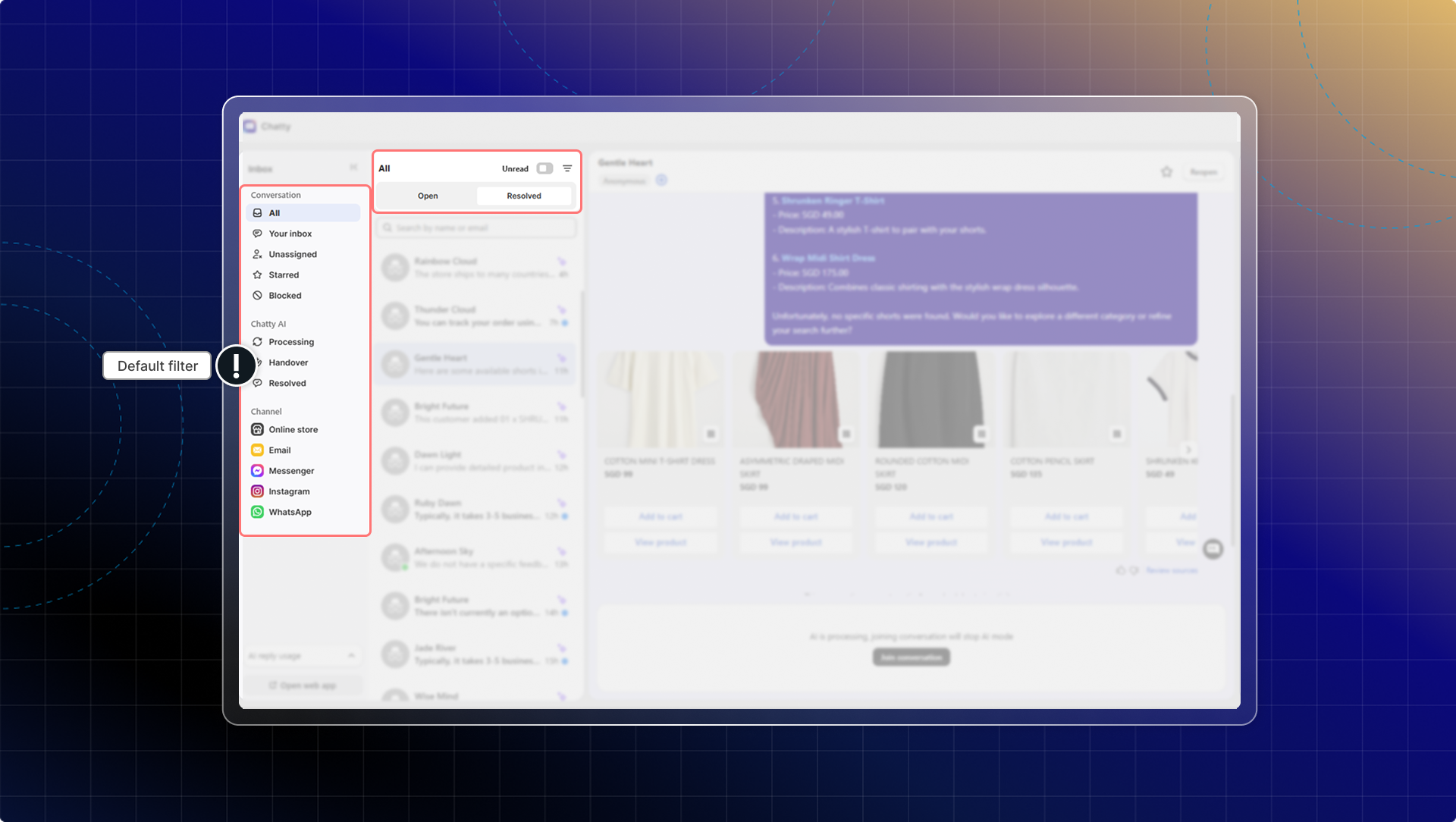
Filter by status
- Click filter options in the filter menu or at the top of conversation list
- Select Open, Resolved, Starred, Blocked, Unread
- Conversation list updates to show only matching conversations
Filter by channel
- Click channel icons in the filter menu
- Select specific channel (Online store, Live chat, Email, Messenger, Instagram, Whatsapp)
- View only conversations from that channel
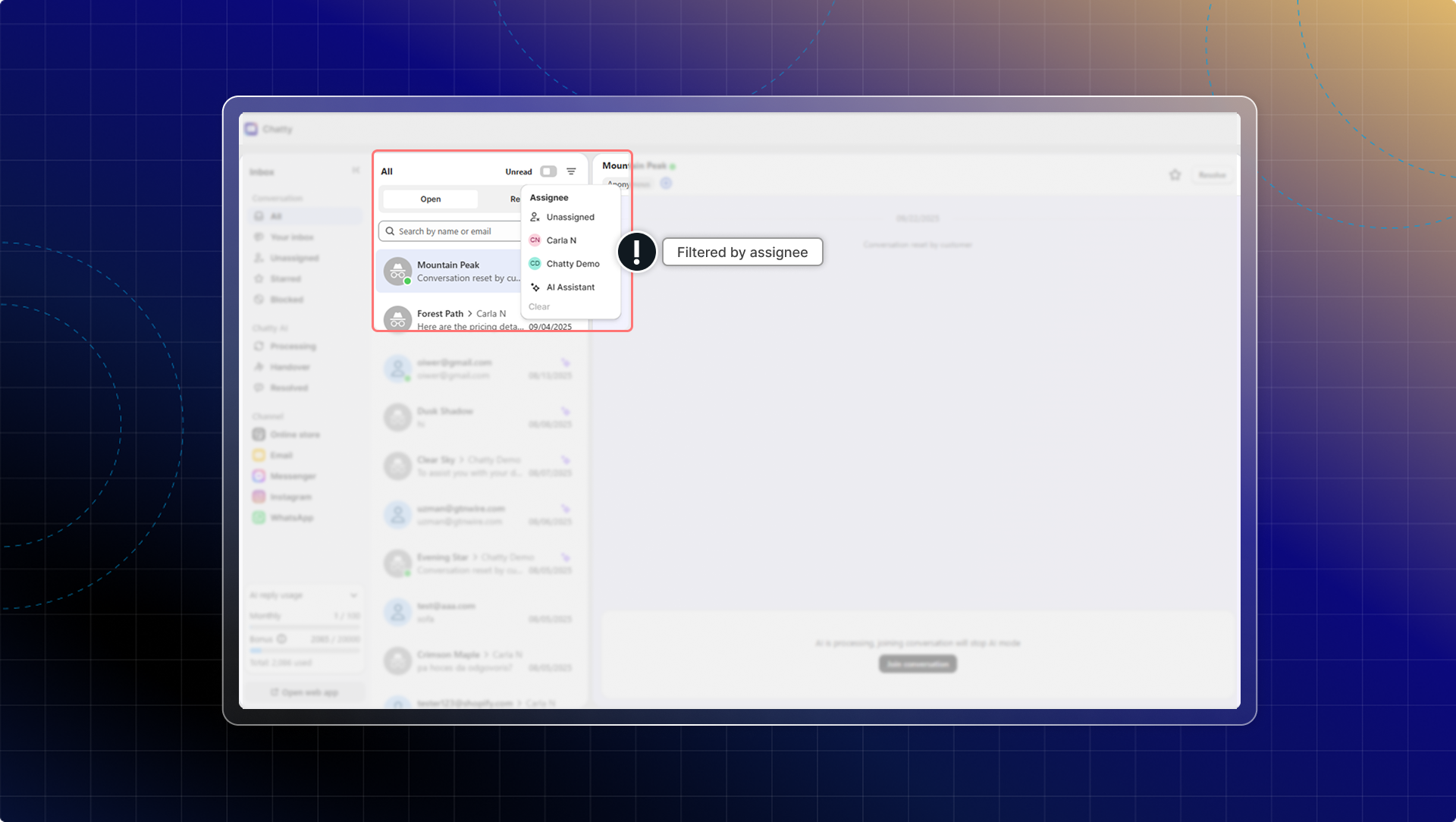
Filter by assignee
- Select Your inbox (Conversation assigned to you), Unassigned from the filter menu; or select an assignee in the list at the top of conversation list
- View conversations assigned to that assignee.
Manage conversations
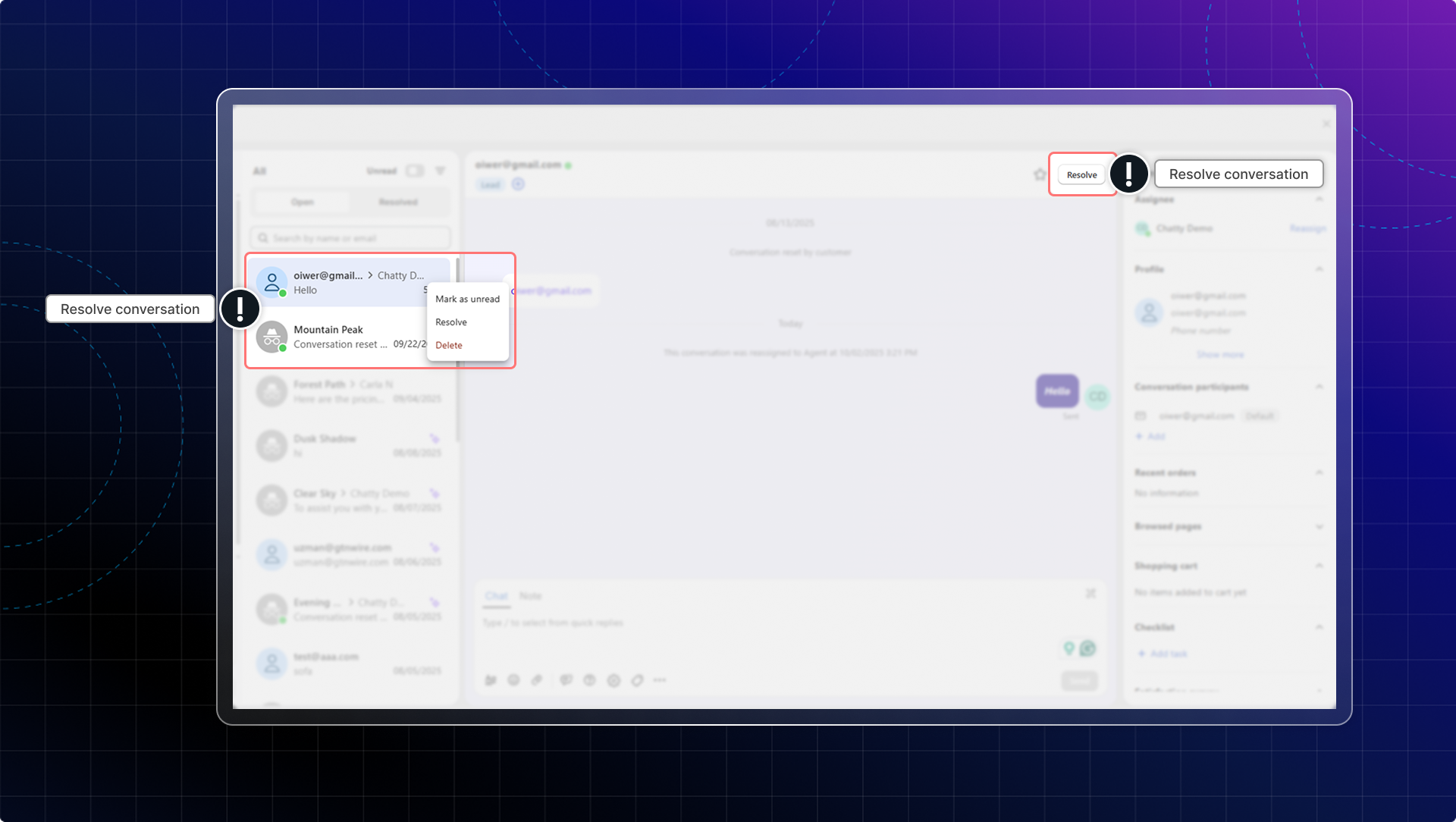
Mark as resolved:
- Open the conversation
- Handle the customer inquiry completely
- Click Resolve
- Conversation moves to Resolved filter.
Learn how to resolve conversations automatically.
Star conversations:
- Open important conversation
- Click star icon
- Find starred conversations in Starred filter
Delete conversations:
- Open conversation to delete
- Click Delete
Info
If you delete conversations, it will also delete contact info of anonymous users and leads. Contact info of customers stays the same.
If you delete contacts, all conversations of that contact will be deleted.
Check customer details
See important customer information while chatting:
- Contact information (email, phone)
- Order history and purchase details
- Customer tags and notes
- Pages they've browsed on your store
- Real-time actions:
- View FAQs
- Add products to empty cart (with product details)
- Add products to existing cart (with product details)
- Remove products from cart (with product details)
- Place an order
These behaviors help you understand customer intent and respond appropriately.
Use with team members
When working with team members:
- Assign conversations: Select team member in conversation details
- Add notes: Leave context for teammates handling the conversation
- Track assignments: Filter by assigned conversations
- Collaborate: Multiple team members can view conversation history
Learn more about team collaboration.