Chatbox settings
Info
Who can use this feature?
- This feature is available for all users
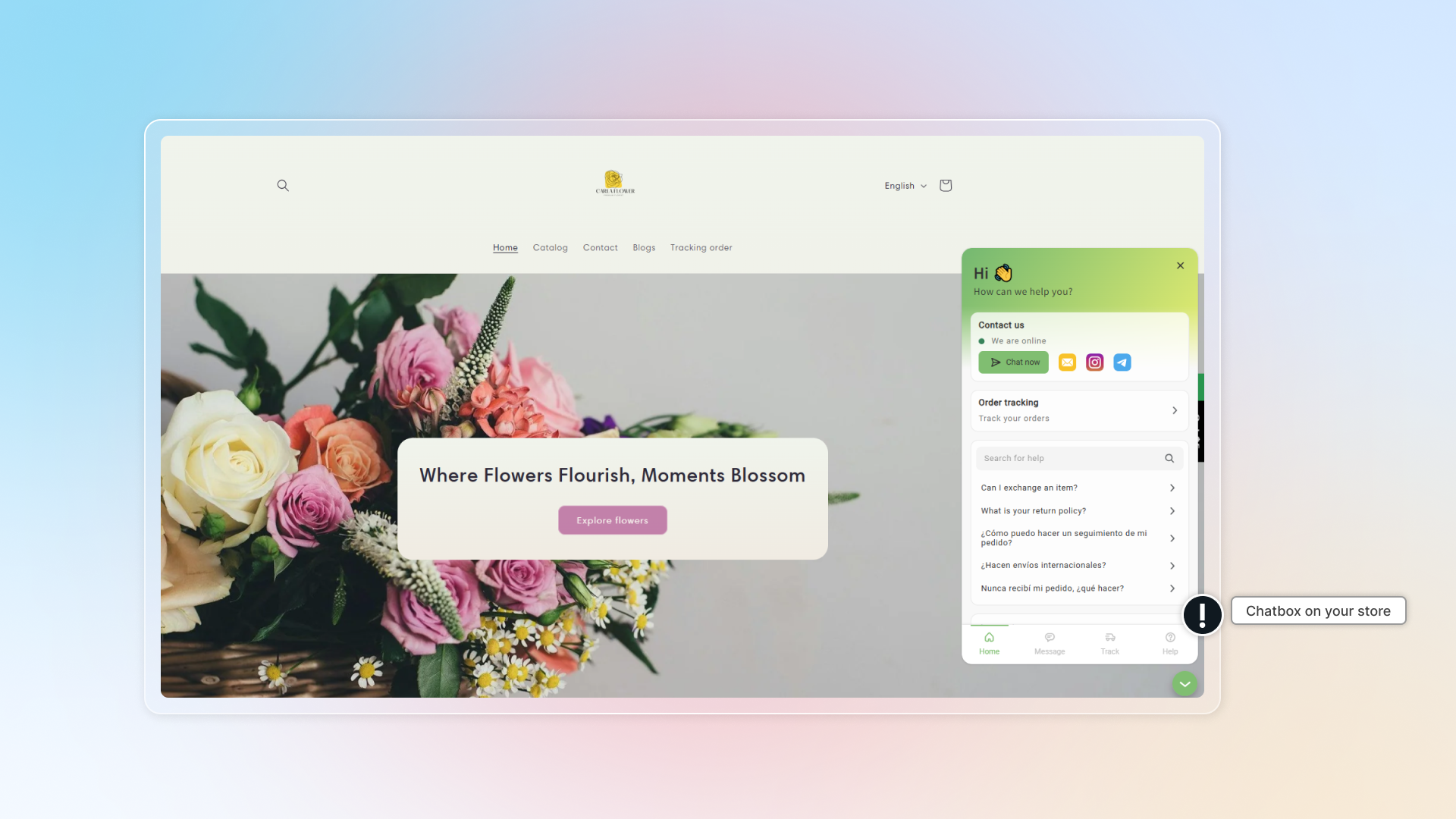
Chatbox is popup on your website includes sections to track order, contact and question list. This is how a chatbox looks like on your website.
Customize chatbox
In general settings, you can:
- Turn on/off chatbox
- Turn on chat focus mode
- Set header
- Set blocks
In appearance settings, you can:
- Customize brand color
- Set chatbox button
- Set chatbox style
- Remove watermark
In Advanced settings, you can:
- Set deep links
- Set display devices & pages
- Add custom code
General settings
Turn on chatbox
Enable Chatty in theme editor
Set header
- Upload logo
- Customize your heading and description
Turn on blocks you want to show in chatbox
There are 4 blocks in chatbox:
- Contact us: This helps you to set up all contact methods for your store. Turn it on and click Edit to add your contact methods.
- Order tracking: Helps track orders (third party allowed). Learn more about order tracking.
- FAQs: Pick some questions to show on first page of chatbox
- Categories: Pick some categories to show on first page of chatbox
Add contact button
Learn how to add contact button to your site.
How many contact methods are supported in Chaty?
Now, Chatty support 11 contact methods:
- Messenger
- Phone
- Telegram
- Skype
- Line
- Zalo
- Tiktok
- SMS
More methods are coming soon.
Appearance settings
Set brand colors
You can select colors from our preset or customize your own.
Or simply click Surprise me for inspiration.
Set chatbox button
- Select launcher
- Select or upload your own icon
- Select button size
- Select button alignment
Set chatbox style
- Select: No navigation or Show navigation
- Set ratio of chatbox on mobile
Advanced settings
Use deep links
Learn how to use deep links.
Select which devices and pages you want to show chatbox on
- Devices: Desktop and mobile
- Pages: All pages or a specific page
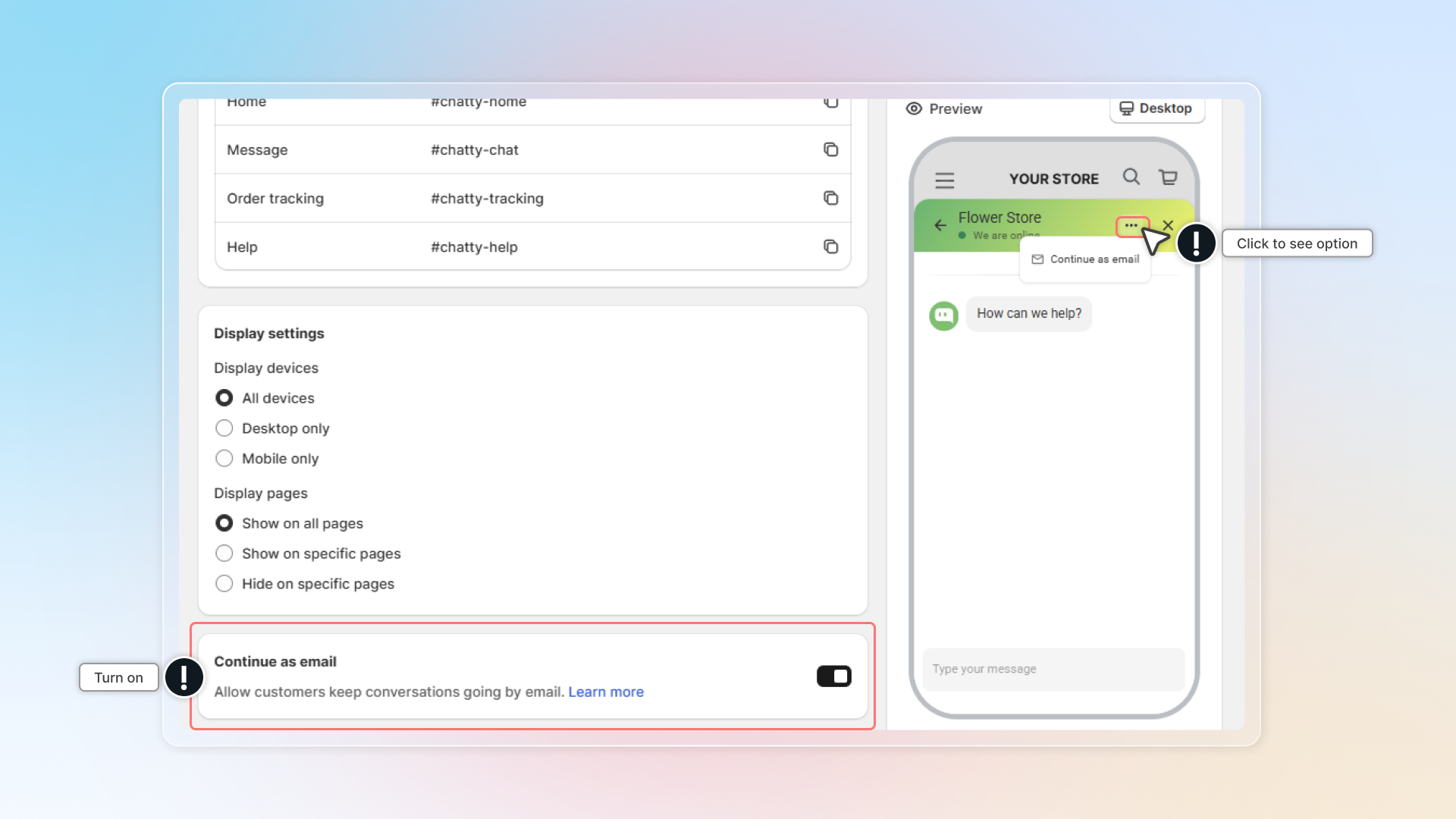
Continue as email
This helps customers keep their conversation going by email instead of live chat.
Click to turn on. In chatbox, customers can select Continue on email to keep the conversation going by their email.
Add custom code
Custom CSS in advanced settings helps you to have a custom FAQs page. This required knowledge of coding. If you need any help, contact us through live chat in the app
Chat page settings
Welcome message
The welcome message is first displayed when visitors initiate the chat.
Conversation starter
List of questions shown in chat as suggestions for visitors.
Chat avatar
Set up which avatar will be shown in the chat
Set how customers start a chat
- Chat as guest: Need to submit a form to start chatting
- Chat as anonymous: Stay anonymous and don't need to submit a form
- Show both options
Pre-chat form
It helps you collect customer information if you set "chat as guest" as a way to start a chat.
You can collect: email, name and phone number.
Unread message counter
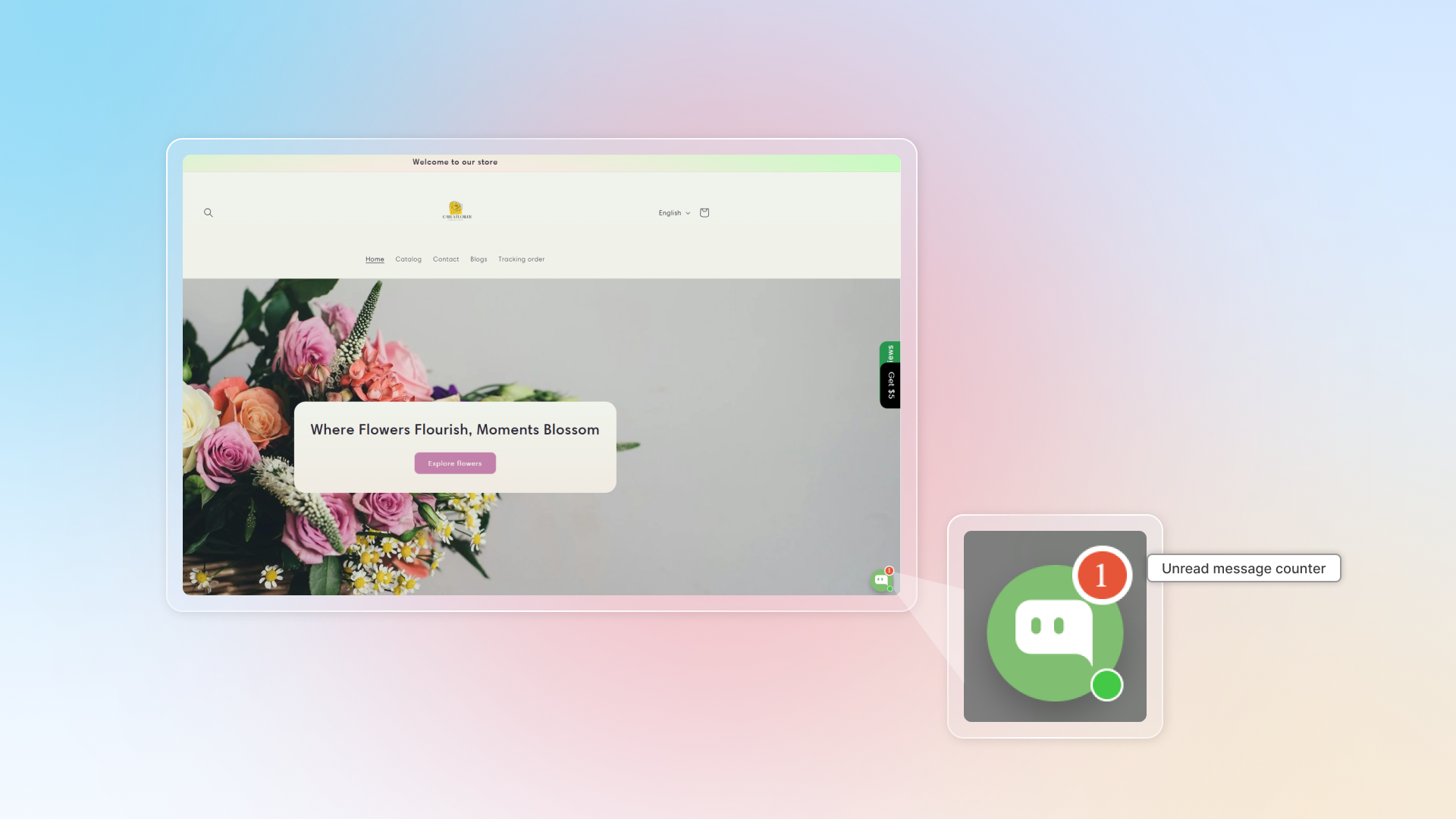
The message counter is a small red number that appears on your chat widget icon.
It shows your visitors how many unread messages or welcome messages are waiting for your response.
Info
If you turning on Welcome teaser in Automation, it will count welcome messages as unread messages.